Yes. GoHighLevel Conversation AI supports Anthropic Claude and Google Gemini alongside existing OpenAI models: turn on the Claude and Gemini feature under Settings → Labs (the help article calls it Conversations AI Provider Support; our sandbox's Labs card reads Conversations AI | Claude & Gemini Model Support), then pick the model in your agent's Model dropdown on the Build tab. Each agent can have its own primary model plus an optional secondary model that takes over if the primary becomes unavailable.
- Claude and Gemini models appear in Conversation AI only after Claude and Gemini support is enabled in Labs.
- In our Cloud Sandbox on 2 Nov 2026, with that Labs card switched off, the Model dropdown listed 14 OpenAI models and no Claude or Gemini model.
- The model is set per agent, so different agents in the same sub-account can use different providers.
- Switching models preserves existing prompts, actions, knowledge bases, and agent settings.
- The secondary model is optional and must differ from the primary model. It can use the same provider or a different one.
- Model costs vary. The Model dropdown shows relative cost from $ to $$$$; check it before you save.
- Test in the Test your agent panel (it does not send messages to real contacts), then click Save. Saving does not activate the agent; that is managed in the Deploy tab.
What Claude and Gemini model support does
Claude and Gemini Model Support lets you choose models from Anthropic, Google, or OpenAI directly within the Conversation AI agent editor. Each agent can use a different model, with an optional secondary model that automatically takes over if the primary model becomes unavailable.
Per HighLevel, the main benefits are:
- More model choices: select from Claude, Gemini, and supported OpenAI models.
- Agent-specific configuration: choose models based on each agent's needs, speed, and relative cost.
- Automatic fallback: configure a secondary model to take over when the primary model is unavailable.
- Existing settings preserved: keep your current prompts, actions, knowledge bases, and channels.
- Cost visibility: compare relative model costs ($ to $$$$) directly in the model dropdown.
Before you start
Prerequisites and limits (per HighLevel)
- Enable Conversations AI Provider Support under Settings → Labs. Until then, the additional models do not appear in Conversation AI.
- Create or select an existing Conversation AI agent.
- A secondary model is optional and must differ from the primary model.
- Model costs vary. Refer to the current in-app cost indicators and HighLevel's AI Product Pricing documentation.
Supported Claude and Gemini models
HighLevel lists seven models across two providers. Existing supported OpenAI models remain available in the same model dropdown. Model availability and pricing can change, so review the options in your agent's Model menu.
The model names below come from HighLevel's help article. We have not seen them in our own sandbox yet: on 2 Nov 2026, with the Labs card switched off, our Model dropdown listed 14 OpenAI models only (see step 3).
| Provider | Models listed by HighLevel |
|---|---|
| Anthropic Claude | Claude Opus 5.5, Claude Sonnet 5.5, Claude Haiku 5.5, Claude Haiku 4.5 |
| Google Gemini | Gemini 3.8 Flash, Gemini 3.7 Flash, Gemini 3.5 Flash Lite |
This is built into GoHighLevel. Try it free for 30 days →
Step-by-step: switch an agent to Claude or Gemini
The steps and the switching, fallback, testing and saving behaviour follow HighLevel's help article. Our screenshots show the screens only: we did not turn on the Labs feature, switch a model, save or send a message, so we observed no Claude or Gemini model, reply or fallback.
Enable Claude and Gemini support in Labs
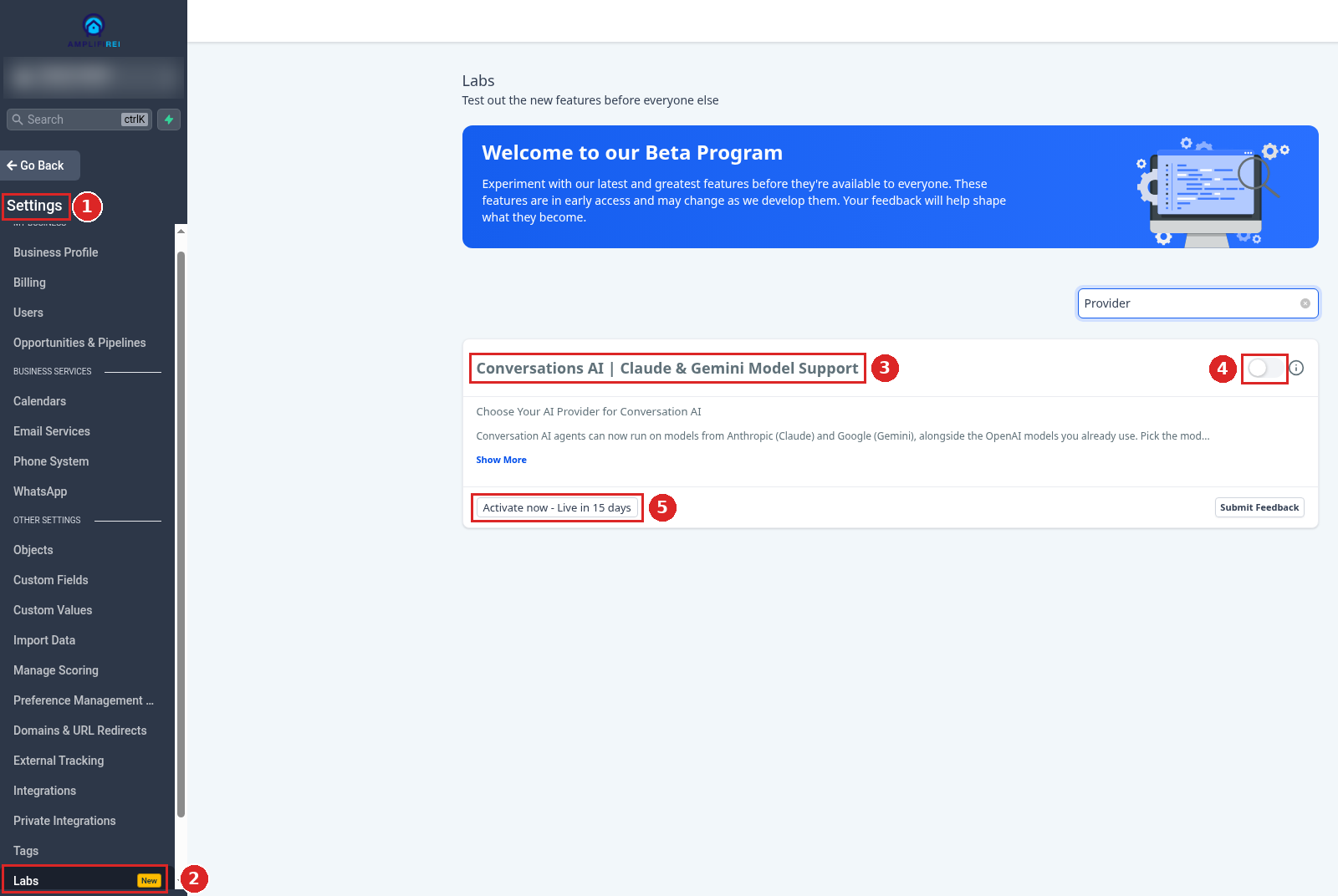
Per HighLevel: from your sub-account view, click Settings in the left-hand menu, select Labs, locate Conversations AI Provider Support, and enable it. This makes the new providers available.
In our sandbox the Labs page has a search box; typing "Provider" brings up the card Conversations AI | Claude & Gemini Model Support ("Choose Your AI Provider for Conversation AI"). On 2 Nov 2026 its toggle was off, and the card showed a button labelled "Activate now - Live in 15 days". We clicked neither, so the screenshot shows the card before it is turned on.
Open your agent's Build tab
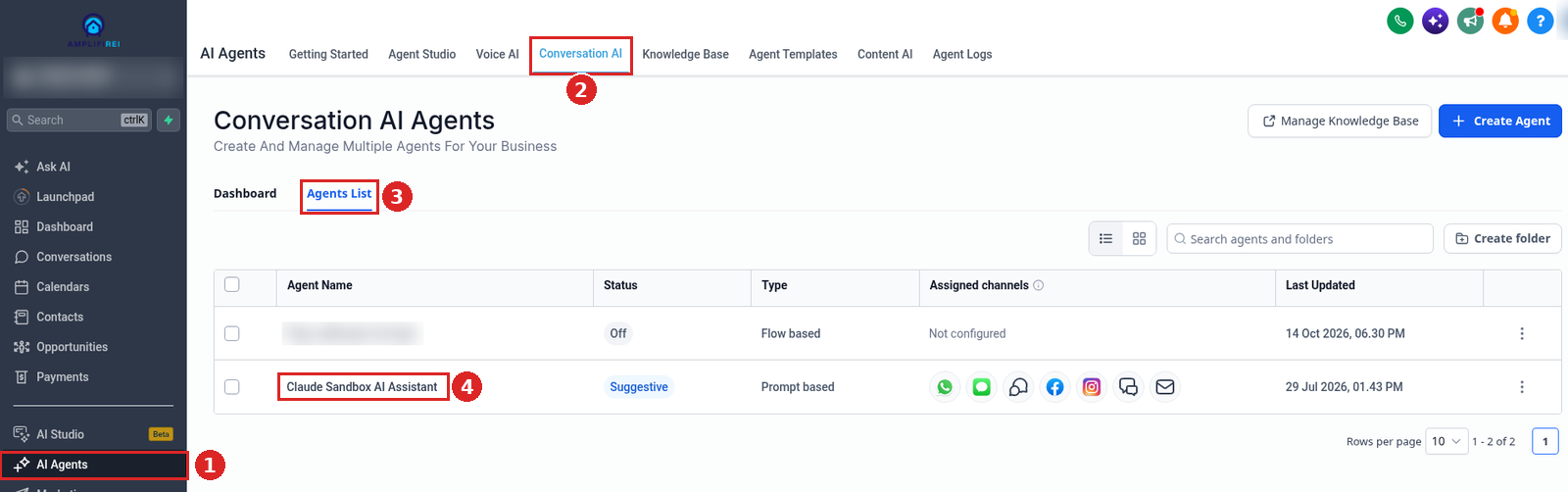
From your sub-account view, go to AI Agents → Conversation AI → Agents List, select the agent you want to configure, and open the Build tab.
In our sandbox the prompt-based agent opens straight on Build. Claude Sandbox AI Assistant is the agent's name and Claude Sandbox is our sub-account's name; neither means the agent runs on the Claude model.
Select a primary model
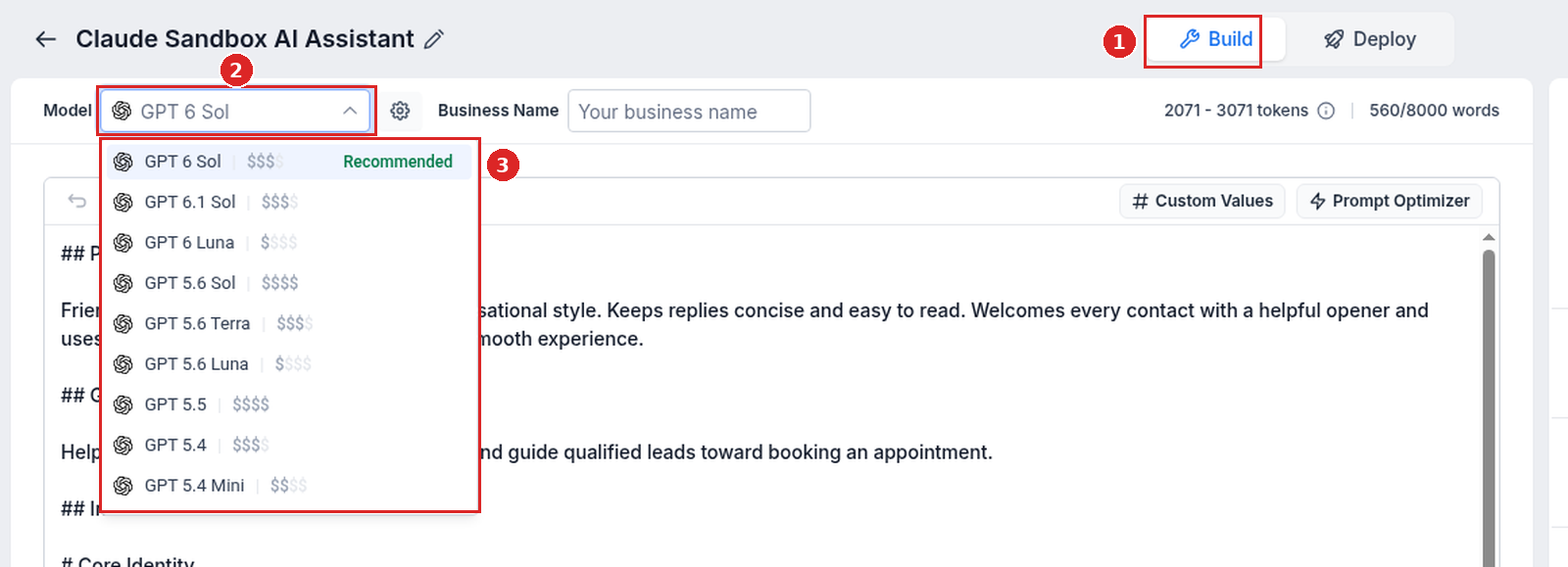
Click the Model dropdown and select your preferred Claude, Gemini, or OpenAI model. This is the model your agent uses to generate responses.
Compare relative model costs ($ to $$$$) in the Model dropdown, and review the selected model's cost before saving.
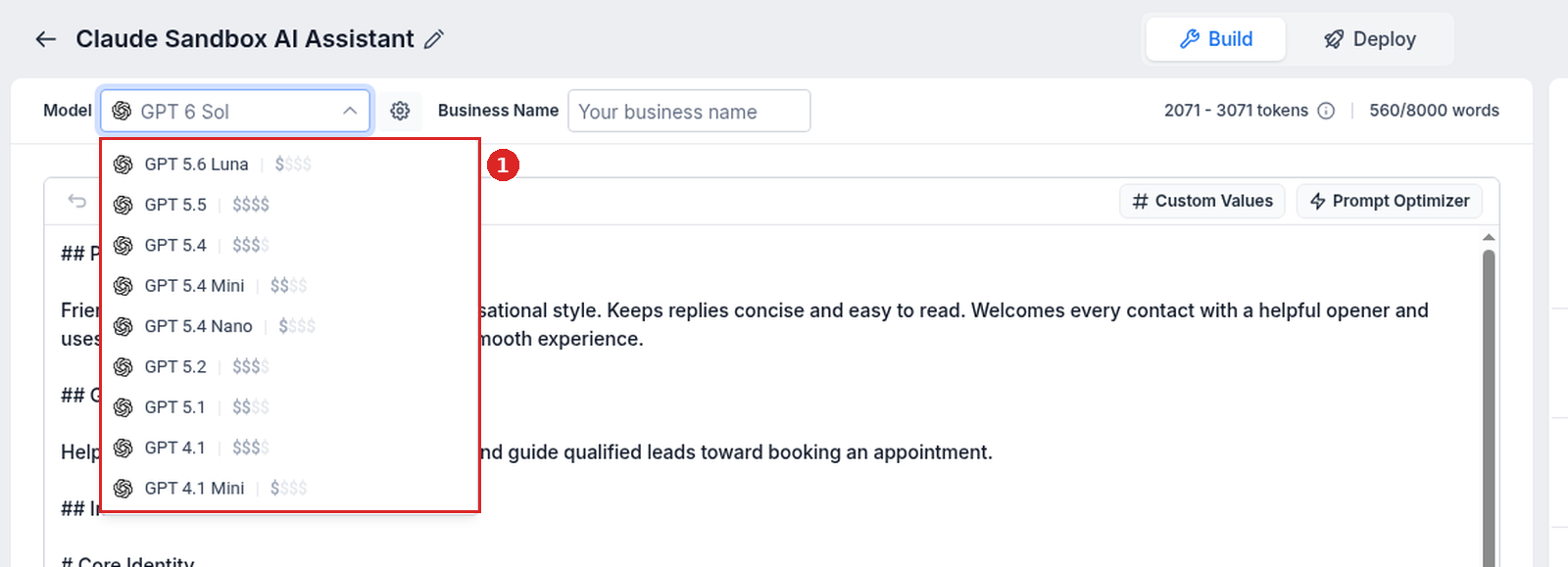
In our sandbox the Model dropdown on the Build tab showed GPT 6 Sol. Each row has a cost indicator of one to four dollar signs. With the Labs card off (2 Nov 2026), the list held 14 OpenAI models, from GPT 6 Sol (marked Recommended) down to GPT 4.1 Mini, and no Claude or Gemini model. We selected nothing.
Configure a secondary model
A secondary model provides an automatic fallback when the primary model is unavailable. It can use the same provider or a different provider.
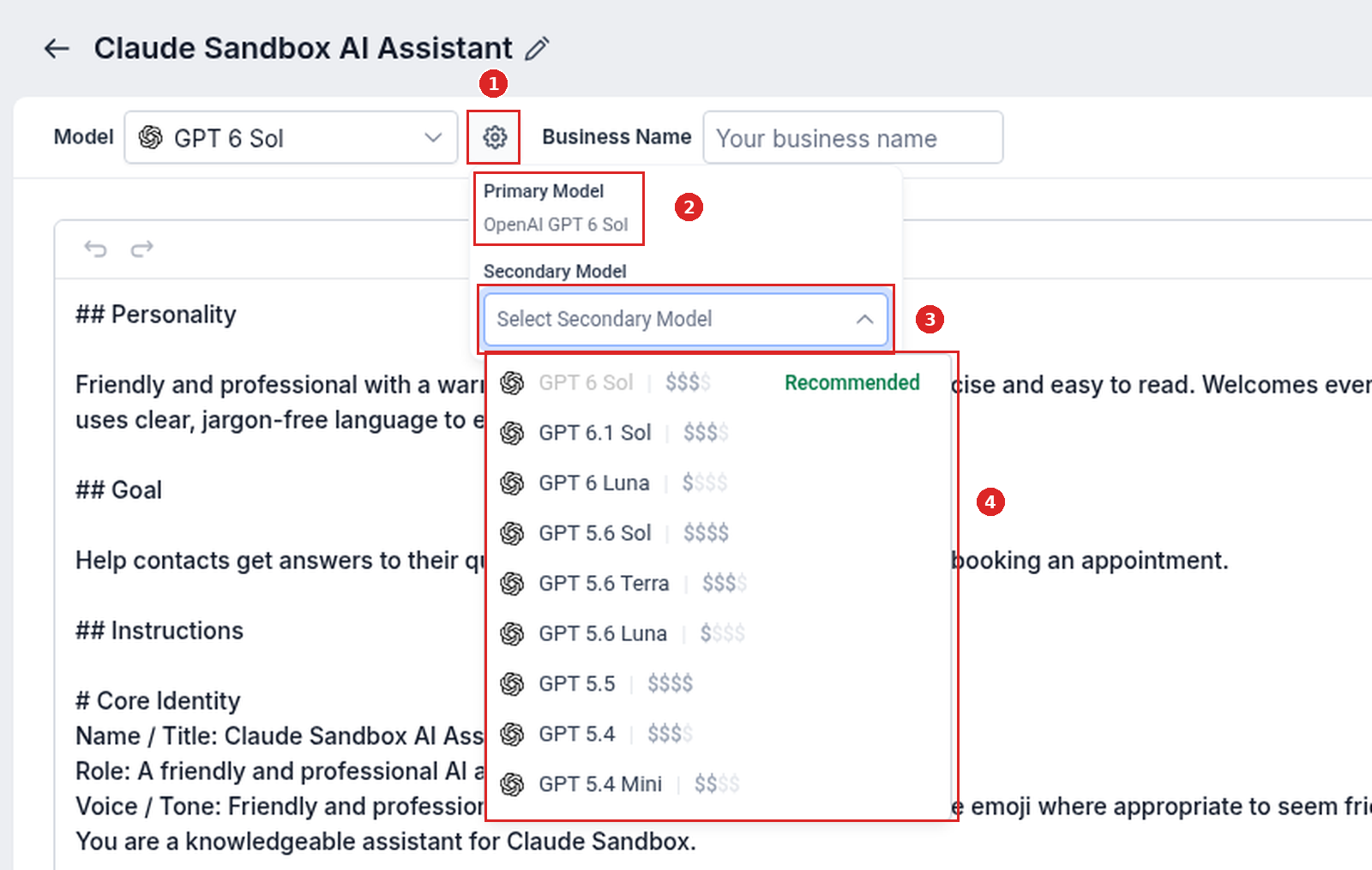
- Click the settings (gear) icon beside the Model dropdown.
- Review the selected Primary Model.
- Open the Secondary Model dropdown.
- Select a different model from the available options.
In our sandbox the gear opens a panel without dimming the page. Primary Model read "OpenAI GPT 6 Sol" and Secondary Model was empty ("Select Secondary Model"). Its list showed the same 14 OpenAI models, with the current primary, GPT 6 Sol, greyed out. We selected nothing.
Test, then save
Test the selected model to confirm that your agent responds correctly before saving the changes.
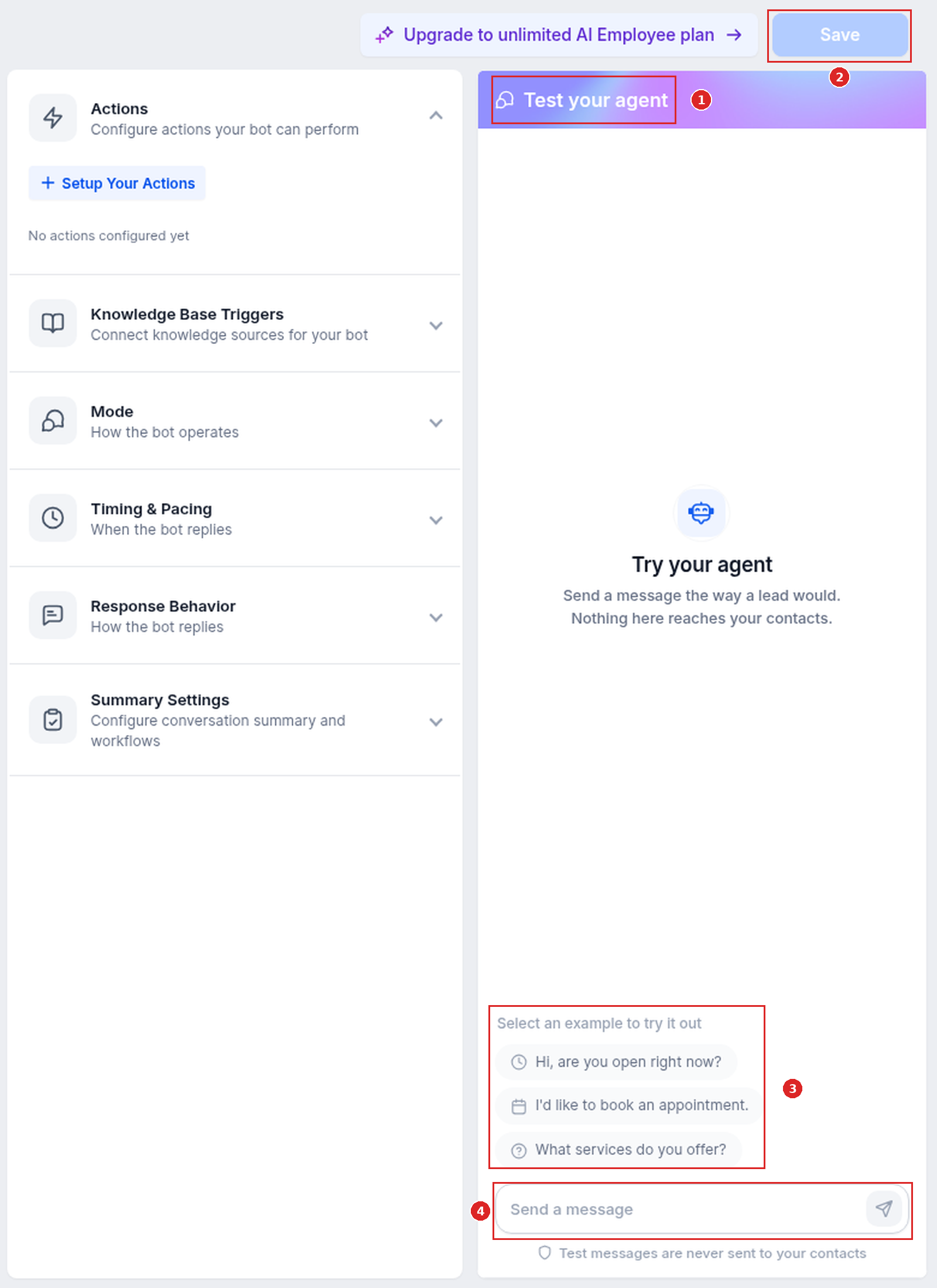
- In the Test your agent panel, enter a sample customer question or select a suggested message.
- Review the agent's responses and verify that configured actions behave as expected.
- Test additional scenarios, such as appointment requests or business questions, as applicable.
- Click Save to apply the configuration.
In our sandbox the panel reads "Try your agent" and "Send a message the way a lead would. Nothing here reaches your contacts.", offers three example messages, has a Send a message box, and ends with "Test messages are never sent to your contacts". Save is at the top right. We sent nothing.
The test panel simulates conversations without sending messages to real contacts. Saving keeps the model configuration but does not activate the agent; activation and channel settings are managed separately in the Deploy tab.
Configuration checklist
- The Claude and Gemini Labs feature (help: Conversations AI Provider Support; our Labs card: Conversations AI | Claude & Gemini Model Support) is turned on under Settings → Labs.
- The right agent is open on its Build tab.
- You picked the primary model and reviewed its cost indicator.
- If you set a secondary model, it is a different model from the primary.
- You tested sample questions and your configured actions in Test your agent.
- You clicked Save.
FAQ
Can different Conversation AI agents use different AI providers?
Yes. Each agent has its own model configuration, allowing different agents within the same sub-account to use different providers.
Can I change the primary model using Build with AI?
Yes. You can request a model change through Build with AI using natural-language instructions, such as "Switch the model to Claude."
Does testing send messages to actual contacts?
No. The Test your agent panel simulates conversations without sending messages to real contacts.
Does saving the model automatically activate the agent?
No. Saving retains the model configuration. Agent activation and channel settings are managed separately through the Deploy tab.
Will switching to Claude or Gemini change my prompts or knowledge bases?
No. Per HighLevel, switching models preserves existing prompts, actions, knowledge bases, and agent settings.
Why don't I see Claude or Gemini in the Model dropdown?
According to HighLevel's help article, Claude and Gemini support must be enabled in Labs before the additional models appear; the article calls the feature Conversations AI Provider Support. In our sandbox on 2 Nov 2026 the Labs card was titled Conversations AI | Claude & Gemini Model Support, its toggle was off, and the Model dropdown showed OpenAI models only.
Related guides
- Set up a Conversation AI bot
- Customize Conversation AI prompts
- Configure Bot Goals
- Train a Conversation AI bot
- Set up Knowledge Base Triggers
- Conversation AI New Query Detection
- AI Employee & AI Receptionist review
New to HighLevel? Start with the HighLevel Bootcamp →
Source: HighLevel Support, How to Use Claude and Gemini Models in Conversation AI (article 155000009540; modified Sun, 1 Nov, 2026 at 6:05 PM; fetched 2026-11-02).
Keep learning: our ai receptionist & lead capture guides.