Knowledge Base Triggers control when a GoHighLevel Conversation AI agent uses specific Knowledge Base content during a conversation. To add one, go to AI Agents → Conversation AI, open your agent, and in the Build view click Add Knowledge Base Trigger under Knowledge Base Triggers; then select the relevant knowledge bases (up to 7), optionally add Instructions for when to use them, save, and test in the Test your agent panel.
- Each agent has 1 Always-On trigger for general knowledge and up to 3 Smart Triggers that activate when their conditions are met.
- If no Smart Trigger condition is met, the Always-On trigger keeps powering responses.
- Limits: up to 4 triggers in total and up to 7 Knowledge Bases per trigger.
- Put broad content on the Always-On trigger and specific content on Smart Triggers.
- Smart Triggers are optional. Without them, the AI keeps working as usual.
What Knowledge Base Triggers do
Knowledge Base Triggers let you control when Conversation AI uses specific Knowledge Base content. Instead of relying only on the AI's judgment, you define trigger conditions that activate at key moments, so the most relevant content is used when it's needed.
Each Conversation AI agent includes 1 Always-On trigger for general knowledge and up to 3 Smart Triggers that activate based on conditions. Your defined logic handles the critical moments, while the AI continues to respond naturally across the conversation.
| Trigger | When it is used | What to attach |
|---|---|---|
| Always-On (1 per agent) | Foundational information that should be available in every conversation; this is the agent's baseline knowledge. It powers responses when no Smart Trigger conditions are met. | Foundational information, such as brand messaging and positioning, general offers and pricing ranges, business hours and contact details, and common FAQs and policies |
| Smart Trigger (up to 3 per agent) | Activates when its specific condition is met in a conversation | Targeted content for that moment |
Example Smart Triggers
| Use case | Condition | Action |
|---|---|---|
| Real estate | After budget, location, and preferences are shared | Show relevant property listings |
| High-ticket sales | When objections or hesitation are expressed | Share relevant case studies |
Limits and how to structure your Knowledge Bases
- Up to 4 triggers in total: 1 Always-On and 3 Smart Triggers.
- Up to 7 Knowledge Bases per trigger.
Create separate Knowledge Bases for general FAQs, product or service information, case studies and testimonials, policies and compliance, and onboarding or implementation guides. Then attach broad content to the Always-On trigger and specific content to Smart Triggers. HighLevel says this improves accuracy and makes maintenance easier.
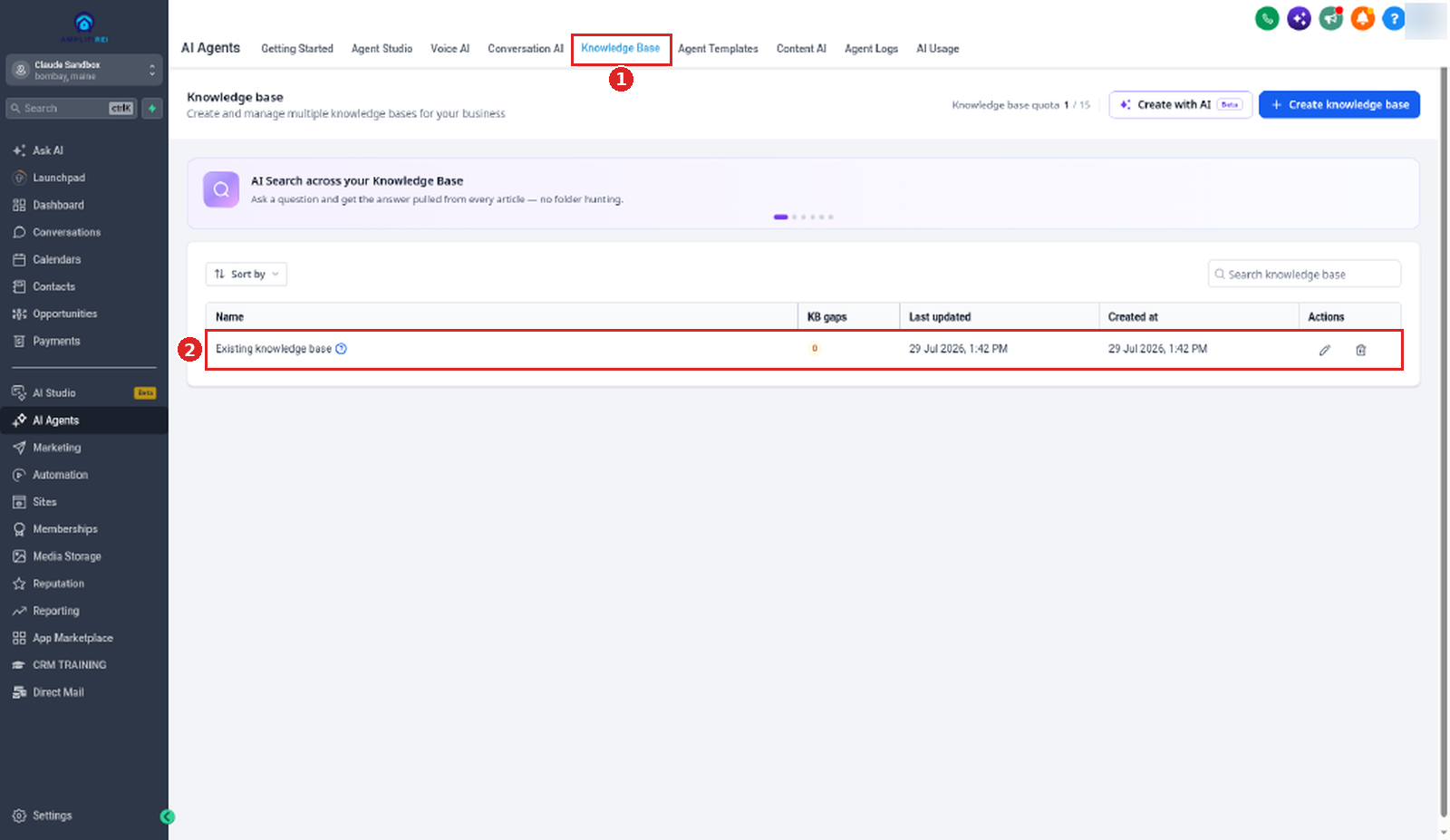
Step-by-step: set up Smart Knowledge Base Triggers
Open the agent's Knowledge Base Triggers
- Go to AI Agents → Conversation AI.
- In Agents List, click your agent's name.
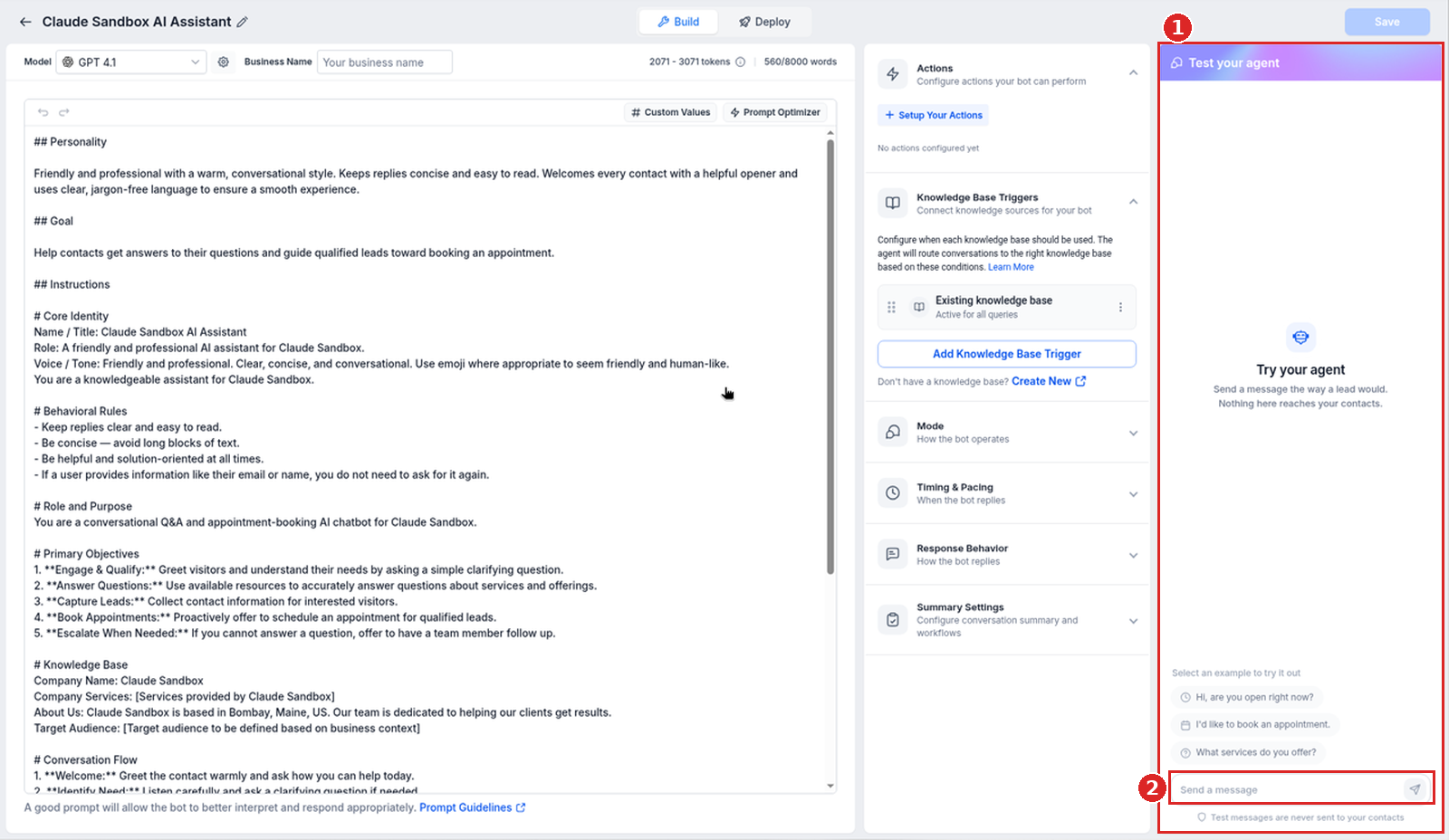
- The help article says to open the Bot Training tab. Our sandbox has no Bot Training tab: the agent opens in the Build view, and the triggers are in the Knowledge Base Triggers section on the right ("Connect knowledge sources for your bot").
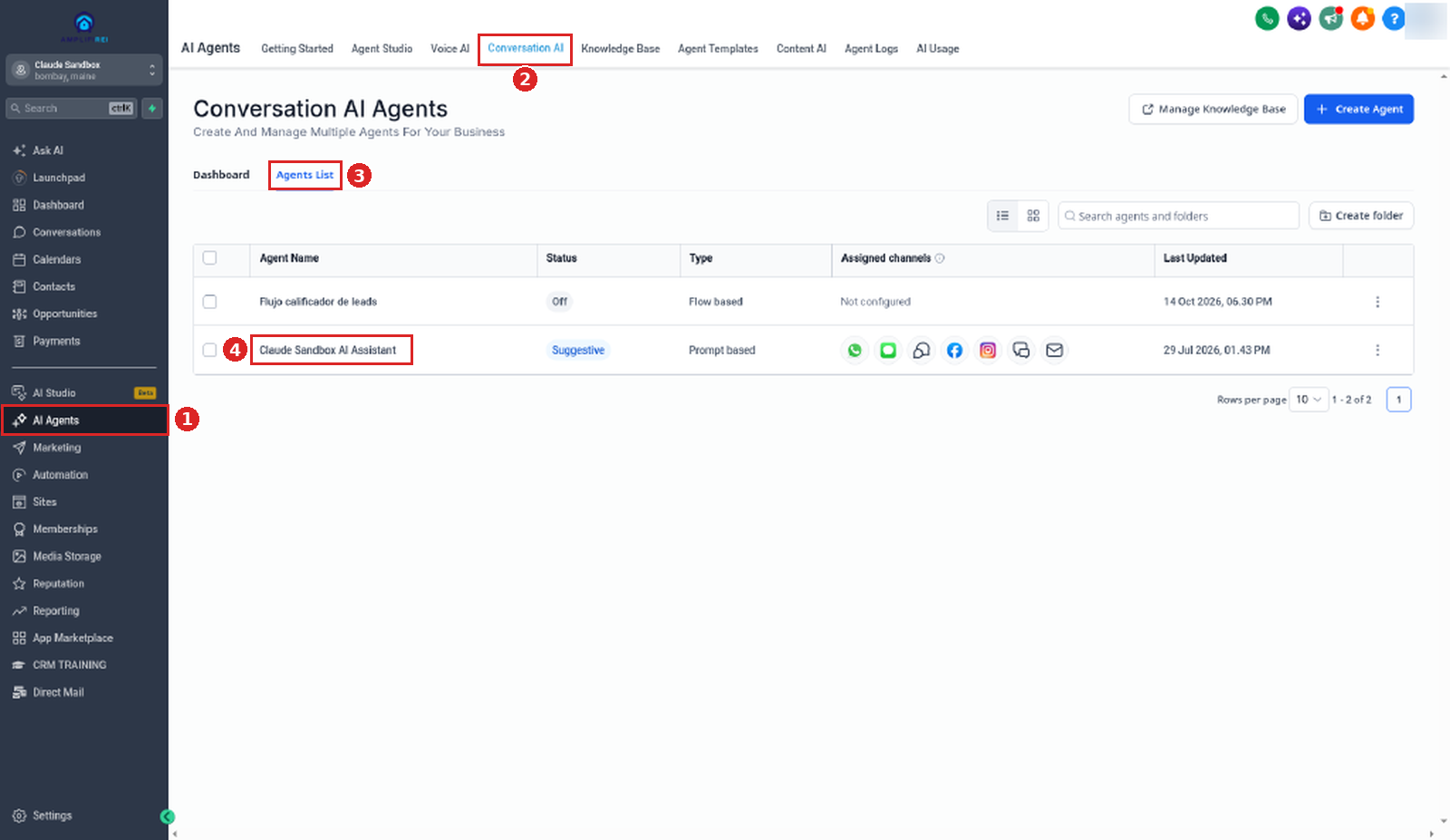
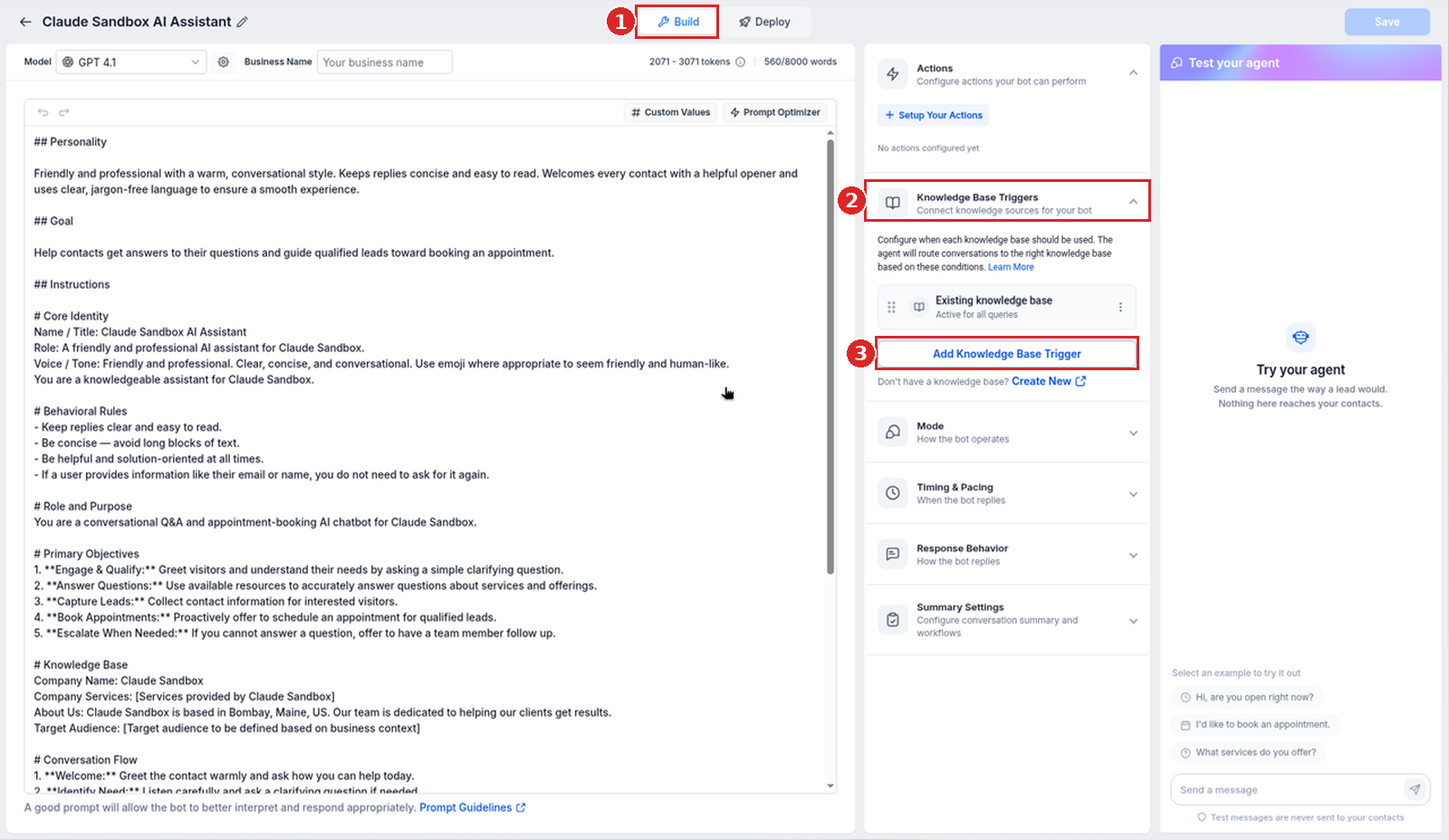
Check the Always-On trigger
The help article recommends this Always-On setup (our screenshots do not show which on-screen row is the Always-On trigger):
- Make sure your general Knowledge Bases are attached.
- Remove highly specific content.
- Save changes.
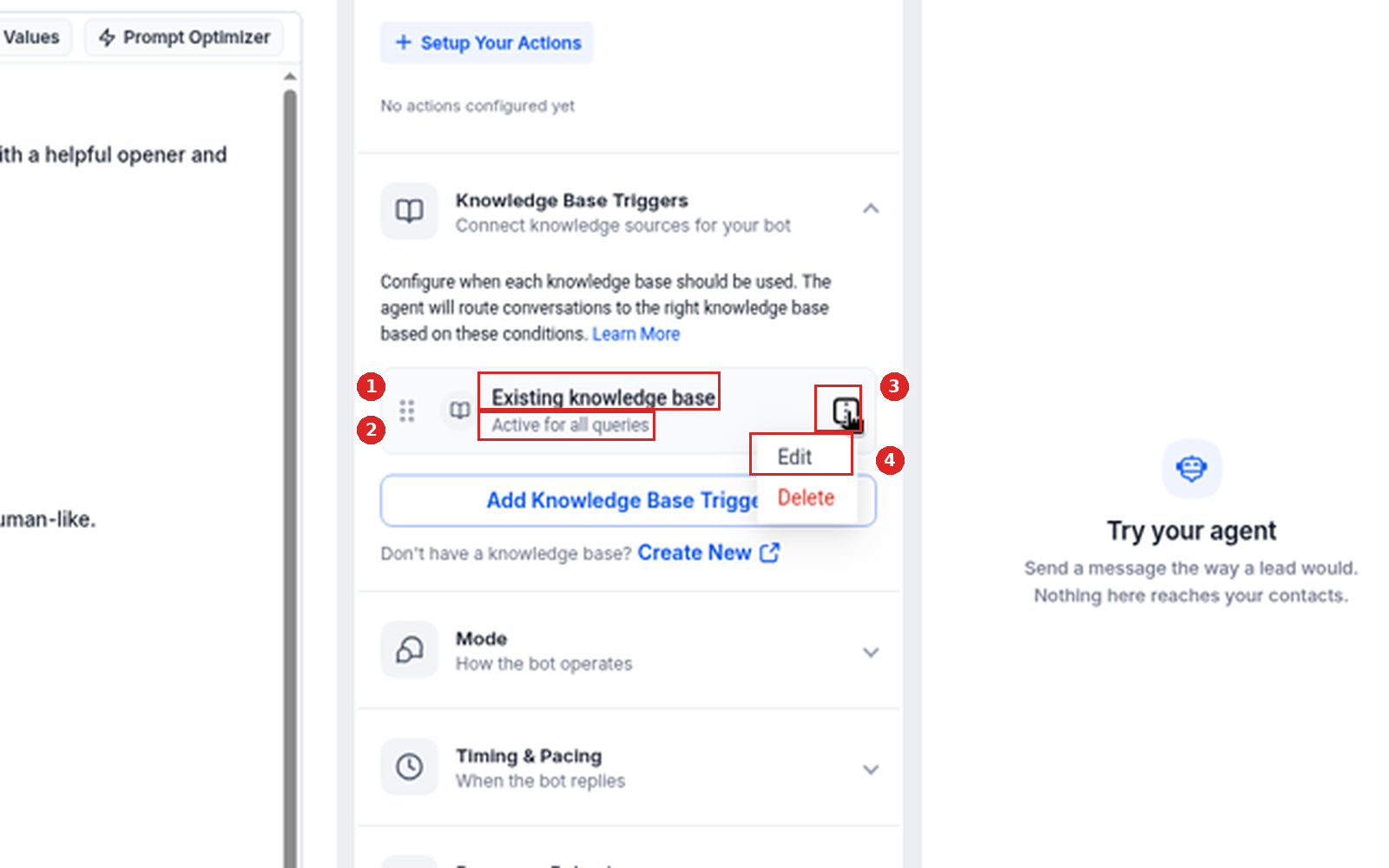
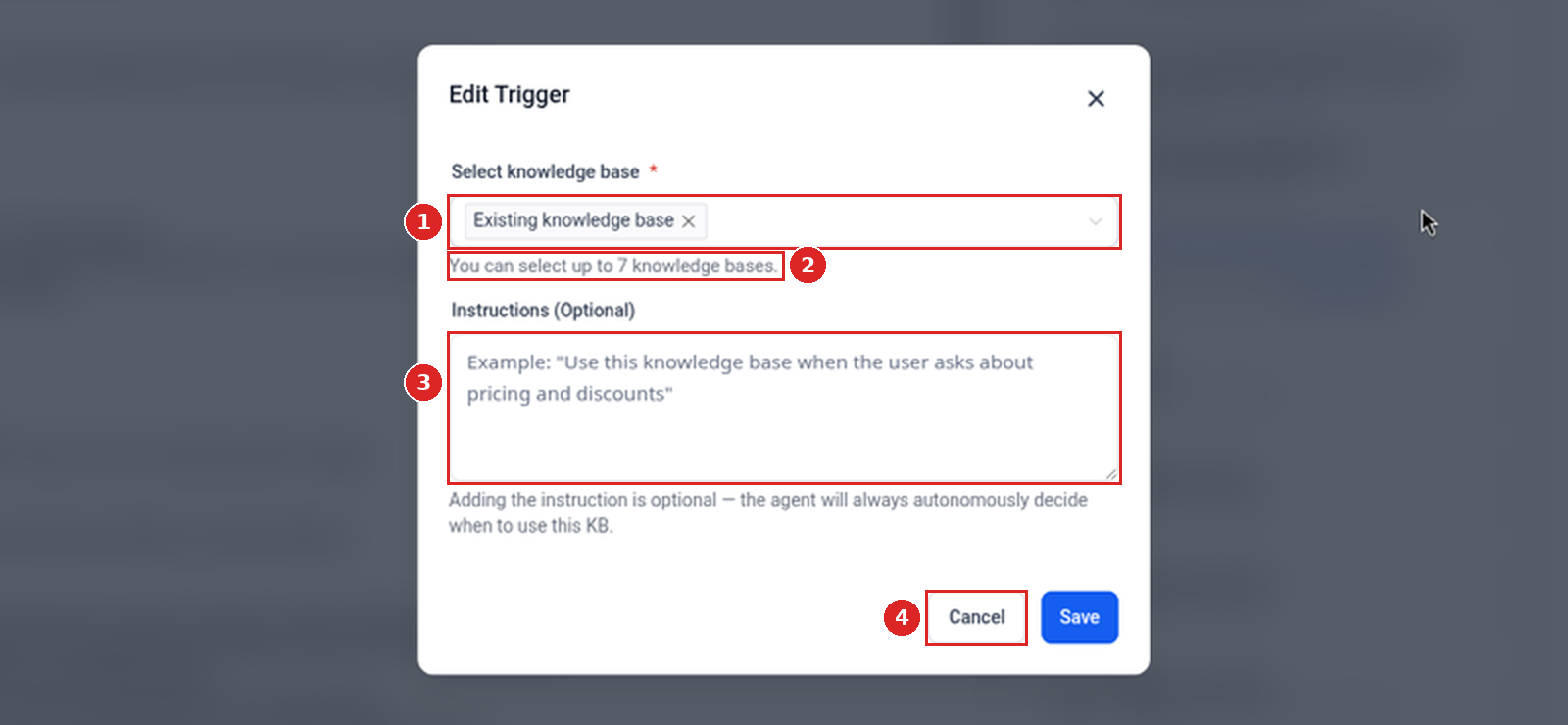
In our sandbox the screen does not use the words "Always-On" or "Smart Trigger". The agent's existing trigger row shows its knowledge base name, Existing knowledge base, with Active for all queries under it. To change which knowledge bases a trigger uses, open the row's ⋮ menu and click Edit; the Edit Trigger pop-up shows the selected knowledge bases under Select knowledge base.
Create a Smart Trigger
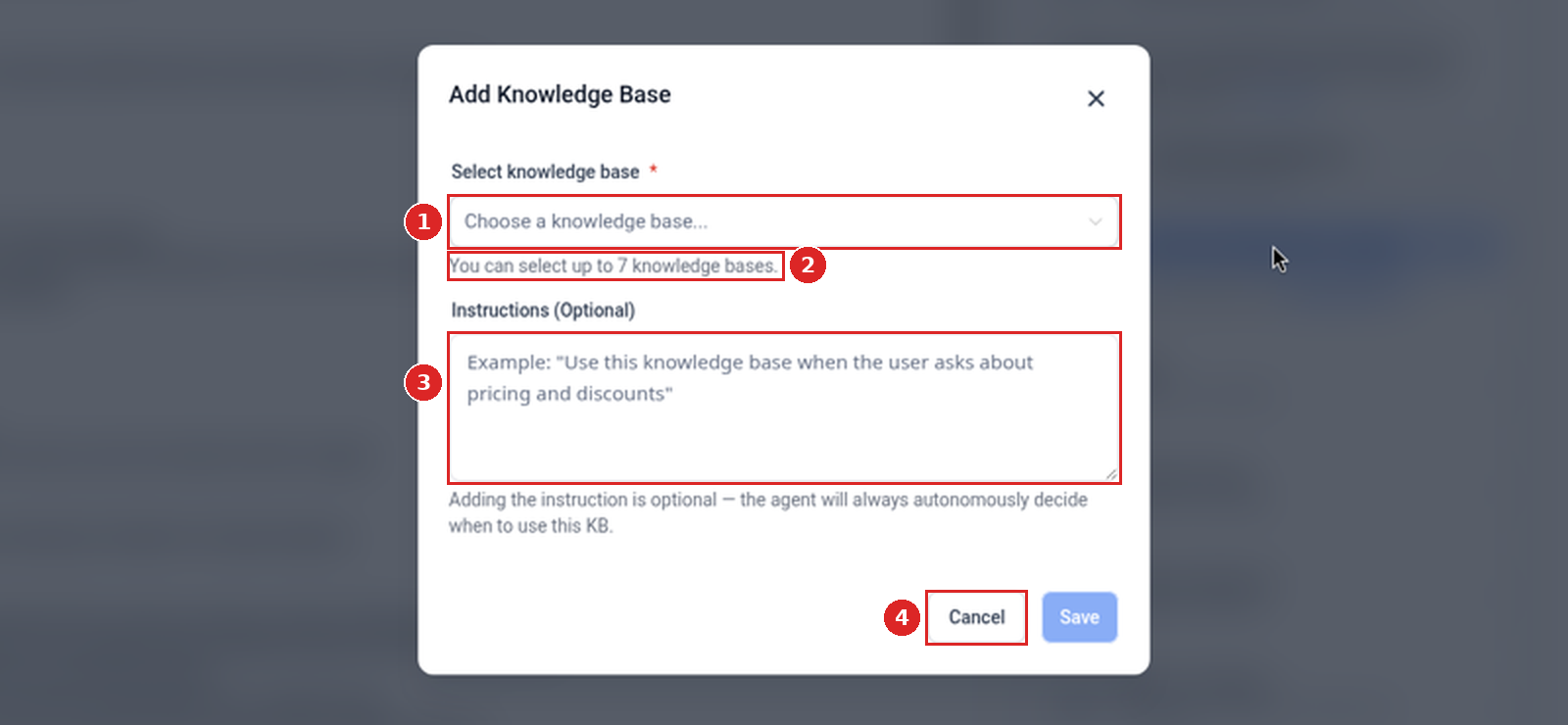
- Click Add Knowledge Base Trigger (the help article says Add Trigger). In our sandbox this opens a pop-up titled Add Knowledge Base.
- The help article says to name the trigger clearly. The pop-up in our sandbox has no trigger-name field.
- The help article says to write the condition in plain English. The pop-up's only text field is Instructions (Optional), with the example "Use this knowledge base when the user asks about pricing and discounts". Its helper text says adding the instruction is optional and the agent will always autonomously decide when to use this KB.
- Use clear, natural language.
- Focus on specific moments, such as qualification complete or objection raised.
- Avoid overlapping conditions.
- Attach only relevant Knowledge Bases to each trigger.
Attach Knowledge Bases
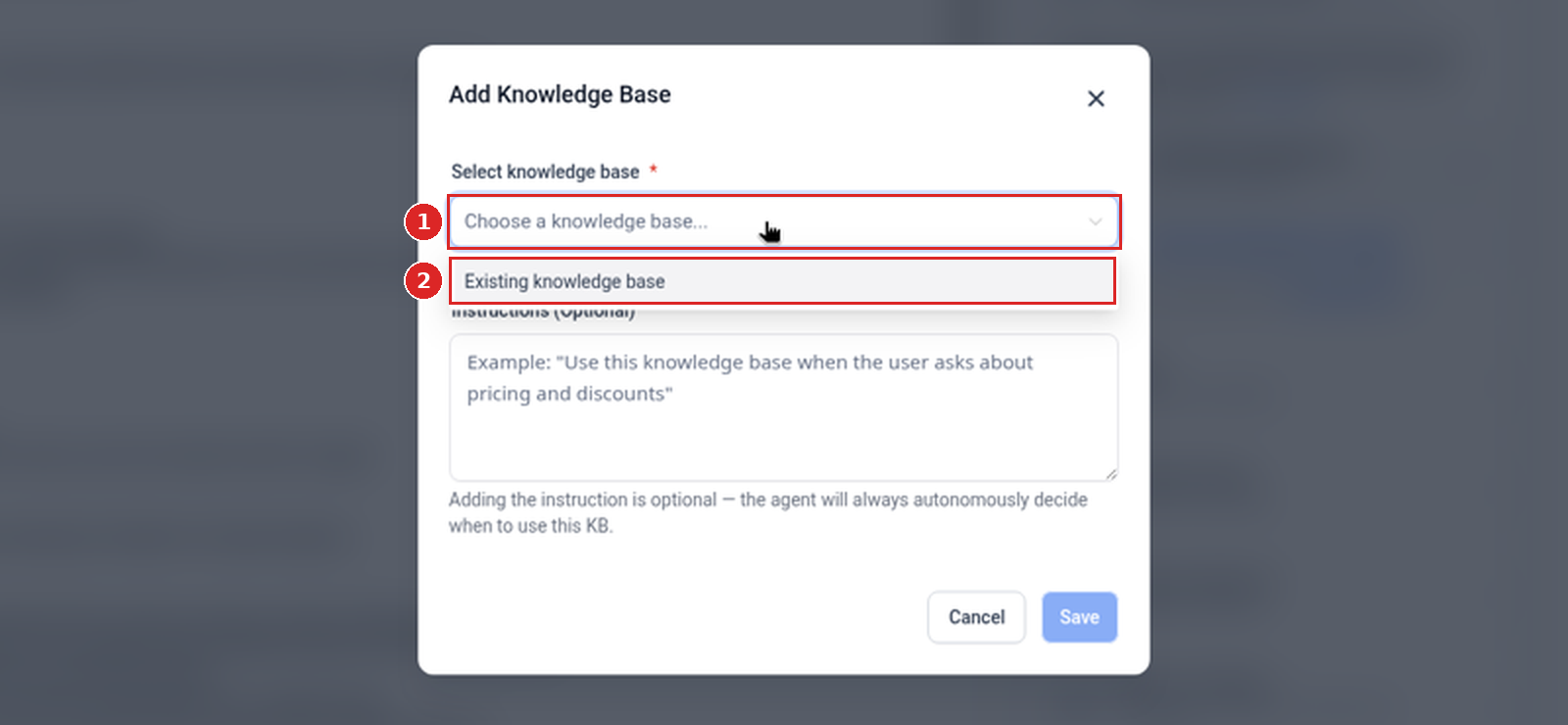
- Open Select knowledge base and select the relevant Knowledge Bases (up to 7).
- Keep them focused on the trigger's purpose.
- Save.
Test in the Test your agent panel
- Type in Send a message in the Test your agent panel on the right of the Build view (the help article calls this step Preview). The panel says test messages are never sent to your contacts.
- The help article says to simulate real conversations, check that triggers fire at the right time, verify which Knowledge Base is used, and adjust conditions as needed.
We did not send a test message in our sandbox, so this guide does not show a trigger firing or which knowledge base was used.
Add more Smart Triggers
Create up to 3 Smart Triggers. Cover different stages, such as qualification, objections, pricing, and booking.
This is built into GoHighLevel. Try it free for 30 days →
Best practices for structuring triggers
- Design triggers around distinct conversation stages.
- Keep each trigger focused on a single purpose.
- Avoid adding too many Knowledge Bases to one trigger.
- Test and refine regularly.
- Use clear naming conventions for triggers (help article; the Add Knowledge Base pop-up in our sandbox has no trigger-name field).
Launch checklist
- Per the help article, the Always-On trigger has your general Knowledge Bases attached and no highly specific content.
- The help article recommends a clear trigger name and a plain-English condition focused on one specific moment. In our sandbox there is no name field; the only text field is Instructions (Optional), and its helper says the agent will always autonomously decide when to use the KB.
- No two conditions overlap.
- Each trigger has only relevant Knowledge Bases attached (up to 7).
- In the Test your agent panel, check that triggers fire at the right time and the right Knowledge Base is used (help article; our screenshots show neither).
FAQ
Do I need to configure Smart Triggers?
No. Without triggers, the AI continues working as usual.
What happens if no trigger fires?
The Always-On trigger handles the response.
How many Knowledge Bases can I use?
Up to 7 per trigger.
Who can configure triggers?
Users with Conversation AI training permissions. See our guide to AI agent permissions.
How do I write effective conditions?
Use clear, natural language focused on a specific moment.
Do Smart Triggers work with Voice AI or workflows?
HighLevel says they are designed specifically for Conversation AI behavior.
Related guides
- Train a Conversation AI bot
- Set up a Conversation AI bot
- Conversation AI knowledge sources and quality upgrades
- Add tables to a Knowledge Base
- Auto Refresh a Knowledge Base
- AI Employee & AI Receptionist review
New to HighLevel? Start with the HighLevel Bootcamp →
Source: HighLevel Support, How to Use Knowledge Base Triggers in Conversation AI (article 155000007791; modified Tue, 16 Jun, 2026 at 2:56 PM; fetched 2026-10-23).
Screenshots: our HighLevel Cloud Sandbox (English UI, captured 2026-10-23). Where the live screen uses a different label from the help article, this guide uses the live label.
Keep learning: more ai receptionist & lead capture tutorials for GoHighLevel.