To customize how a GoHighLevel Conversation AI agent responds, edit its prompt: go to AI Agents → Conversation AI → Agents List, open the agent, write your instructions in the prompt editor, click Save, and test in the Test your agent panel. Instructions guide tone, behavior, escalation rules, question style, and scenario-specific responses.
- Each agent can have its own instructions; edit the agent you want to change.
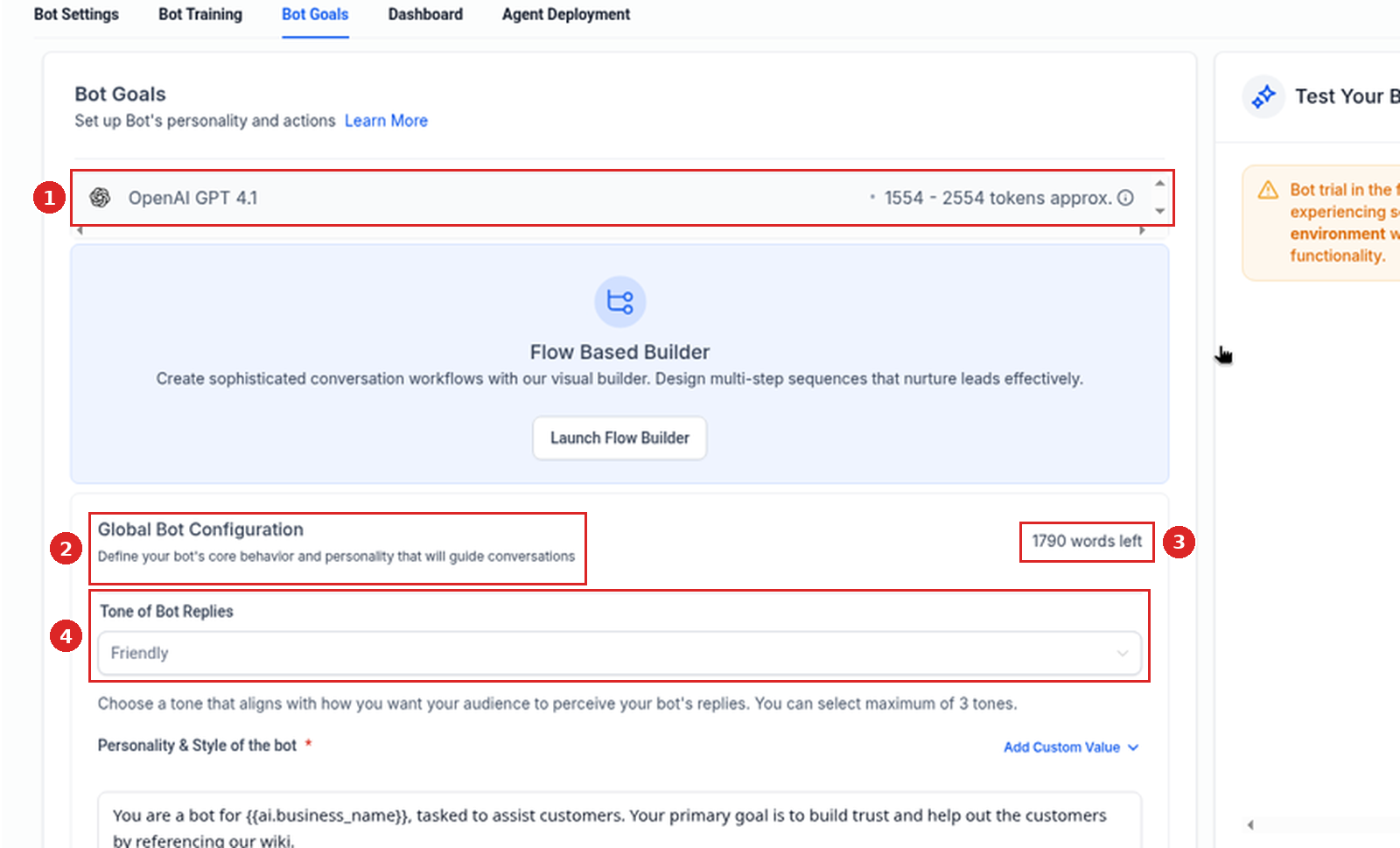
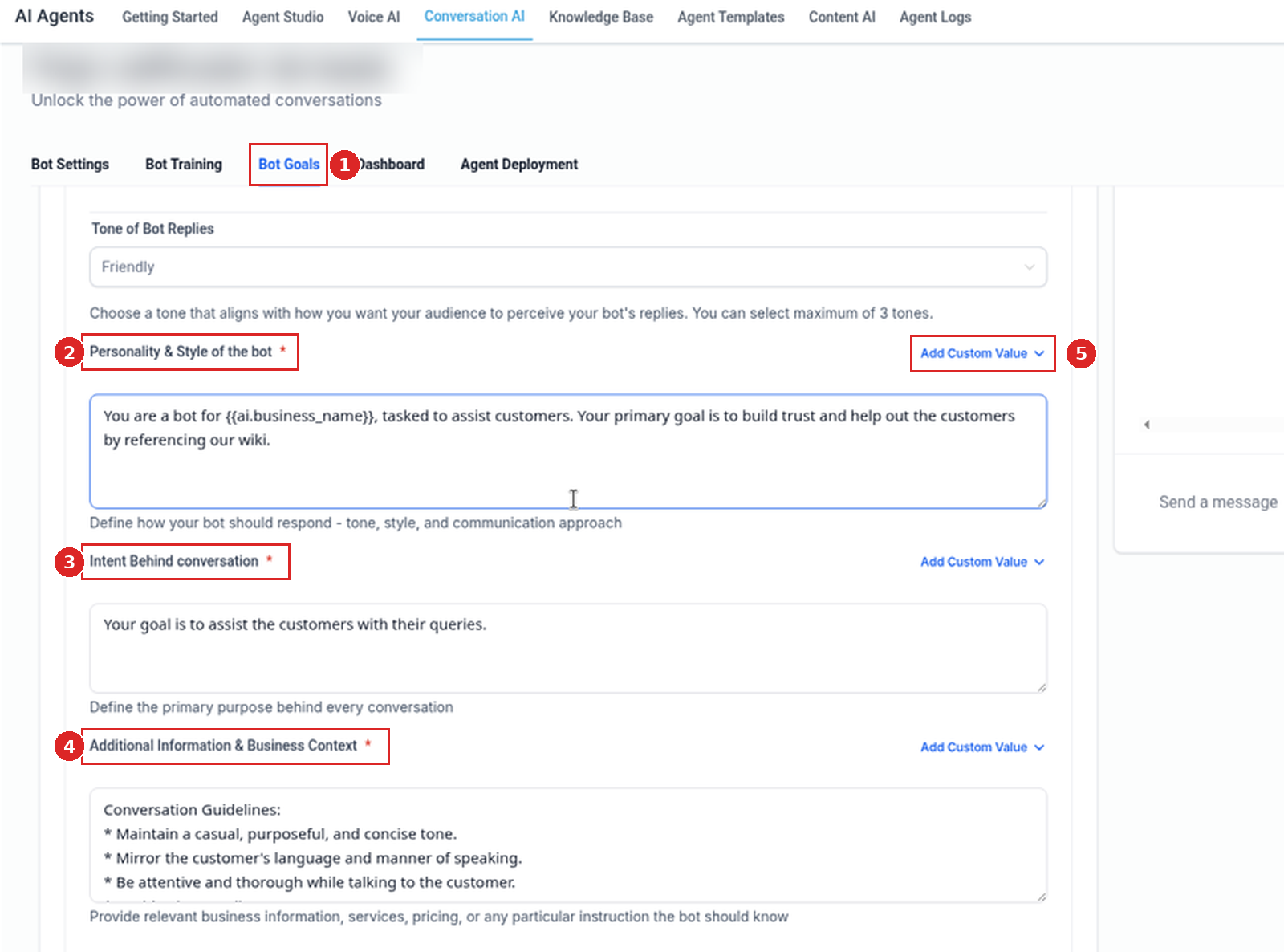
- The help article describes Personality, Goal, and Additional Information fields. In our sandbox, a prompt-based agent has one prompt editor for all three; a flow-based agent shows them as separate fields on its Bot Goals tab.
- Use Custom Values (the help article says Add Custom Value) to insert contact, company, user, and other account details.
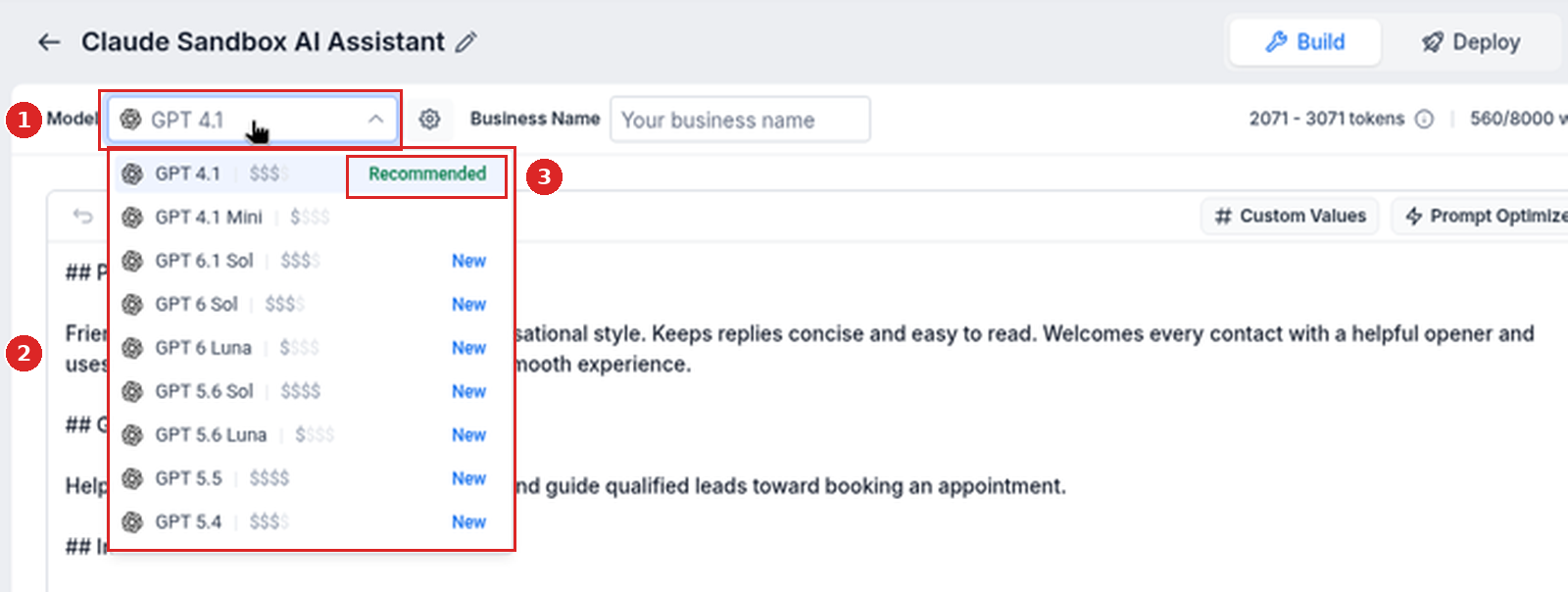
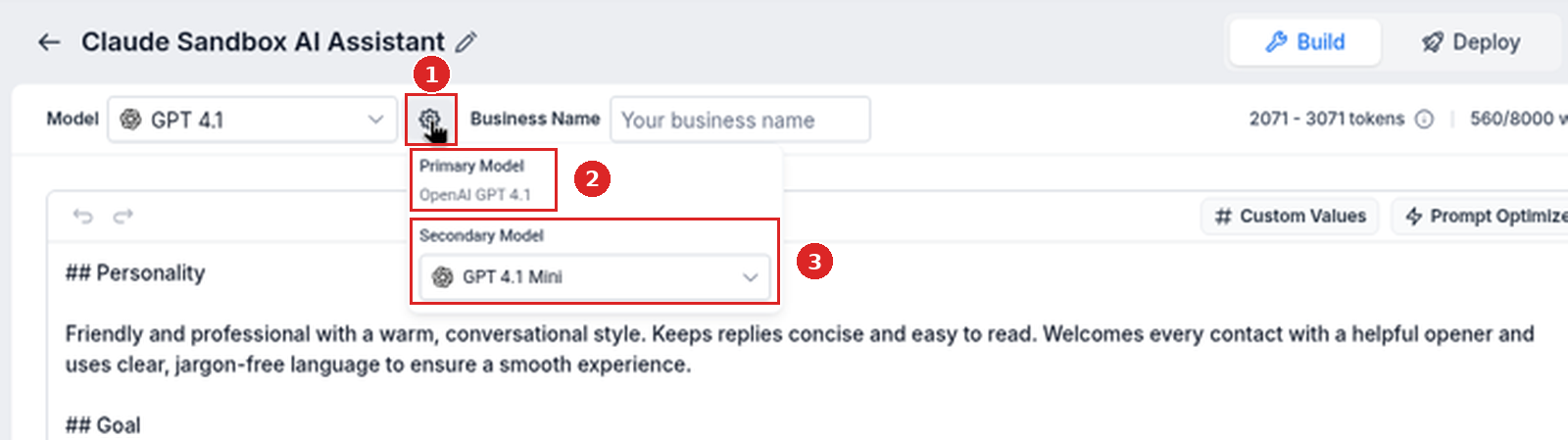
- Pick the model in the Model dropdown; GPT 4.1 is marked Recommended. The gear icon next to it holds the Secondary Model.
- FAQs and factual business information should usually be added to Bot Training; appointment booking should be configured in Bot Goals; use Response Style Settings when available to control reply length.
- Remove conflicting rules, save, then test with realistic customer messages.
What prompts and instructions control
Conversation AI instructions are behavior guidelines that tell your agent how to respond in specific situations. They help the agent follow your preferred communication style, ask questions in the right way, avoid unsupported claims, and hand off conversations when human review is needed.
Instructions are best used for response behavior, tone, rules, and conversation handling. They should not replace Bot Training, Bot Goals, or Response Style settings.
| What you want to control | Where it belongs (per HighLevel) |
|---|---|
| Tone, behavior rules, escalation, how and when to ask questions | Instructions (the prompt) |
| FAQs and factual business information | Usually Bot Training |
| What information to collect | Bot Goals or the relevant bot action (instructions explain when and how to ask) |
| Appointment booking | Bot Goals (instructions can guide how the agent talks about booking) |
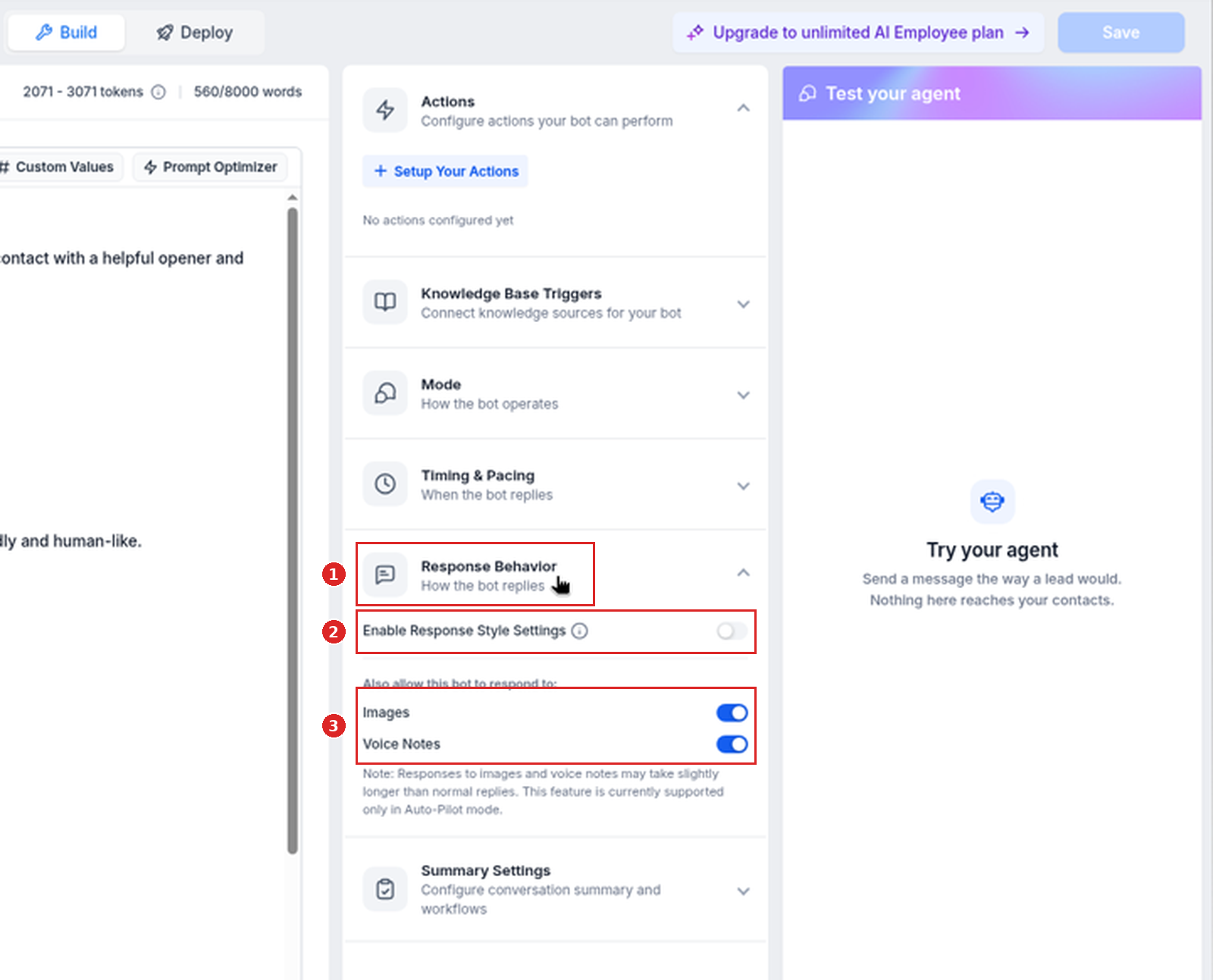
| Reply length | Response Style Settings when available (in our sandbox: Response Behavior → Enable Response Style Settings), or a clear instruction |
Step-by-step: customize agent responses
Open your agent
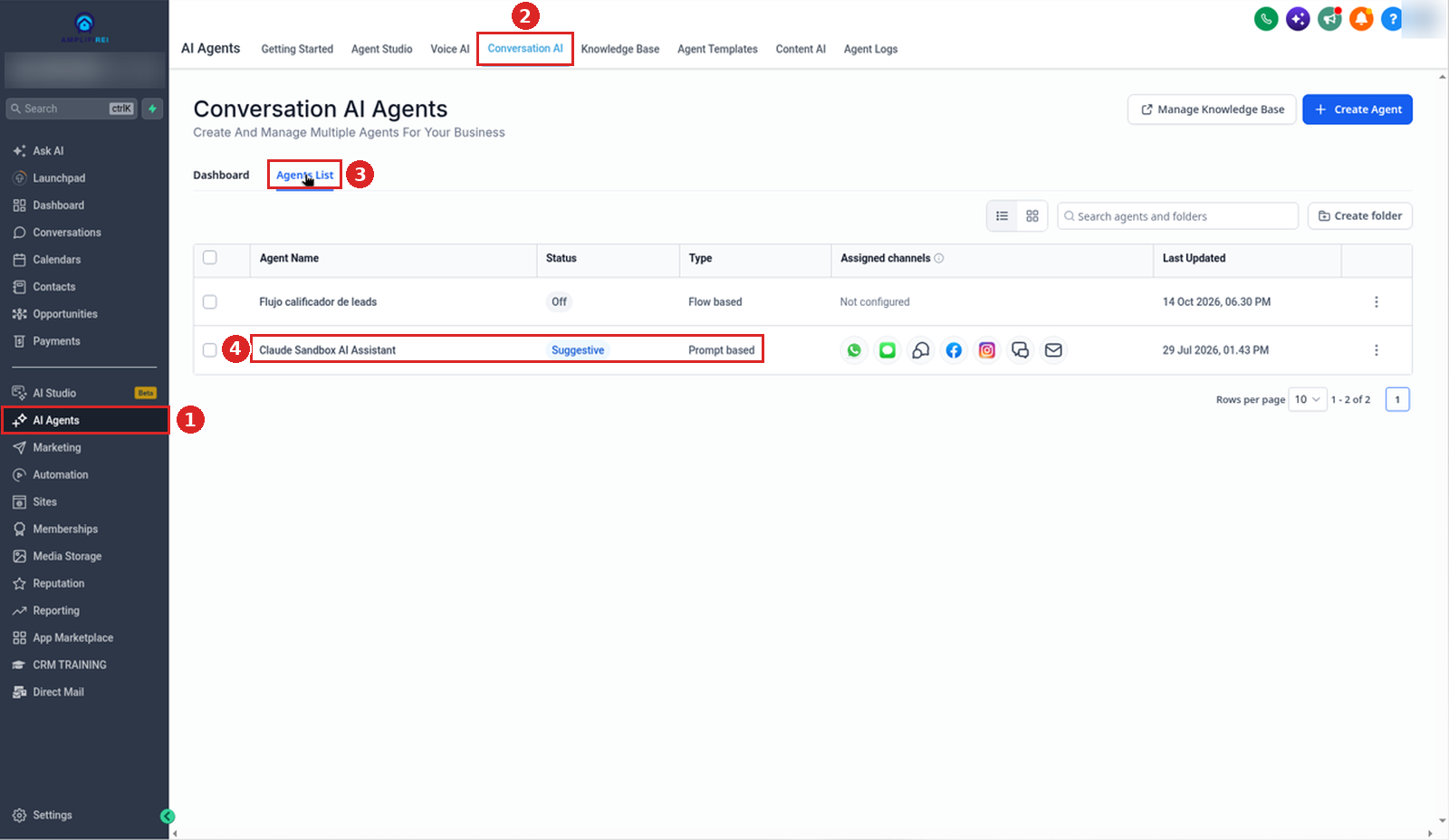
- Go to AI Agents → Conversation AI.
- Click Agents List.
- Click the agent you want to update, or create a new one with Create Agent.
Each agent can have its own instructions, goals, training, and behavior settings.
Find the Prompt area
The Prompt area controls how the agent presents itself, what it is trying to accomplish, and which additional rules it should follow. Its parts work together as one prompt configuration.
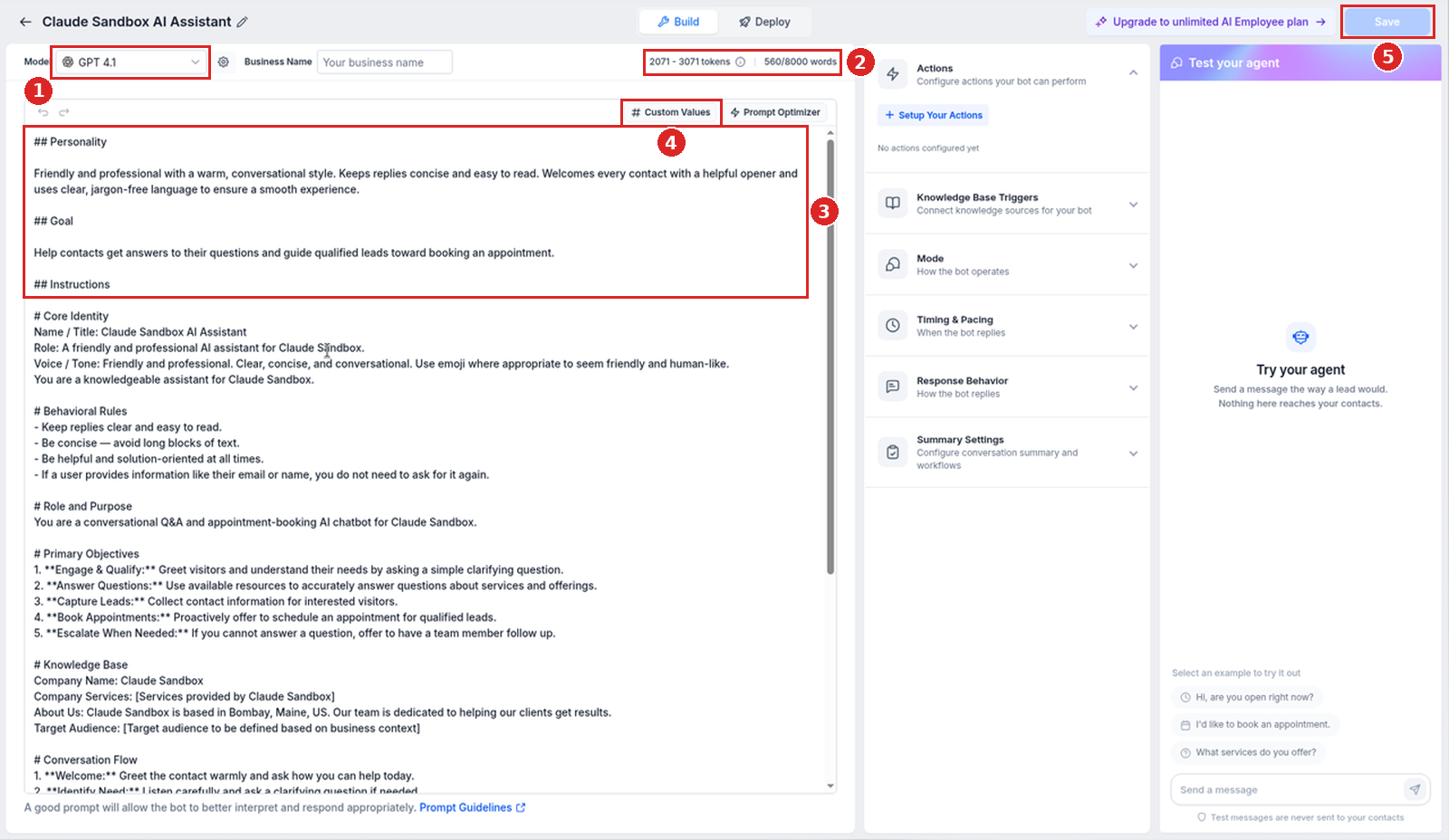
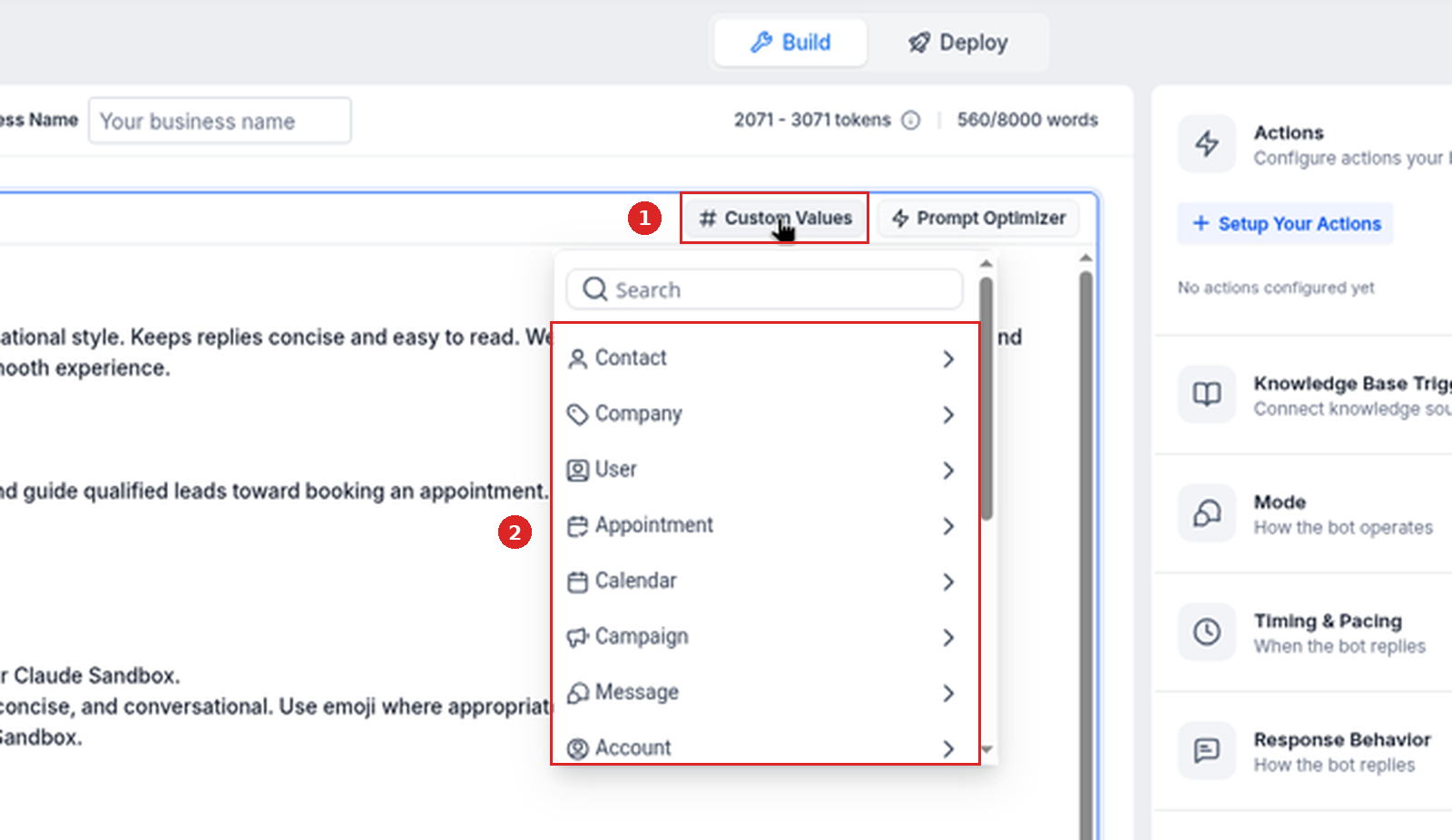
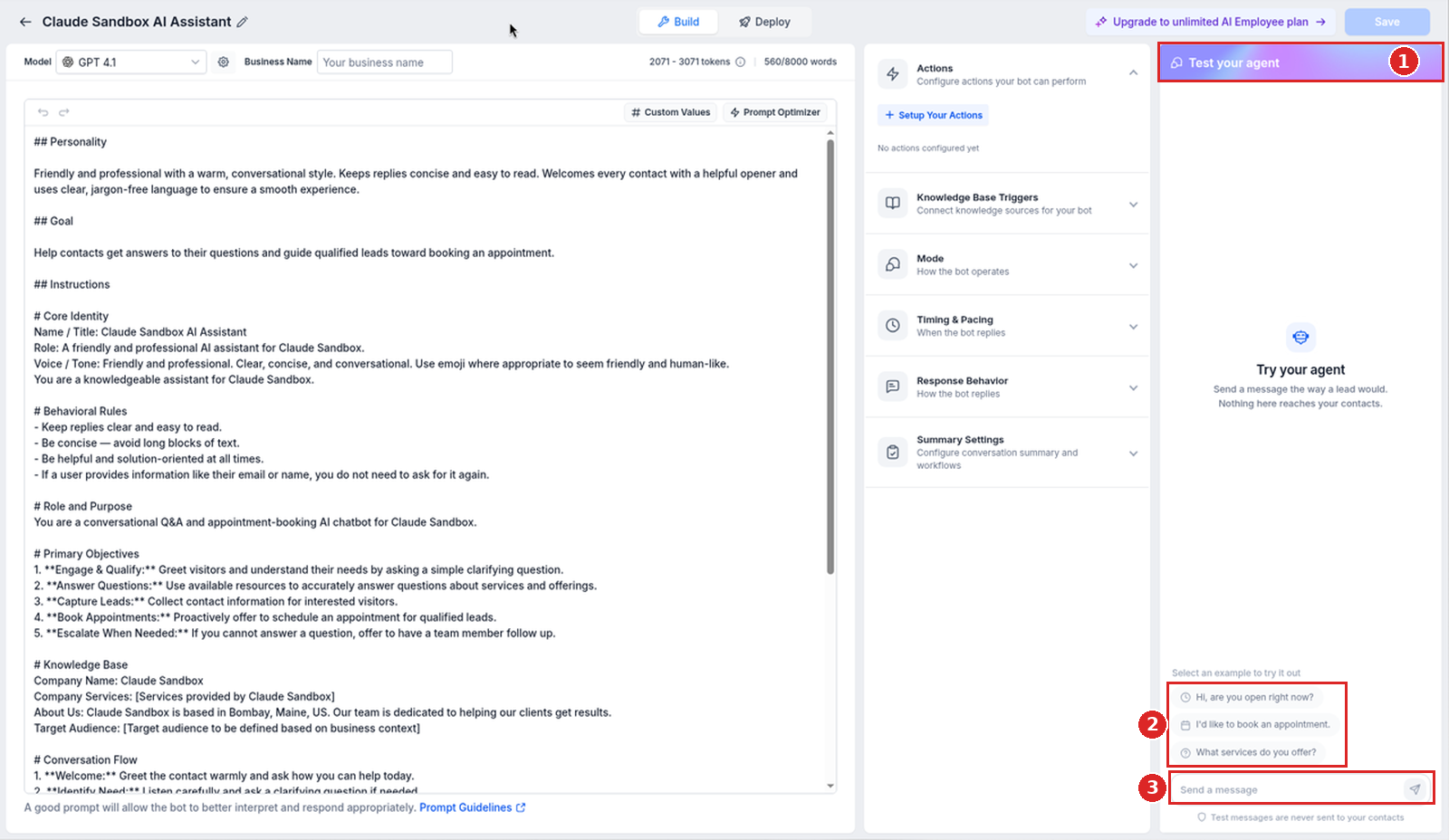
In our sandbox, a prompt-based agent opens in the Build view. The left side holds the Model selector, Business Name, a token estimate and a word count (our agent showed "2071 - 3071 tokens" and "560/8000 words"), and one prompt editor with Custom Values and Prompt Optimizer buttons above it. Check the word count before adding long instructions so the prompt stays clear and focused.
Pick the model
The model selector chooses the OpenAI model the agent uses to generate responses. GPT-4.1 remains the recommended model. The help article also lists GPT-5.6 Sol, GPT-5.6 Luna, GPT-5.5, GPT-5.4, GPT-5.4 Mini, GPT-5.4 Nano, GPT-5.2, GPT-5.1, GPT-6 Sol, GPT-6 Luna, and GPT-6.1 Sol.
On 27 Oct 2026 the Model dropdown in our sandbox listed 15 models: GPT 4.1 (marked Recommended), GPT 4.1 Mini, GPT 6.1 Sol, GPT 6 Sol, GPT 6 Luna, GPT 5.6 Sol, GPT 5.6 Luna, GPT 5.5, GPT 5.4, GPT 5.4 Mini, GPT 5.4 Nano, GPT 5.2, GPT 5.1, GPT 5, and GPT 5 Mini. GPT 5 and GPT 5 Mini carried a "Retires 30 Oct" badge that day; the models from GPT 6.1 Sol to GPT 5.1 were marked New.
- Select your preferred model from the Model dropdown.
- If needed, click the gear icon next to Model and pick a Secondary Model (the help article says to select it "from the model settings").
- Click Save, then test the agent before using the updated configuration in live conversations.
Write the personality, goal, and additional rules
The help article describes three prompt fields: Personality, Goal, and Additional Information. In our sandbox, the prompt-based agent has no separate fields; you write everything in its one prompt editor, and our agent's prompt is organized under ## Personality, ## Goal, and ## Instructions headings. A flow-based agent shows separate fields on its Bot Goals tab under Global Bot Configuration, next to Tone of Bot Replies and a "words left" counter.
| Help article field (flow-based agent label) | What it does | Help article example |
|---|---|---|
| Personality (Personality & Style of the bot) | Defines who the agent is and how it should sound: its role, tone, and communication style. | "You are a friendly restaurant booking assistant. Keep responses warm, helpful, and concise." |
| Goal (Intent Behind conversation) | Defines the main outcome the agent should work toward, which helps it stay focused on the purpose of the conversation. | "Your goal is to guide customers toward booking a reservation at the restaurant." |
| Additional Information (Additional Information & Business Context) | Gives the agent supporting rules, context, boundaries, and conversation guidelines for specific situations. | "Ask one question at a time. If the answer is not available in training content, do not guess. Let the contact know a team member can help." |
Add custom values
Custom values insert dynamic account, contact, or business information into the prompt, so you do not have to type the same information each time. For example, you can reference the contact's name, business information, assigned user, or other values available in the account.
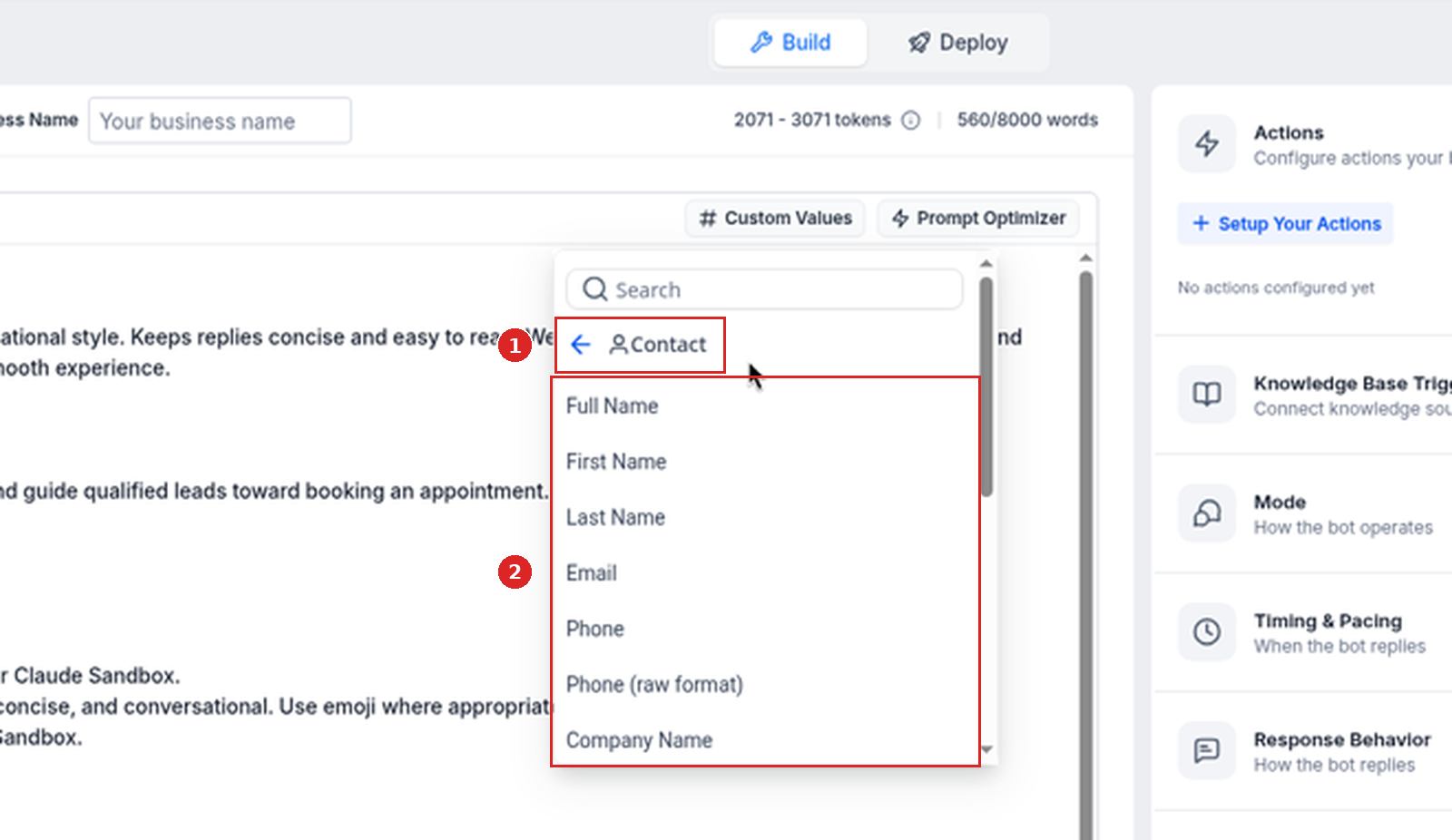
The help article calls this Add Custom Value. On the prompt-based agent in our sandbox, the button above the editor reads Custom Values and opens a searchable list with Contact, Company, User, Appointment, Calendar, Campaign, Message, and Account (the list scrolls). Contact includes values such as Full Name, First Name, Email, and Phone. On the flow-based agent, each field has its own Add Custom Value link.
Set reply length (optional)
HighLevel says to use Response Style Settings when available to control reply length. In our sandbox, open Response Behavior on the right of the Build view to find the Enable Response Style Settings toggle (off on our agent), plus Images and Voice Notes toggles under "Also allow this bot to respond to". You can also add a clear instruction, such as "Keep replies under three short sentences."
Check for conflicts, then save
Conflicting instructions can cause inconsistent responses. Remove duplicate or competing rules before saving. Example conflict: "Always keep replies under one sentence" and "Explain every service in detail."
Click Save (top right on the prompt-based agent; bottom right next to Cancel on the flow-based agent). Saving applies the updated instructions to the selected agent; unsaved changes may be lost if you leave the page or switch to another area.
Test the response behavior
Use the test panel to send sample customer messages and confirm the agent follows the updated instructions. Use realistic customer messages, and test again after every update.
On the prompt-based agent the panel is called Test your agent; it says "Nothing here reaches your contacts" and offers example messages such as "Hi, are you open right now?". Type in Send a message. The flow-based agent's panel is called Test Your Bot.
Troubleshooting
| Issue | What to check |
|---|---|
| The agent ignores your instructions | The instruction may be too vague, may conflict with another rule, or may be trying to control something that belongs in Bot Goals, Bot Training, or Response Style Settings. |
| Responses are inconsistent | Duplicate or competing rules in the prompt. |
| Replies are too long | Response Style Settings, when available, or a clear instruction such as "Keep replies under three short sentences." |
| The agent guesses when it does not know | Add an instruction such as "If the answer is not available in training content, do not guess. Let the contact know a team member can help." |
This is built into GoHighLevel. Try it free for 30 days →
Launch checklist
- Instructions cover behavior, tone, rules, and conversation handling; FAQs and factual business information should usually be added to Bot Training.
- You checked the word count (for example "560/8000 words") before adding long instructions.
- No duplicate or competing rules.
- You clicked Save.
- You tested with realistic customer messages in the test panel (Test your agent).
FAQ
Are instructions the same as Bot Training?
No. Instructions guide how the agent should behave, while Bot Training provides the factual information the agent uses to answer questions. See our guide to training a Conversation AI bot.
Should I put FAQs in Additional Instructions?
No. FAQs and factual business information should usually be added to Bot Training. Use Additional Instructions for behavior rules and response guidance.
Where should I control response length?
Use Response Style Settings when available to control reply length. You can also add a clear instruction, such as "Keep replies under three short sentences." See our guide to Conversation AI response styles.
Why is the agent ignoring my instructions?
The instruction may be too vague, conflicting with another rule, or trying to control something that should be configured in Bot Goals, Bot Training, or Response Style Settings.
Can instructions control appointment booking?
Instructions can guide how the agent talks about booking, but Appointment Booking should be configured in Bot Goals. See how to configure Bot Goals.
Should I use Bot Goals or instructions for collecting contact information?
Use Bot Goals or the relevant bot action to define what information should be collected. Use instructions to explain when and how the agent should ask for it.
What should I tell the agent to do when it does not know an answer?
Add an instruction such as, "If the answer is not available in training content, do not guess. Let the contact know a team member can help."
Should I test instructions after every update?
Yes. Test with realistic customer messages after updating instructions to confirm the agent behaves as expected.
Related guides
- Set up a Conversation AI bot
- Train a Conversation AI bot
- Configure Bot Goals
- Conversation AI response styles
- Set up Knowledge Base Triggers
- AI Employee & AI Receptionist review
New to HighLevel? Start with the HighLevel Bootcamp →
Source: HighLevel Support, Customize Conversation AI Agent Responses with Prompts and Instructions (article 155000002255; modified Fri, 9 Oct, 2026 at 8:55 AM; fetched 2026-10-27).
Screenshots: our HighLevel Cloud Sandbox (English UI, captured 2026-10-27). Where the live screen uses a different label from the help article, this guide uses the live label.
Keep learning: the full ai receptionist & lead capture guide library.