Conversation AI's New Query Detection Flow is an automatic improvement in GoHighLevel: existing Conversation AI users do not need to enable a new setting or rebuild their existing Conversation AI setup. It reviews recent conversation context to identify whether a contact is asking a new question, continuing a previous topic, requesting support, or asking about your products, services, pricing, or business information.
- Existing Conversation AI bots get it automatically. No new setting, migration, or retraining is required.
- It does not replace your bot configuration, training data, goals, instructions, or workflows.
- Reply quality still depends on what the bot can reference: clean, up-to-date training data and Knowledge Sources give it better material.
- To get the best results, review your Conversation AI settings, bot instructions, training data, and Knowledge Sources, then test follow-up questions, topic changes, and new inquiries.
- If a reply seems inaccurate, review the response information or source content connected to it, then update the training or Knowledge Source content as needed.
- In our sandbox (29 Oct 2026) we saw no New Query Detection setting or toggle on the agent's screens, which matches HighLevel's note that it works automatically.
What New Query Detection does
Instead of treating every message as a standalone request, Conversation AI reviews recent conversation context to work out what the contact is asking now.
This helps Conversation AI deliver more relevant responses using the available bot training, Knowledge Sources, conversation history, and configured instructions.
Per HighLevel, the detection process generally works like this:
- Reviews recent conversation context. It evaluates the latest message alongside prior messages in the conversation.
- Identifies the customer's intent. It determines whether the contact is asking a new question, following up on an earlier topic, asking for support, or requesting information about the business.
- Matches the request to available information. It uses relevant training data, Knowledge Sources, bot instructions, and conversation history to prepare the most appropriate response.
- Generates a context-aware response. The final reply is based on the detected intent and the most relevant available information.
Three examples from HighLevel
| Situation | What the contact says | How Conversation AI can treat it |
|---|---|---|
| Follow-up question | "What packages do you offer?" then, after the reply, "Does the second one include support?" | As a follow-up to the package discussion, not a separate, unrelated question. |
| Topic change | Asks about appointment availability, then later "What is your cancellation policy?" | As a shift from booking availability to policy information, answered with the relevant business or Knowledge Source content. |
| New inquiry after an earlier conversation | Discussed pricing before, returns later with "Do you offer services for commercial properties?" | As a new business-related question, while still considering useful conversation history where appropriate. |
What changes and what does not
| Question | Answer (per HighLevel) |
|---|---|
| Do I have to turn it on? | No. It works automatically, with no new toggle, migration, or separate configuration. |
| Does it change my bot setup? | No. It does not replace your existing bot configuration, training data, goals, instructions, or workflows. |
| Do I need to retrain the bot? | No retraining is required for the feature to work. Reviewing and updating training data can improve response quality. |
| Can it use my existing training data and Knowledge Sources? | Yes. Conversation AI can use your existing training data and Knowledge Sources when generating responses. Better-organized, up-to-date content can improve the results. |
| Does it replace Knowledge Base Triggers? | No. Knowledge Base Triggers still control when specific Knowledge Base content should be used. |
| Can I still control whether the bot responds to a contact? | Yes. It does not remove existing bot status or configuration options. |
Step-by-step: review your bot for best results
There is no setup step for the feature itself. HighLevel recommends these steps to review your current Conversation AI setup so the bot has the best material to work with.
Open your Conversation AI settings
Review your active bot configuration, assigned channels, and response behavior.
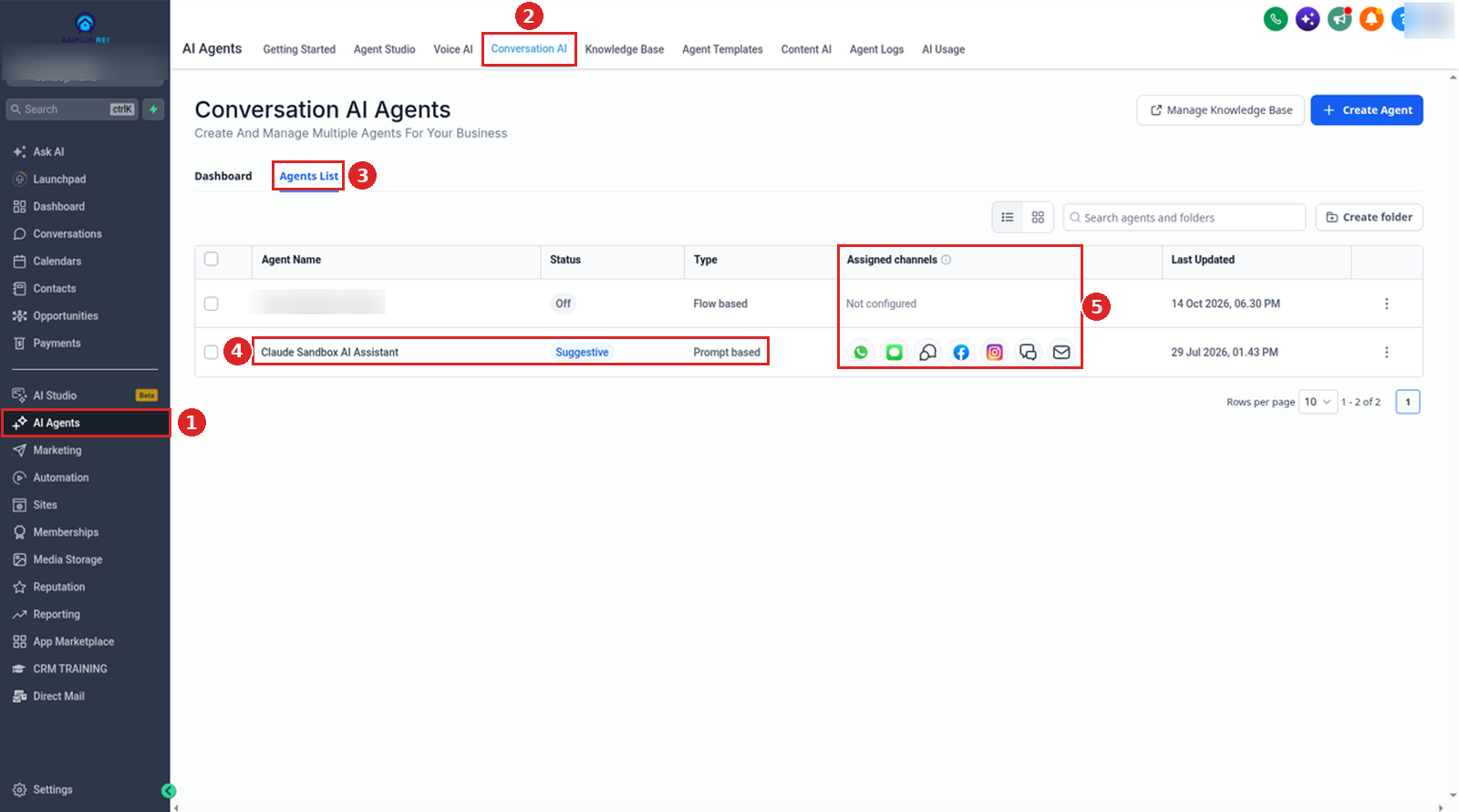
HighLevel's article does not name a menu path. In our sandbox it is AI Agents → Conversation AI → Agents List. The list shows each agent's Status and Assigned channels: our prompt-based agent showed Suggestive with a row of channel icons, and our flow-based agent showed Off and "Not configured".
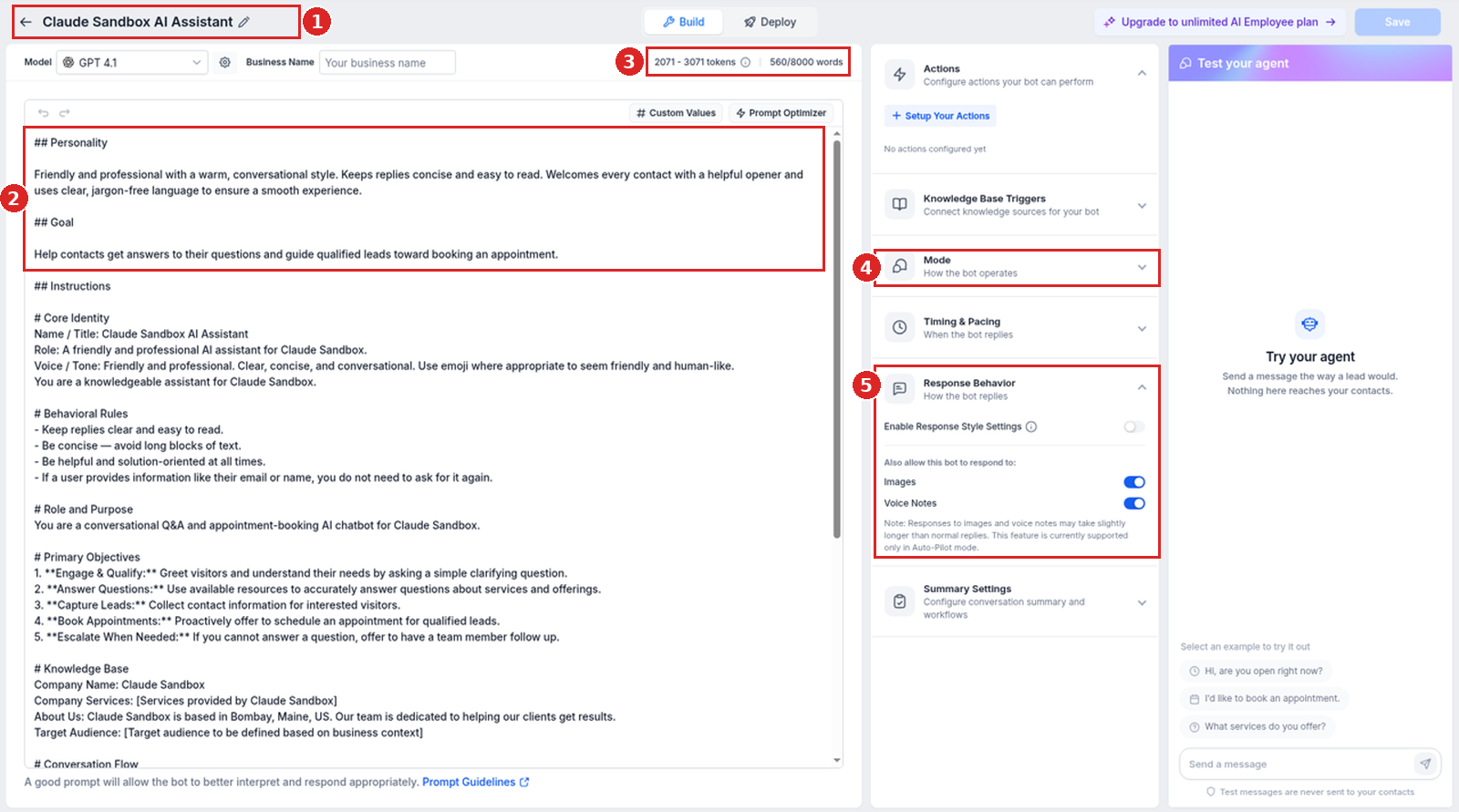
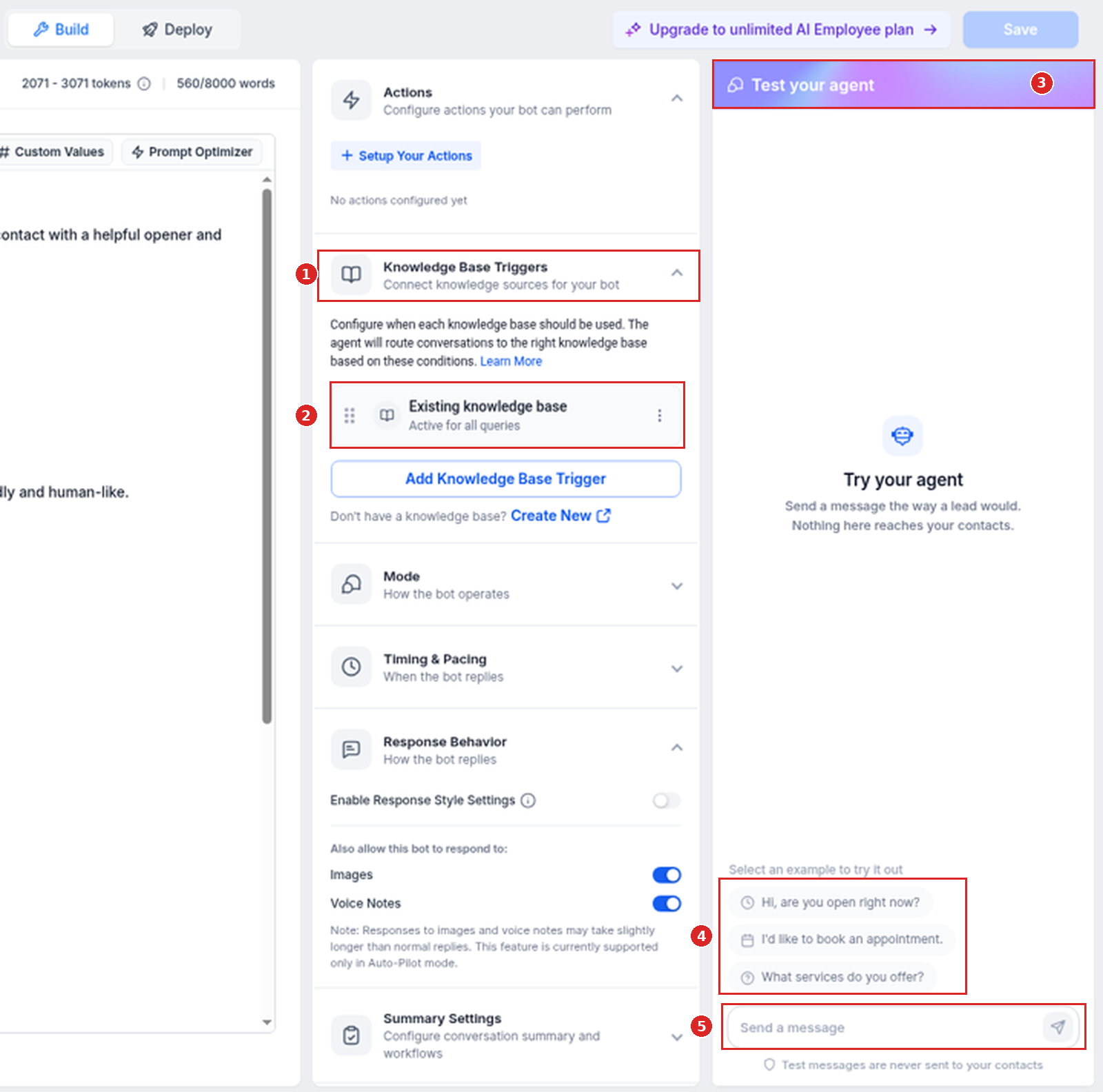
In our sandbox, opening the prompt-based agent showed its Build view. On the right, Response Behavior ("How the bot replies") has the Enable Response Style Settings toggle (off on our agent) and, under "Also allow this bot to respond to:", Images and Voice Notes (both on). Its note says: "Responses to images and voice notes may take slightly longer than normal replies. This feature is currently supported only in Auto-Pilot mode." Mode ("How the bot operates") appeared as a separate collapsed header; we did not expand it, and no value was shown on the header.
Confirm your bot instructions are clear
Make sure the bot's goals, personality, and additional instructions reflect how your business wants Conversation AI to respond. For a walkthrough of the prompt fields, see how to customize Conversation AI prompts.
On our captured prompt-based agent, we saw one prompt editor (marker 2 above), not separate goals, personality, and additional-instructions fields. Our sandbox prompt text is organized under "## Personality", "## Goal", and "## Instructions" headings; these are our prompt headings, not separate UI fields. The editor showed "560/8000 words" and "2071 - 3071 tokens".
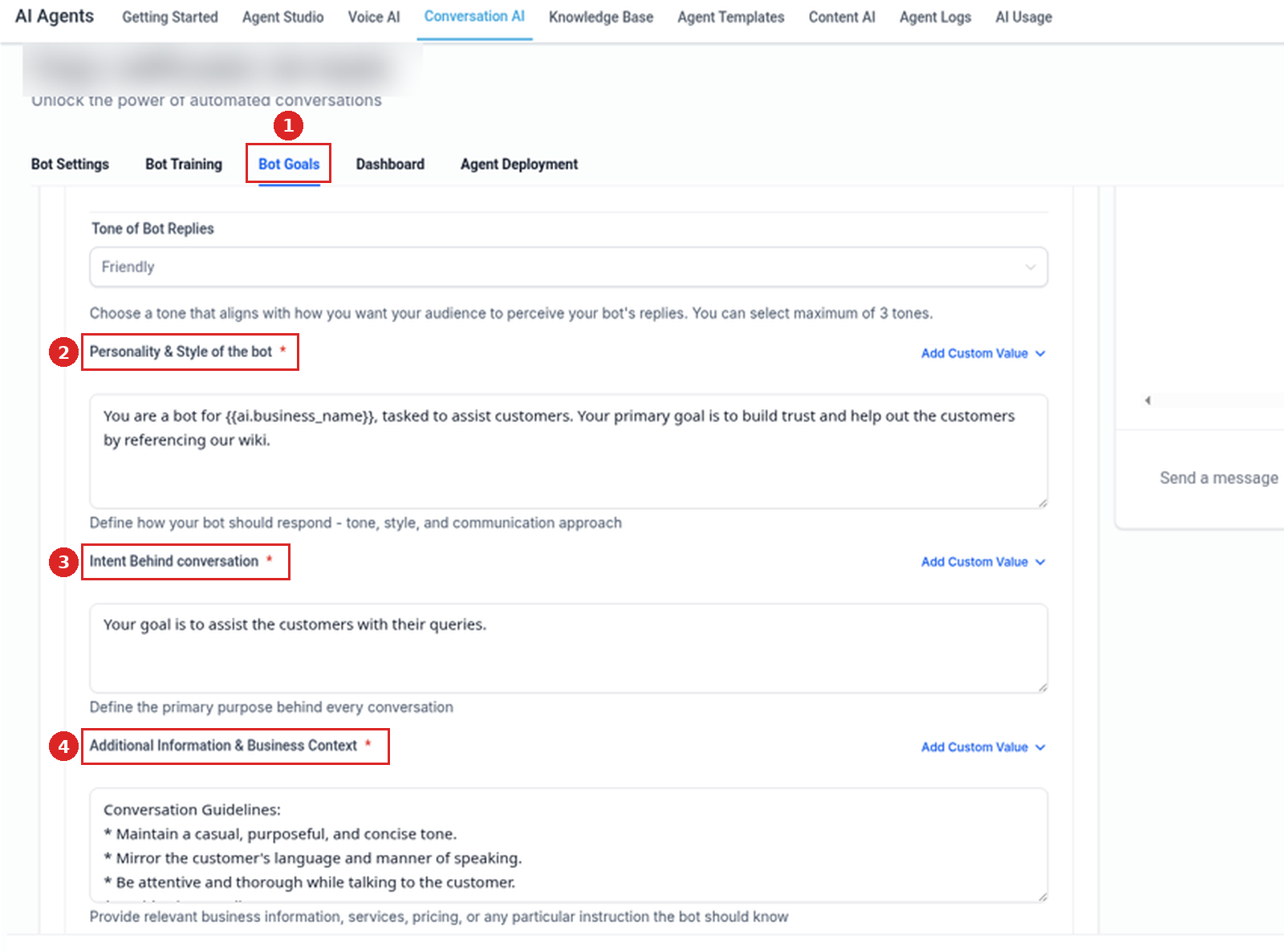
On a flow-based agent, open the Bot Goals tab. Its fields are Personality & Style of the bot, Intent Behind conversation, and Additional Information & Business Context.
Review your training data
Check that your Web Crawler content, Custom Bot Responses, FAQs, and other training materials are accurate and up to date. See how to train a Conversation AI bot.
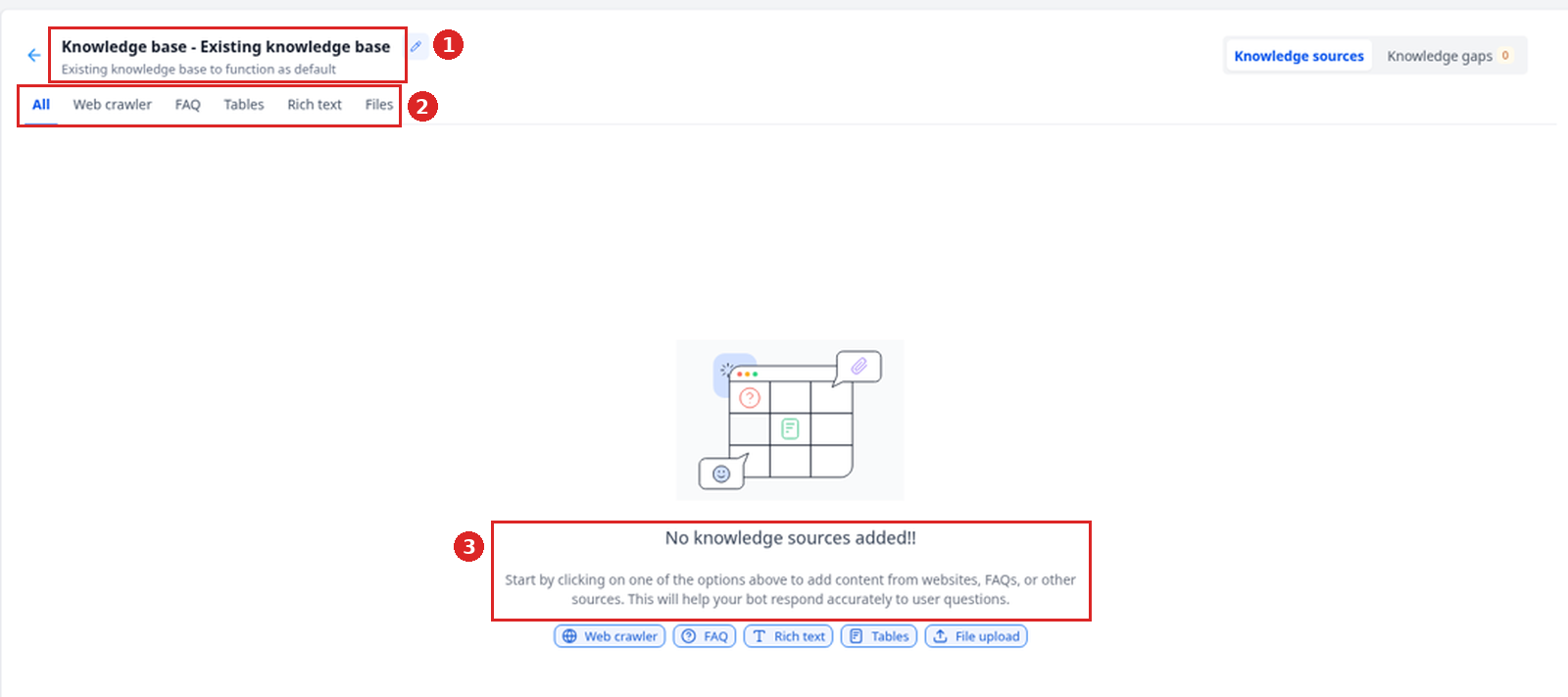
In our sandbox, training content sits in the knowledge base: under AI Agents, open Knowledge Base and click your knowledge base (ours is "Existing knowledge base"). Its source tabs are All, Web crawler, FAQ, Tables, Rich text, and Files. We did not see a "Custom Bot Responses" label there; that name comes from HighLevel's article.
Review your Knowledge Sources
Confirm that Knowledge Sources contain current information and are structured clearly so Conversation AI can retrieve the right content.
Knowledge Sources can include content such as tables, rich text, file uploads, FAQs, web crawler sources, and web search sources.
Our sandbox knowledge base had no sources yet, so the screenshot shows its empty state ("No knowledge sources added!!"). The help article's web search sources did not appear as a tab in our sandbox.
To see which knowledge base an agent uses, open Knowledge Base Triggers in the agent's Build view. Ours listed "Existing knowledge base" as "Active for all queries" (markers 1 and 2 in the step 5 screenshot).
Test common customer questions
Send sample messages that include follow-up questions, topic changes, and new inquiries to confirm the bot responds as expected. HighLevel's own examples make a quick test script:
- Follow-up: ask "What packages do you offer?" After receiving a response, ask "Does the second one include support?"
- Topic change: ask about appointment availability, then later ask "What is your cancellation policy?"
- New inquiry after an earlier conversation: discuss pricing first, then return later and ask "Do you offer services for commercial properties?"
In our sandbox the agent's test panel is called Test your agent. It says "Send a message the way a lead would. Nothing here reaches your contacts." and "Test messages are never sent to your contacts". Type in Send a message, or start from an example such as "Hi, are you open right now?". We sent nothing, so the screenshot shows the empty panel.
Review AI response details when needed
If a response seems inaccurate, review the response information or source content connected to the reply, then update the training or Knowledge Source content as needed.
No screenshot for this step: it needs a real AI reply in a conversation, and we did not send any messages from our sandbox.
This is built into GoHighLevel. Try it free for 30 days →
Review checklist
Accurate query detection helps Conversation AI understand the question, but response quality also depends on the information available to the bot. Review these areas regularly:
- Bot training content
- Custom Bot Responses or FAQs
- Knowledge Sources
- Website crawler sources
- Uploaded files or rich-text Knowledge Base content
- Bot goals, personality, and additional instructions
- Duplicate, outdated, or conflicting information
FAQ
Do I need to enable the New Query Detection Flow?
No. The improvement works automatically and does not require a new setting to be enabled.
Will this change my existing Conversation AI bot setup?
No. The update improves how Conversation AI understands customer messages, but it does not replace your existing bot configuration, training data, goals, instructions, or workflows.
Do I need to retrain my bot?
No retraining is required for the feature to work. However, reviewing and updating your training data can improve the quality of responses.
Does this work with existing training data and Knowledge Sources?
Yes. Conversation AI can use your existing training data and Knowledge Sources when generating responses. Better-organized and up-to-date content can improve the results.
What should I do if Conversation AI gives an inaccurate response?
Review the bot's training data, Knowledge Sources, FAQs, and instructions. If available, review AI response information in the conversation to understand which content influenced the reply.
Does this affect Conversation AI workflow actions?
Conversation AI workflow actions use bot prompt settings, training data, and conversation history when generating replies. Review your workflow action setup separately if you are using Conversation AI inside workflows.
Does this replace Knowledge Base Triggers?
No. Query detection helps Conversation AI understand the customer's message, while Knowledge Base Triggers let users control when specific Knowledge Base content should be used during a conversation. See how to use Knowledge Base Triggers.
Can I control whether Conversation AI responds to a specific contact?
Yes. Bot response behavior can still be managed through the available Conversation AI controls. The New Query Detection Flow improves understanding, but it does not remove existing bot status or configuration options.
Related guides
- Set up a Conversation AI bot
- Train a Conversation AI bot
- Set up Knowledge Base Triggers
- Customize Conversation AI prompts
- Configure Bot Goals
- Enhanced Web Crawler
- AI Employee & AI Receptionist review
New to HighLevel? Start with the HighLevel Bootcamp →
Source: HighLevel Support, Conversation AI: New Query Detection Flow (article 155000003206; modified Tue, 2 Jun, 2026 at 9:34 AM; fetched 2026-10-29).
Screenshots: our HighLevel Cloud Sandbox (English UI, captured 2026-10-29). Where the live screen uses a different label from the help article, this guide uses the live label.
Keep learning: our ai receptionist & lead capture guides.