Bot Goals are what a GoHighLevel Conversation AI agent should get done in a conversation: collect contact details, book appointments, trigger workflows, and notify your team. In current prompt-based agents you set them up as Actions: go to AI Agents → Conversation AI → Agents List, open your agent, and in the Build view click Setup Your Actions (HighLevel's help article calls this the Bot Goals tab, which flow-based agents still show).
- Goals are set per agent; changes only apply to the agent you select.
- Contact Info saves an answer to a contact field: pick the field under Which contact field to be updated and describe it in What to update in the field. For Name, Email or Phone, the live dialog says to put them in your prompt instead.
- Appointment Booking needs a calendar and Trigger a Workflow needs a published workflow, so create those first.
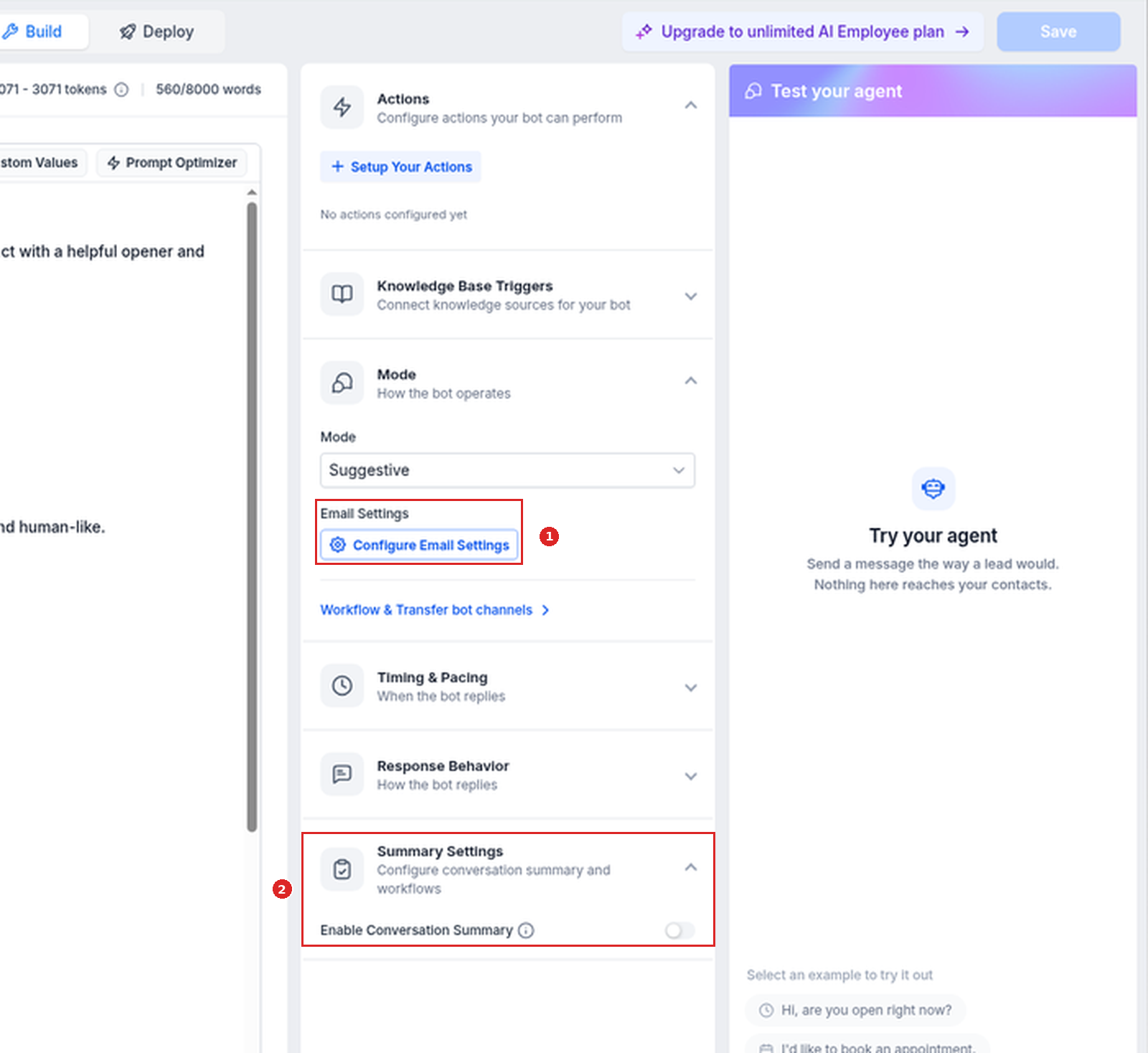
- The closest live email control is Mode → Email Settings → Configure Email Settings; we did not open it. The summary toggle is under Summary Settings → Enable Conversation Summary.
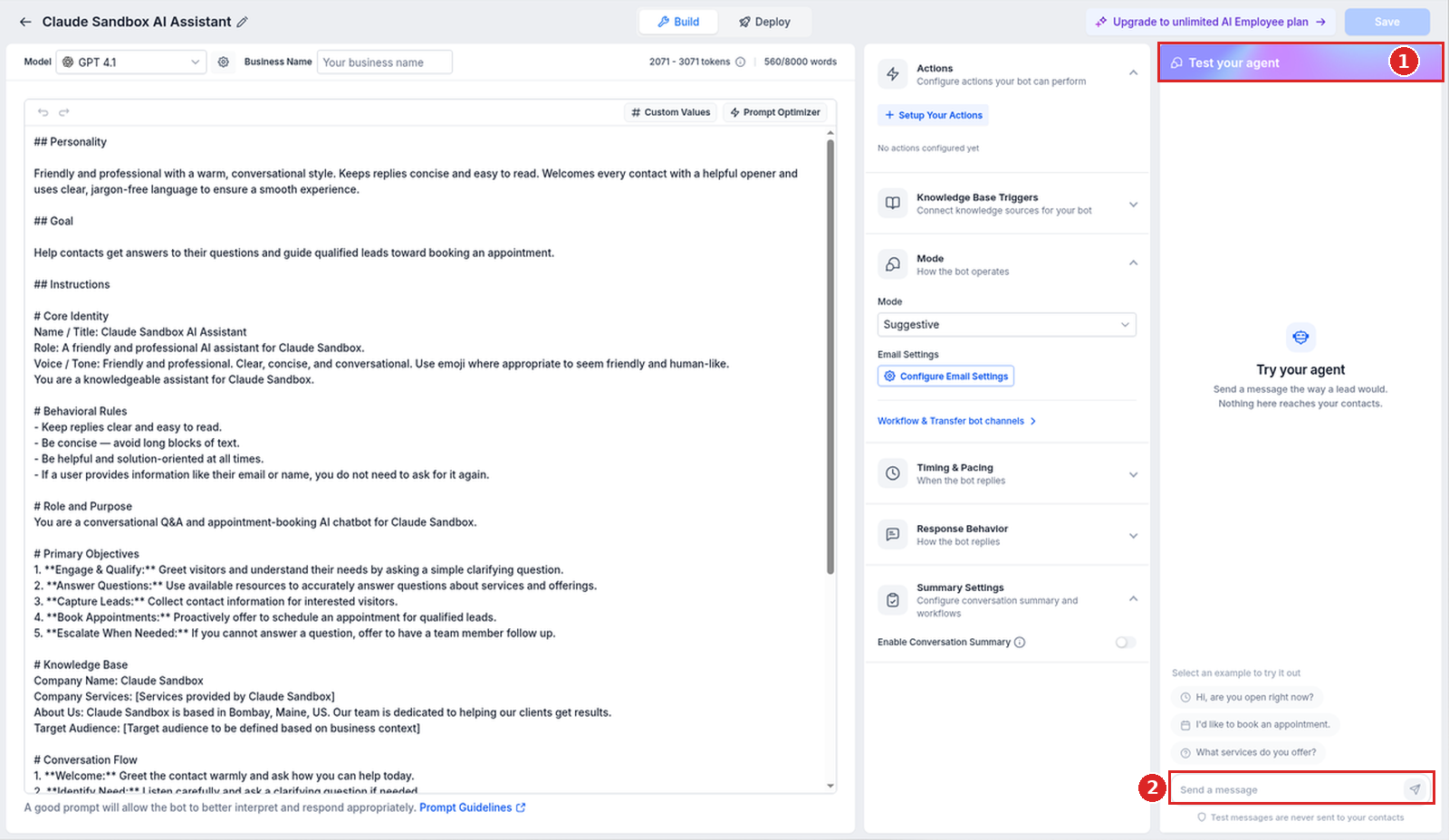
- Save, then test in the Test your agent panel.
What Bot Goals control
Bot Goals define what your Conversation AI agent should accomplish during a conversation. Instead of only answering questions, the agent can collect important contact information, help contacts book appointments, trigger follow-up workflows, and notify your team when it needs help.
Bot Goals are configured inside each Conversation AI agent. Other settings, such as Bot Training, Brand Voice, Bot Settings, and Additional Instructions, may affect how the agent responds; this guide covers only the Bot Goals settings.
| Help article name | What it does (per HighLevel) | Where it is in our sandbox (prompt-based agent) |
|---|---|---|
| Information Collection | Controls which details the agent asks for, such as Name, Email, Phone, Street Address, City, plus custom questions or objectives. | Contact Info action. The dialog says Name, Email and Phone go in your prompt instead. |
| Update Contact Field | Controls where each collected answer is saved on the contact record. | Which contact field to be updated inside the Contact Info action. |
| Skip if Already Filled | Prevents the agent from asking for information that already exists on the contact record. | No such option. The Contact Info dialog says "This action update empty fields only." |
| Appointment Booking | Helps contacts move from conversation to scheduling. Configure the calendar first. | Appointment Booking action. |
| Trigger Workflow | Starts a workflow when the conversation meets a defined condition. Create the workflow first. | Trigger a Workflow action. |
| Email Notification Settings | Helps alert your team when the agent cannot answer a question or a conversation may need human review. | Mode → Email Settings → Configure Email Settings (we did not open it). |
| Conversation Summary | Summarizes bot-handled conversations so your team can review the request, collected details, and next steps without reading the full thread. | Summary Settings → Enable Conversation Summary. |
Step-by-step: configure Bot Goals
Open your agent
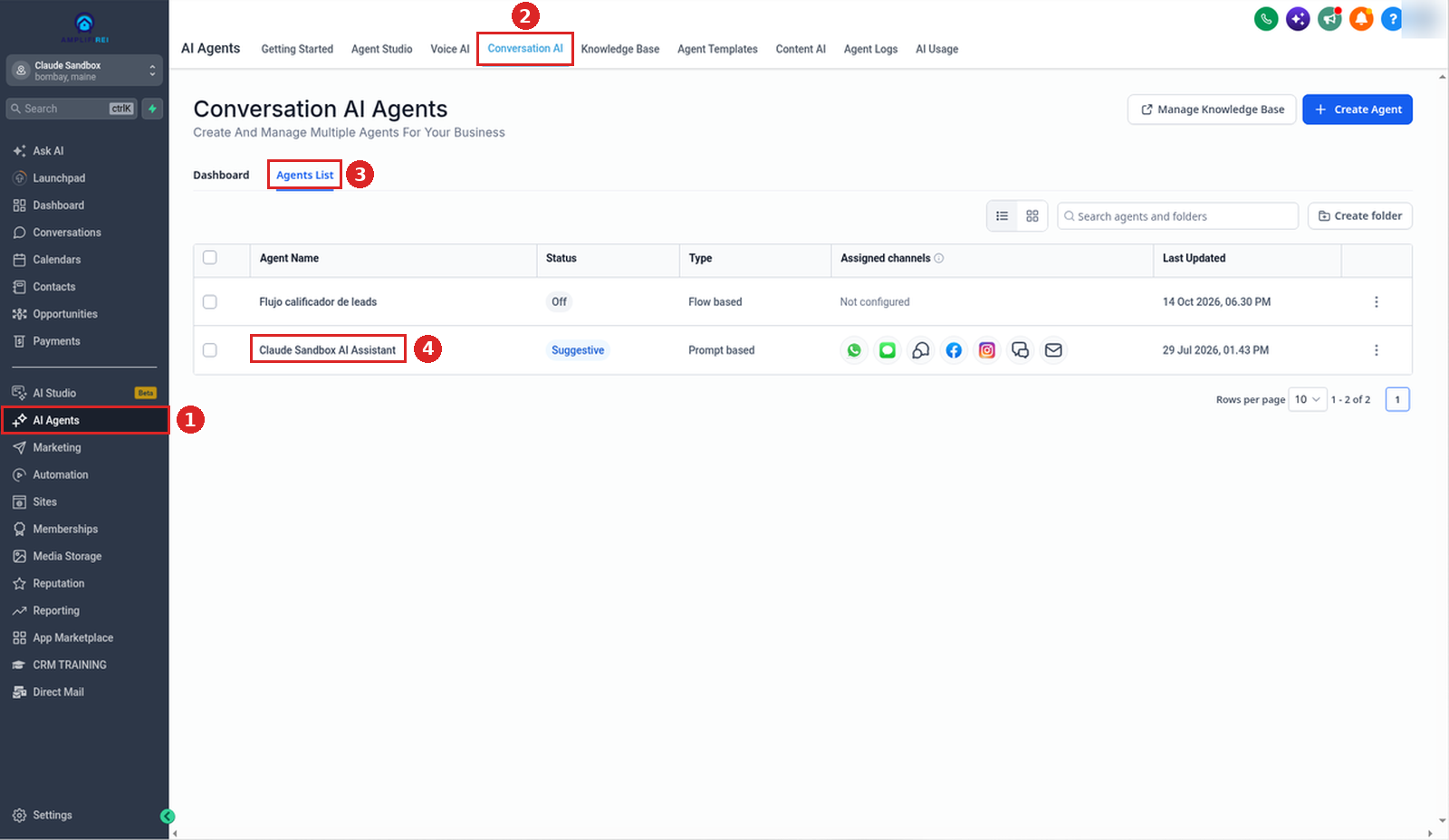
- Go to AI Agents → Conversation AI.
- Click Agents List.
- Click the agent you want to configure. If you do not have one yet, create it first (the help article says Create Bot; our sandbox button reads Create Agent).
Bot Goals are configured per agent, so changes only apply to the agent you select.
Find where the goals live: Actions (or the Bot Goals tab)
The help article says to click Bot Goals inside the agent editor; that is where you define what information the agent should collect and which actions it should take.
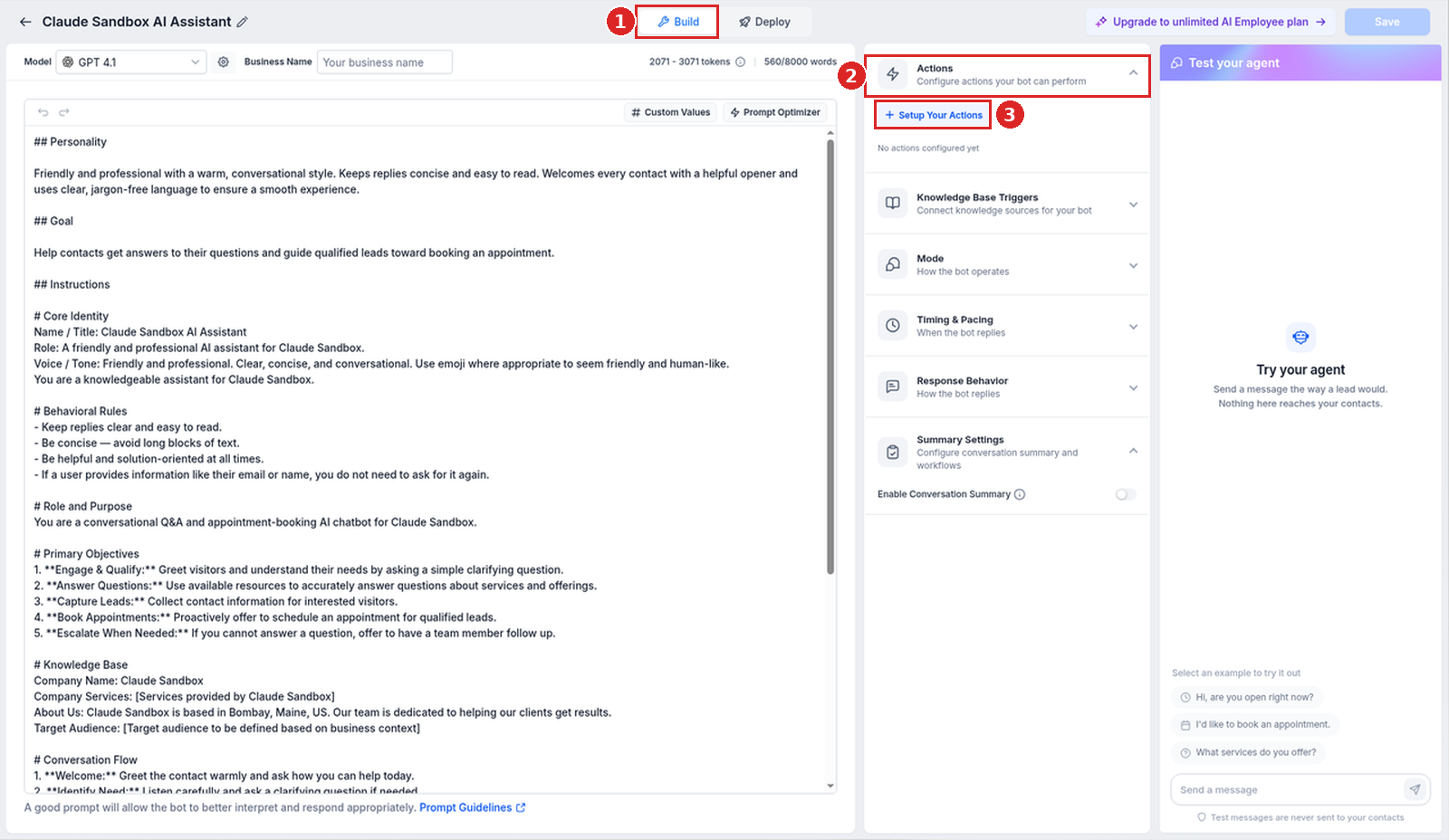
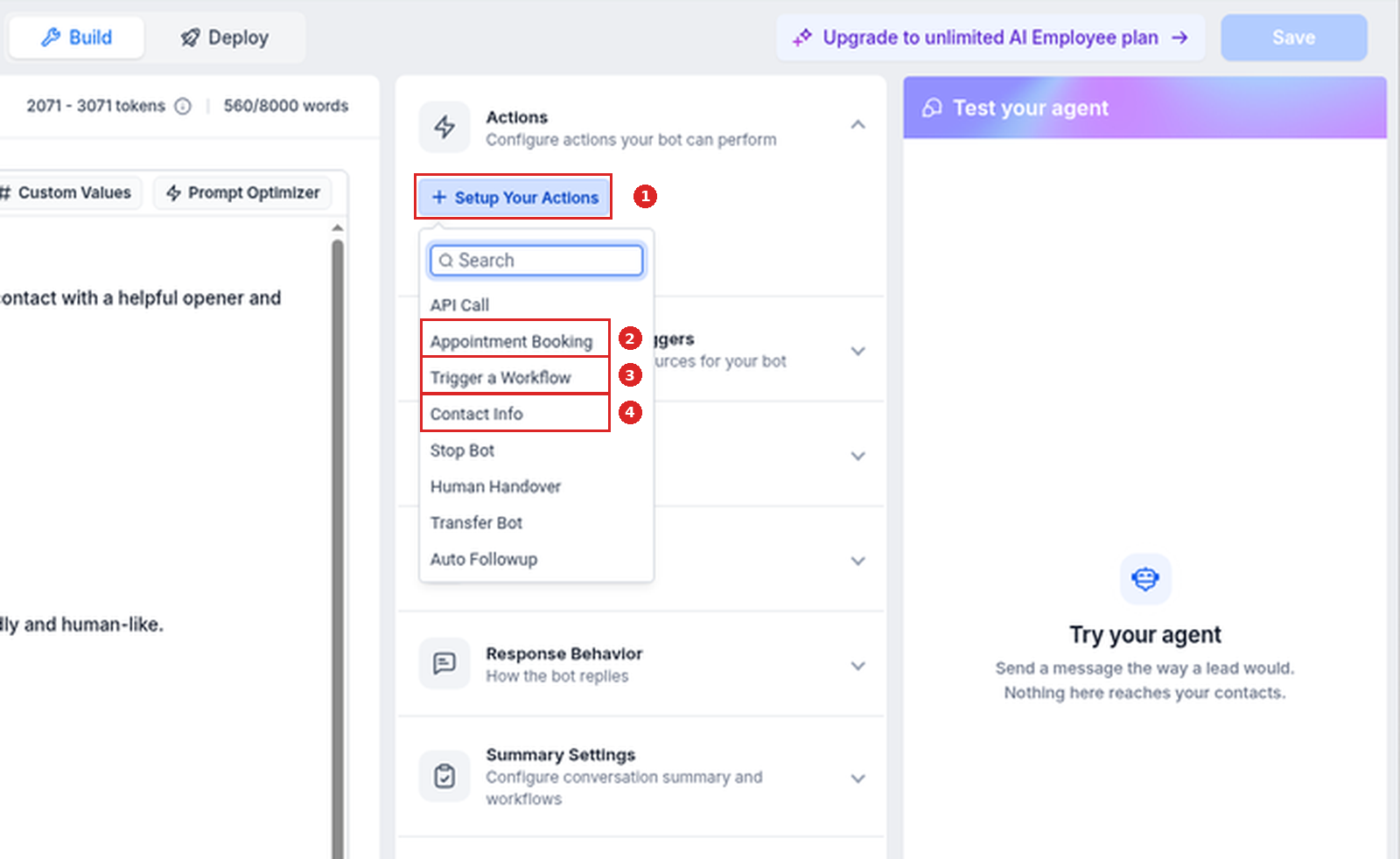
In our sandbox, the prompt-based agent opens in the Build view and has no Bot Goals tab. The goals are set in the Actions section on the right ("Configure actions your bot can perform"). Click Setup Your Actions to pick one: API Call, Appointment Booking, Trigger a Workflow, Contact Info, Stop Bot, Human Handover, Transfer Bot, or Auto Followup.
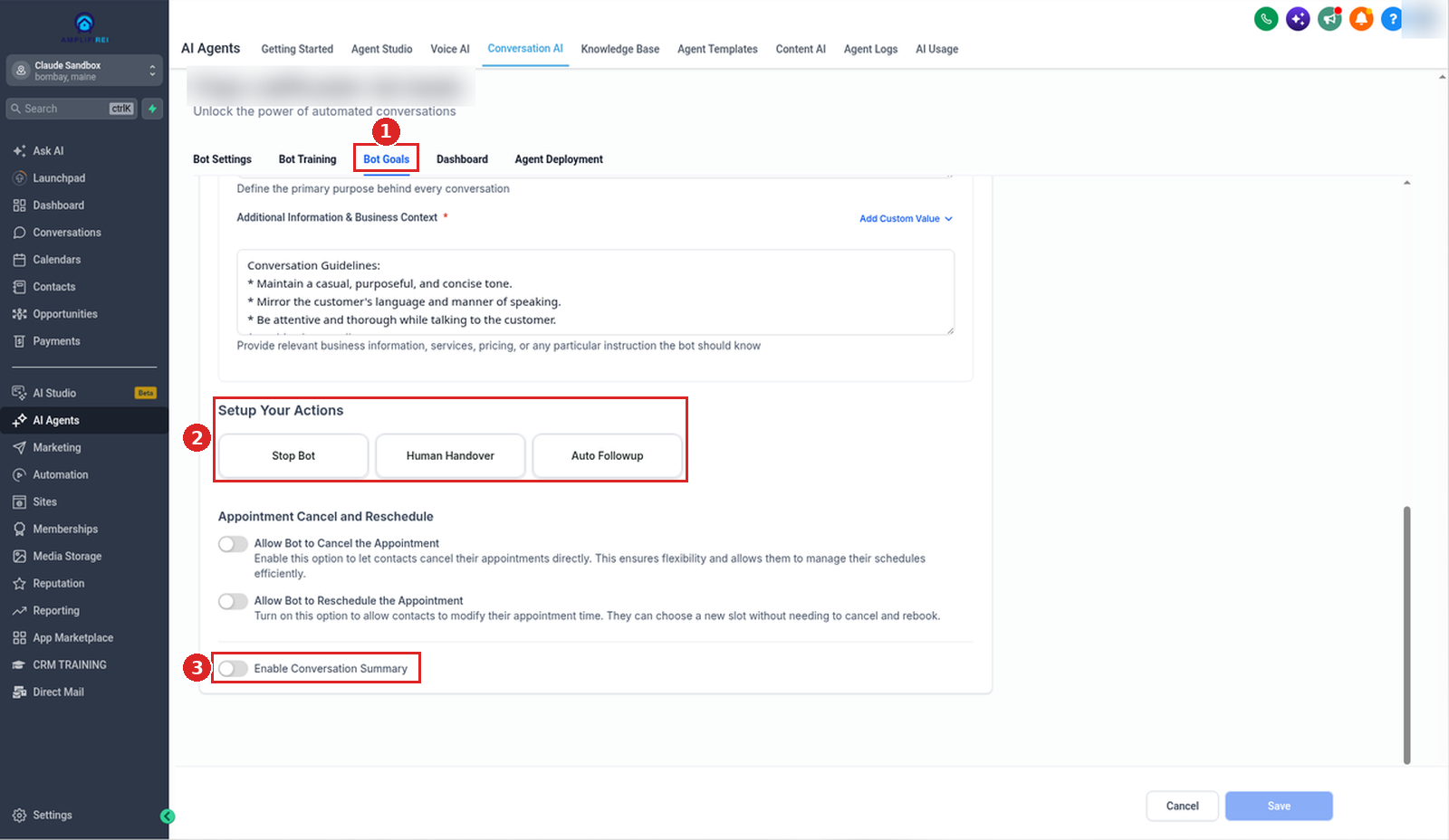
Flow-based agents still show a Bot Goals tab. In our sandbox it has Launch Flow Builder, a Setup Your Actions area with Stop Bot, Human Handover, and Auto Followup, the Allow Bot to Cancel the Appointment and Allow Bot to Reschedule the Appointment toggles, and Enable Conversation Summary. It has no Contact Info, Appointment Booking, or Trigger a Workflow action.
Collect contact details with Contact Info
The help article calls this Information Collection: choose standard fields such as name, email, phone, street address, or city, and add any custom questions or objectives the agent should ask.
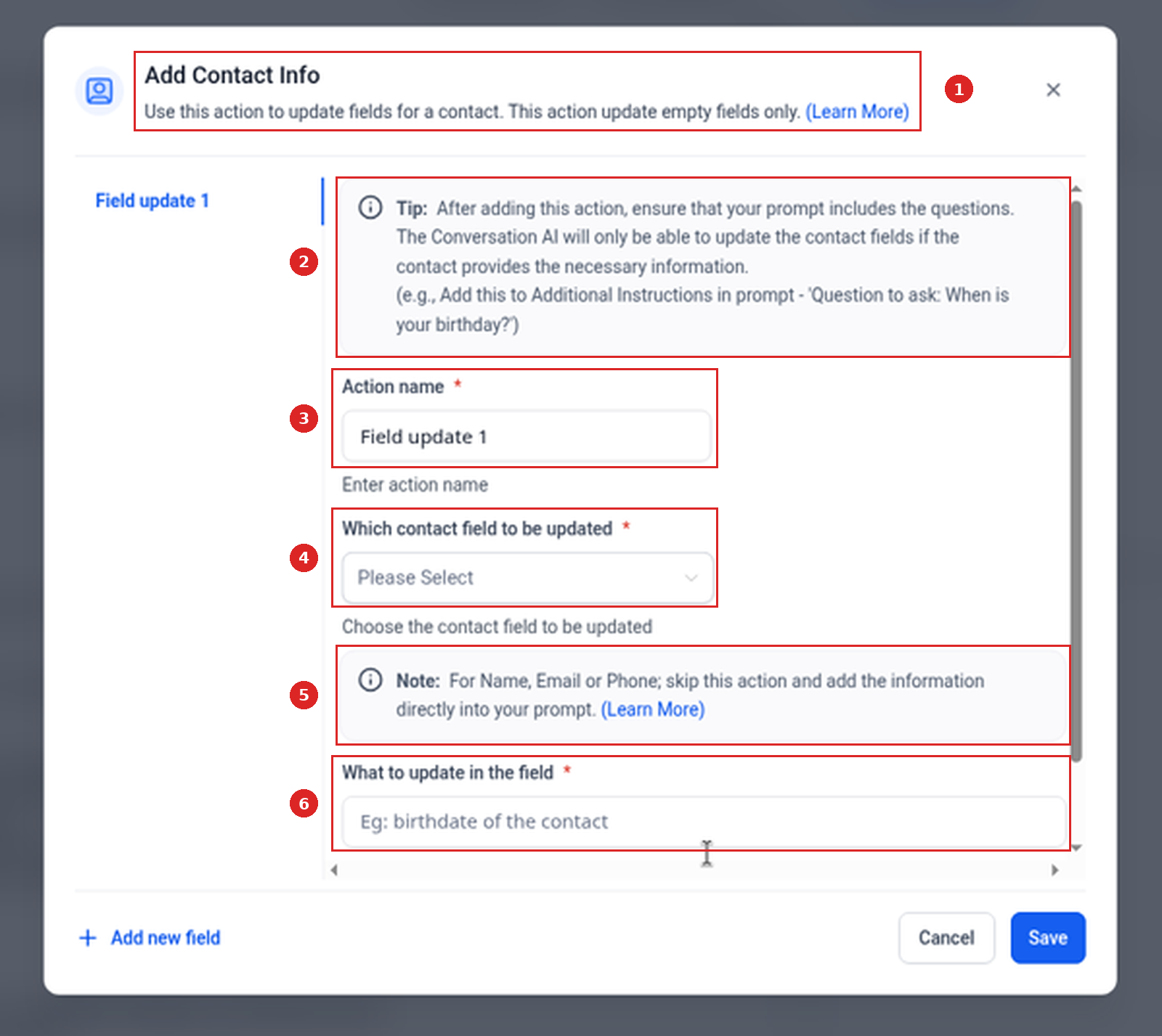
In our sandbox, the matching action is Contact Info. Choosing it opens Add Contact Info ("Use this action to update fields for a contact. This action update empty fields only."), with three required fields:
- Action name (prefilled "Field update 1").
- Which contact field to be updated.
- What to update in the field (example placeholder "Eg: birthdate of the contact").
Two notes in the dialog matter. The Tip says to make sure your prompt includes the questions, because the agent can only update the field if the contact provides the information. The Note says that for Name, Email or Phone you should skip this action and add the information directly into your prompt. Use Add new field for more fields.
Custom question examples from HighLevel: what service the contact is interested in, the preferred appointment day, whether the contact is new or returning, the property type before scheduling an estimate, and the issue or reason for contacting the business.
Map the answer to a contact field
The help article calls this Update Contact Field and recommends: add or select the question or objective, open Update Contact Field, choose the field where the answer should be saved, and confirm it matches the type of information being collected.
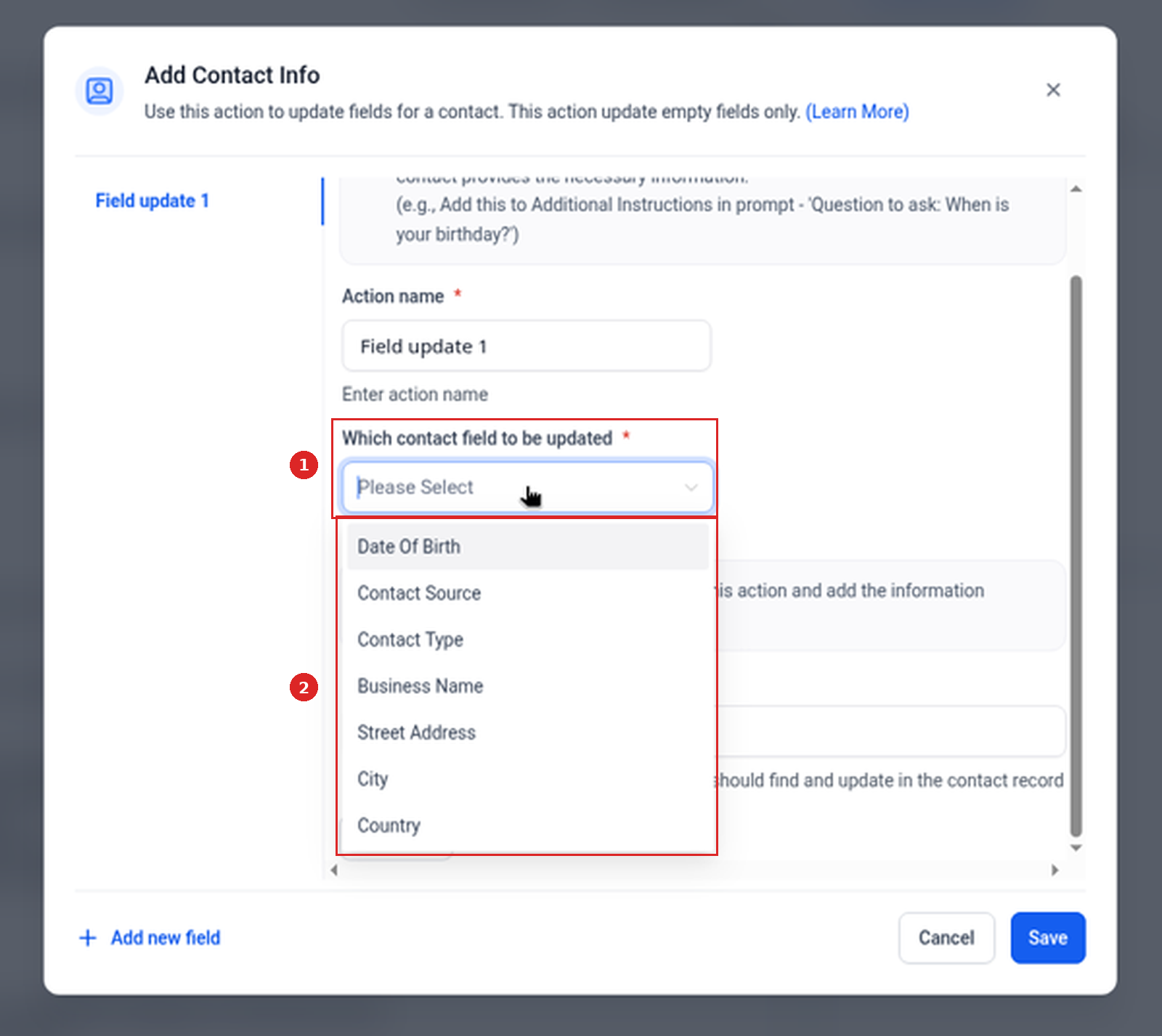
In our sandbox, open Which contact field to be updated and pick the field. The list starts with Date Of Birth, Contact Source, Contact Type, Business Name, Street Address, City, and Country, and scrolls for more. Name, Email and Phone are not in it.
Example from HighLevel: if the agent asks "What city are you located in?", map the answer to the City field. City is in the live list.
Important: if a question is not mapped to a contact field, the agent may still ask it, but the answer may not automatically update the intended contact field.
Skip if Already Filled (help article)
The help article says to turn on Skip if Already Filled so the agent does not ask for information already on the contact record. For example, if the contact's email address is already saved, the agent can move on to the next missing detail.
Our sandbox's Contact Info dialog has no Skip if Already Filled option. The only related text is its subtitle, "This action update empty fields only."
Add booking and workflow actions, if needed
Appointment Booking, if the agent should help contacts schedule appointments. The help article says to first confirm the correct calendar is configured and available, and notes that booking behavior may depend on calendar availability, routing, and appointment settings.
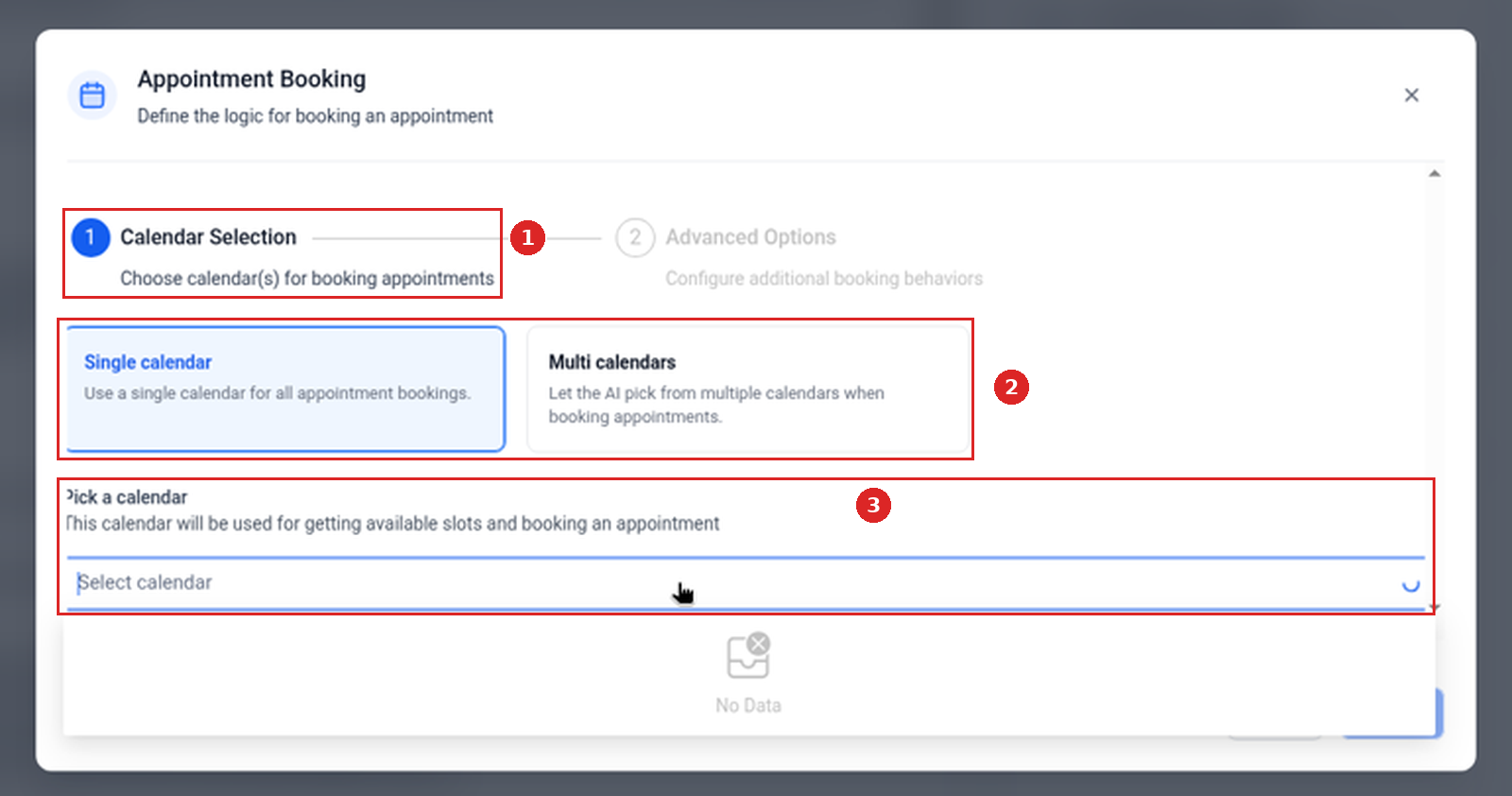
In our sandbox, the Appointment Booking action opens a dialog ("Define the logic for booking an appointment") with two steps, Calendar Selection and Advanced Options. Choose Single calendar or Multi calendars, then Pick a calendar. Our sandbox has no calendars, so the list showed "No Data", and we did not open Advanced Options.
Trigger a workflow
The help article calls this Trigger Workflow: use it if the agent should start an automation based on the conversation, and make sure the workflow is already created and ready to use.
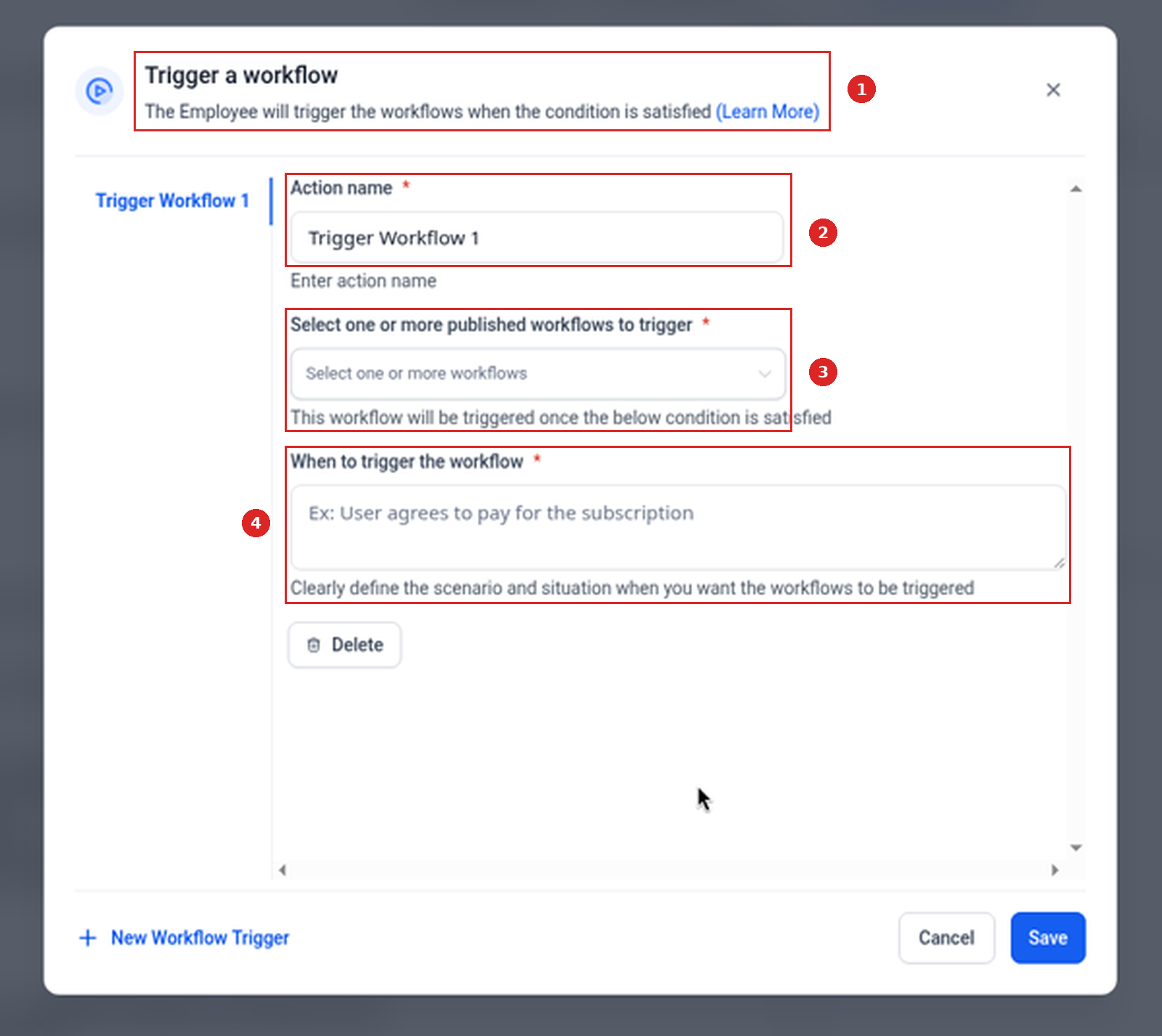
In our sandbox the action is Trigger a Workflow. Its dialog ("The Employee will trigger the workflows when the condition is satisfied") has Action name, Select one or more published workflows to trigger, and When to trigger the workflow (placeholder "Ex: User agrees to pay for the subscription"). Our sandbox has no published workflows, so the selector list showed "No Data".
Set email alerts and conversation summaries
- Email Notification Settings (help article name), if your team should be notified when the agent does not know an answer or a conversation may need review.
- Conversation Summary, if your team needs a summarized version of bot-handled conversations for faster review or follow-up.
In our sandbox, email settings sit in the Mode section under Email Settings → Configure Email Settings (we did not open it), and the summary toggle is Enable Conversation Summary in Summary Settings (off in our sandbox). For what a summary contains, see our conversation summaries guide.
Save, then test
- Review the configured goals, then click Save (top right of the editor). The help article warns that unsaved changes may be lost if you leave the page or switch to another area.
- Send sample customer messages in the Test your agent panel (the help article calls it the test panel). Confirm the agent asks the right questions, updates the correct fields, and triggers the expected actions.
HighLevel suggests testing a new lead with no contact information, an existing contact with some fields already filled, a contact asking to book an appointment, and a contact asking something the bot may not know.
The panel says test messages are never sent to your contacts. We did not send a test message, so this guide does not show a field updating, a booking, or a workflow running.
Troubleshooting
| Issue | What to check |
|---|---|
| Bot Goals tab is missing | Prompt-based agents in our sandbox have no Bot Goals tab; use Build → Actions. The help article says to confirm your user role has permission to manage Conversation AI agents and goals. |
| Agent is not asking the expected questions | Per the help article, the selected fields, custom questions/objectives, and saved settings. The live Contact Info tip says your prompt must include the questions. |
| Contact fields are not updating | Each question is mapped to the correct contact field (live: Which contact field to be updated). |
| Agent asks for information already saved | The help article points to Skip if Already Filled and the contact data existing in the mapped field. |
| Appointment Booking does not start | Appointment Booking is set up and the calendar is configured correctly. |
| Workflow does not trigger | The workflow is ready and the trigger condition is clear. |
| Email notification is not received | The notification settings and recipient email address are correct. |
| Conversation summary is missing | Conversation Summary is enabled and the conversation meets the summary requirements. |
This is built into GoHighLevel. Try it free for 30 days →
Launch checklist
- Questions whose answers should update contact fields are mapped to the correct fields, and your prompt includes those questions.
- If you use Appointment Booking, the calendar is configured.
- If you use Trigger a Workflow, the workflow is created and ready to use.
- You clicked Save.
- In the Test your agent panel, the agent asks the right questions, updates the correct fields, and triggers the expected actions.
FAQ
Are Bot Goals the same as Bot Training?
No. Bot Goals define what the agent should accomplish. Bot Training helps the agent answer questions accurately using knowledge sources, FAQs, and business information. See our guide to training a Conversation AI bot.
Can Bot Goals update contact fields?
Yes. The help article says to use Update Contact Field to map collected answers to the correct contact fields; in our sandbox that is the Contact Info action's Which contact field to be updated.
What happens if I do not map a question to a contact field?
The agent may still ask the question, but the answer may not update the intended field on the contact record.
Can Bot Goals book appointments?
Yes. Appointment Booking can help the agent guide contacts toward scheduling when the calendar setup is complete.
Can Bot Goals trigger workflows?
Yes. Trigger Workflow can start a selected workflow when the conversation meets the configured condition.
Should I test Bot Goals before going live?
Yes. Testing helps confirm the agent asks the right questions, saves information correctly, and triggers the expected actions.
Why is the Bot Goals tab missing?
In our sandbox, prompt-based agents have no Bot Goals tab: the same goals are Actions in the Build view. Flow-based agents still show the tab. If you expect the tab and it is missing, the help article says to confirm your user role has permission to manage Conversation AI agents and goals. See our guide to AI agent permissions.
Related guides
- Set up a Conversation AI bot
- Train a Conversation AI bot
- Set up Knowledge Base Triggers
- Conversation summaries
- Conversation AI Flow Builder
- AI Employee & AI Receptionist review
New to HighLevel? Start with the HighLevel Bootcamp →
Source: HighLevel Support, How to Configure Bot Goals in Conversation AI (article 155000004095; modified Thu, 4 Jun, 2026 at 8:55 AM; fetched 2026-10-25).
Screenshots: our HighLevel Cloud Sandbox (English UI, captured 2026-10-25). Where the live screen uses a different label from the help article, this guide uses the live label.
Keep learning: all ai receptionist & lead capture how-tos.