Once you've decided to sell GoHighLevel as your own software, the next question is mechanical: where do you actually turn SaaS Mode on, and what has to be in place first? This walks through the setup from my own agency account — the plan requirement, the SaaS Configurator screen, building your first sellable plan, and switching it on for a client. It's part of our complete GoHighLevel white-label & SaaS agency guide.
This page has affiliate links; if you start a trial through one we may earn a commission at no cost to you. I only write about features I actually use.
What you need before SaaS Mode appears
The first thing to know is that SaaS Mode isn't on every plan — and if you're looking for it and can't find it, this is almost always why. As of 2026, GoHighLevel includes the SaaS Configurator on its higher agency tiers: the plan listed as Agency Pro ($497/month at the time of writing), and Enterprise. The lower tiers — Starter (listed at $97) and Unlimited (listed at $297) — don't expose it. My own account is on the Pro tier, which is why the screenshots below come from a live SaaS Configurator rather than a marketing page. (Vendor pricing moves, so confirm the current number before you upgrade — our full pricing breakdown tracks the tiers.)
So step zero is simply being on the right plan. If SaaS Mode / the SaaS Configurator isn't in your left-hand agency menu, you're on a tier that doesn't include it, and no amount of clicking around will surface it — you upgrade first, then it shows up.
Where SaaS Mode lives — the SaaS Configurator
Everything about selling GoHighLevel as your product runs through one screen: SaaS Configurator, in the left-hand agency menu (it sits near Sub-Accounts, Account Snapshots, and Reselling). Open it and you land on a SaaS dashboard split into a row of tabs.
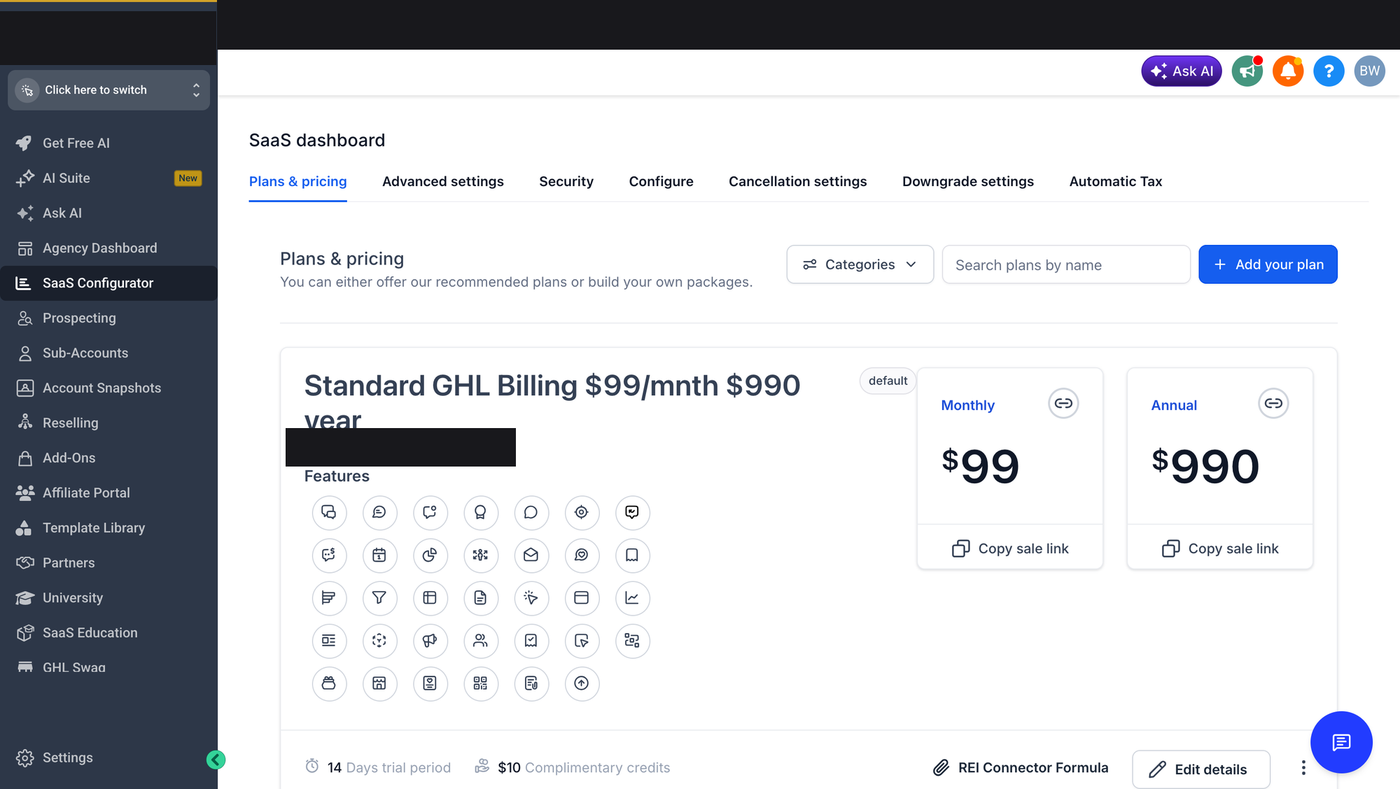
The tab you'll spend the most time in is Plans & pricing (shown above) — it's where you actually build the packages your clients buy. The rest of the tabs configure how those plans behave: security, cancellations, downgrades, and tax. I'll cover the ones that matter for setup below; the key thing at this stage is just knowing this one screen is the control panel for the whole SaaS side of your account.
Building your first plan
On the Plans & pricing tab, GoHighLevel gives you a starting point: a default plan is already scaffolded (in my account it's labelled "Standard GHL Billing"), and there's an Add your plan button top-right to build your own. You can either tweak the recommended plan or start a fresh package. A plan has three parts worth understanding:
- Pricing — monthly and annual. Each plan carries a Monthly price and an Annual price side by side. In the example plan on my screen those read $99/month and $990/year, which is the values that plan is configured to — you set your own. Each price also has a Copy sale link button, so you can hand a client a direct checkout link for exactly the tier and cadence you want them on.
- Features. Below the price is a grid of feature toggles — the parts of GoHighLevel this plan includes. This is how you build a pricing ladder: a lean plan turns fewer features on, a premium plan turns more on. Turn things off for the entry tier and you create a natural reason to upgrade.
- Trial and starter credits. Each plan can carry a trial period and a block of complimentary usage credits — the plan on my screen shows a 14-day trial and $10 in complimentary credits. Both are yours to set, and they're what a new client sees when they sign up through your sale link.
The mental model that helped me: a "plan" here is a product you're going to sell, not a GoHighLevel setting. Price it, decide what's inside it, decide how the trial works, and the sale link becomes your storefront for that product.
This is built into GoHighLevel. Try it free for 30 days →
Connecting Stripe so clients pay you
For any of this to actually collect money, a payment integration has to be connected — in my account that's Stripe, connected once at the agency level, and it's the rail client subscriptions run on. Until it's connected, the sale links have nowhere to send a charge. From then on the plans you built bill through it automatically. When a client signs up on one of your sale links, they're charged your price, on your Stripe, on the cadence the plan specifies.
This is also the mechanism behind rebilling: the platform's usage costs — phone, email, and eligible usage-based apps — can be passed through to the client, optionally with a markup you keep. Which plan tier lets you add that markup, and how the markup slider works, is its own topic — I walk through it in the reselling & rebilling guide. For setup, the thing to get right is simply that Stripe is connected before you send anyone a sale link.
Open the SaaS Configurator yourself
Build a plan, set a price, and copy a sale link in a live account. This link starts an extended 30-day trial (GoHighLevel's standard trial is 14 days — the longer window is a bootcamp promo).
Start your 30-day trial →Switching SaaS on for a sub-account
Building a plan doesn't automatically put every client on it — SaaS gets enabled per sub-account. When you create or open a client's sub-account, you assign it a SaaS plan, and from that point the client is on the branded, billed experience you configured. New agencies usually do this one client at a time; larger books can convert several at once with GoHighLevel's bulk activation, which filters your non-SaaS sub-accounts and flips them together.
One setup detail that trips people up: whether a sub-account has a payment method on file changes how activation lands. Accounts with a card transition cleanly; accounts without one still convert, but billing stays limited until a card is added. So the clean sequence is build the plan → connect Stripe → make sure the client's payment method is set → assign the plan. And because each client lives in their own walled-off workspace, this pairs naturally with how you structure and clone accounts — covered in our guide to sub-accounts and snapshots, which is the fastest way to give every new SaaS client a fully built-out account on day one.
The settings tabs worth configuring early
The other tabs on the SaaS dashboard aren't day-one essential the way Plans & pricing is, but two of them save real support headaches, so I set them before onboarding anyone:
- Cancellation settings and Downgrade settings. These decide what happens when a client wants out or wants to move down a tier — typically whether it takes effect immediately or at the end of the billing cycle, and what they keep access to. Choosing end-of-cycle avoids mid-cycle refund arguments and protects the revenue you've already earned.
- Security and Automatic Tax. Security governs how client logins to your branded platform behave; Automatic Tax is where you handle sales tax on plan checkouts, which is far easier to switch on before you have paying clients than to retrofit after. Advanced settings holds the remaining agency-level defaults.
None of these block you from launching, but configuring cancellations and downgrades up front is the difference between churn being a clean, self-serve event and it being a support ticket every time.
With the plan built, Stripe connected, and a sub-account switched on, your SaaS offering is live. The pieces around it — branding the platform so it reads as yours, and structuring each client cleanly — are covered in the white-label setup guide and tied together in the agency, white-label & SaaS overview.
Frequently asked questions
How do I set up SaaS Mode in GoHighLevel?
Open the SaaS Configurator in your left-hand agency menu, build a plan on the Plans & pricing tab (set a monthly and annual price, toggle the features it includes, and set a trial), connect your agency Stripe account so charges can flow to you, then assign that plan to a client's sub-account to switch SaaS on for them. The SaaS Configurator only appears if you're on the plan tier that includes it.
What plan do I need for SaaS Mode in GoHighLevel?
As of 2026, GoHighLevel includes SaaS Mode on its higher agency tiers — Agency Pro (listed around $497/month at the time of writing) and Enterprise. The Starter and Unlimited tiers don't expose the SaaS Configurator. Confirm current pricing on GoHighLevel's site, since vendor pricing changes.
Do I need Stripe to use SaaS Mode?
In the setup I run, yes — client subscriptions go through a connected Stripe account, so you connect it at the agency level before your sale links can charge anyone. Once it's connected, the plans you built bill through it automatically. Check GoHighLevel's current billing options before you commit, since payment-integration support can change.
How do I turn on SaaS Mode for a client?
SaaS is enabled per sub-account: you assign a SaaS plan to the client's sub-account, and from that point they're on the branded, billed experience. You can do this one account at a time, or use bulk activation to convert several non-SaaS sub-accounts at once. Make sure the sub-account has a payment method on file so billing transitions cleanly.
Is SaaS Mode the same as white-labeling GoHighLevel?
They overlap but aren't identical. White-labeling is putting your brand, domain, and logo on the platform so it reads as yours. SaaS Mode is the billing-and-packaging layer on top — building sellable plans, setting prices, and charging clients a subscription. You typically do both: white-label the platform, then use SaaS Mode to sell access to it.
Keep learning: our agency, white-label & saas guides.