To create a Voice AI agent in GoHighLevel, go to AI Agents → Voice AI → Agent List, click + Create Agent, choose Browse Marketplace, Create Custom Agent, or Flow Builder, and click Continue. For the Create Custom Agent path, set the agent's name, voice, model, language, prompt, and welcome message, then click Save.
- Create: AI Agents → Voice AI → Agent List → + Create Agent → pick a method → Continue.
- Configure (Create Custom Agent): name, voice, model, language, prompt, welcome message → Save.
- Add a Knowledge Base and only the Actions the agent needs.
- Test in the Test Audio panel with a Web Call (no phone number needed). Call Transfer does not run during Web Call testing; use a Phone Call test or call the deployed number to validate a transfer.
- Go live on the Deploy tab: assign a phone number or Number Pool, then set Call Routing and Working Hours. Assigning a number alone does not guarantee the agent answers every call.
What a Voice AI agent does
A Voice AI agent is an automated voice assistant that talks to callers using the instructions, business information, and actions you configure. It can answer questions, collect information, update contact records, book appointments, trigger automations, and route callers when a person is needed.
Before you begin
- Access to the correct sub-account and the View & Manage Voice AI Agents permission. If Voice AI is missing, ask a sub-account admin to review your permissions. Agent management, goal configuration, and dashboard access may be controlled separately.
- One defined use case, such as lead qualification, customer support, appointment booking, or call routing.
- Approved business information for the prompt or Knowledge Base.
- Any calendar, workflow, transfer number, or integration your actions need.
- An eligible LC Phone number, Twilio number, or Number Pool if the agent will take live calls.
- Outbound calling needs the applicable approval and compliance setup first. The Outbound test option may stay unavailable until that is done.
Choose a creation method
Standard call handling
A full-screen builder with a prompt, Knowledge Base, actions, and call settings. HighLevel's FAQ recommends it for standard call-handling use cases.
Prebuilt agent
Install a prebuilt agent for a specific use case when a suitable one exists. Review its prompts, actions, workflows, calendars, fields, and Knowledge Base, and replace any business-specific information before you deploy.
Structured, multi-path calls
A visual, node-based flow (the help article calls it Flow Based Builder). A new blank flow starts with a Start Call node connected to an AI Agent node. The starter flow is not kept until you save the agent.
This is built into GoHighLevel. Try it free for 30 days →
Step-by-step: create a custom Voice AI agent
The help article's steps follow the Create Custom Agent path. Create a separate agent for each main call-handling use case.
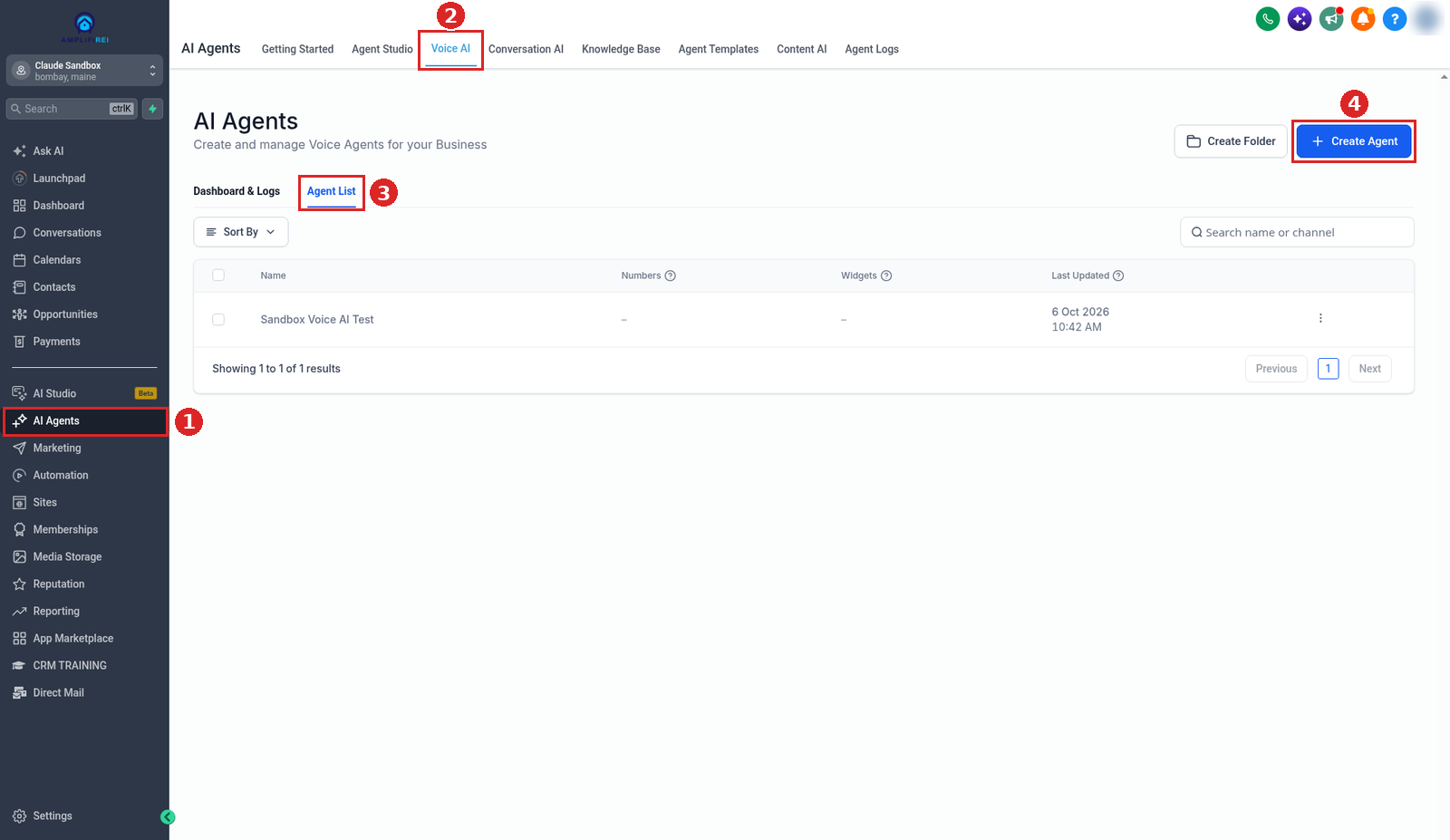
Open Voice AI
- Log in to the right sub-account.
- Go to AI Agents → Voice AI.
- The page opens on Dashboard & Logs. Click the Agent List tab.
Start a new agent
- Click + Create Agent.
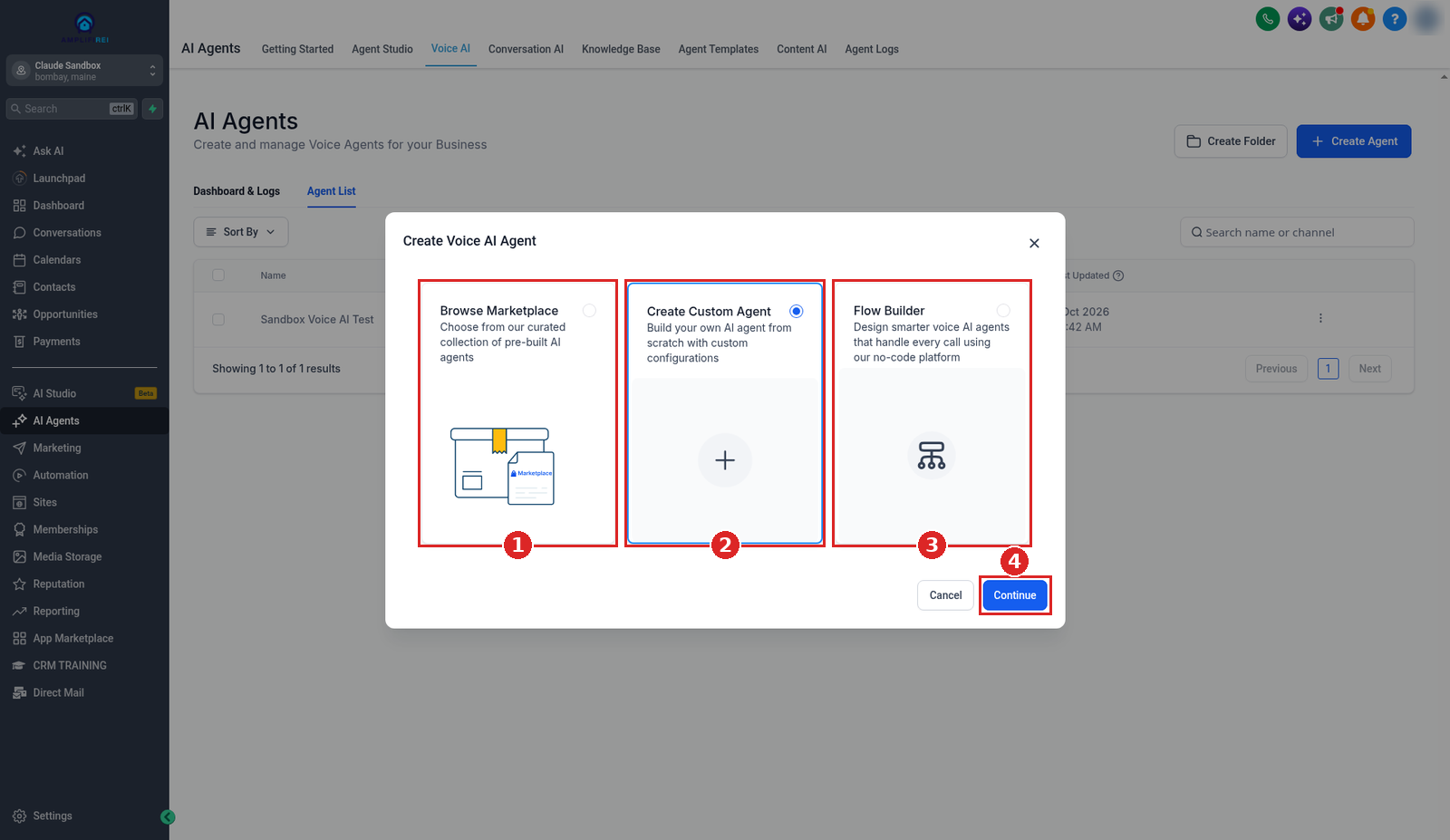
- In the Create Voice AI Agent window, select Create Custom Agent (or Browse Marketplace / Flow Builder).
- Click Continue. HighLevel creates the agent right away under an automatic name (ours was "My Agent 664") and opens the builder.
Configure the core agent
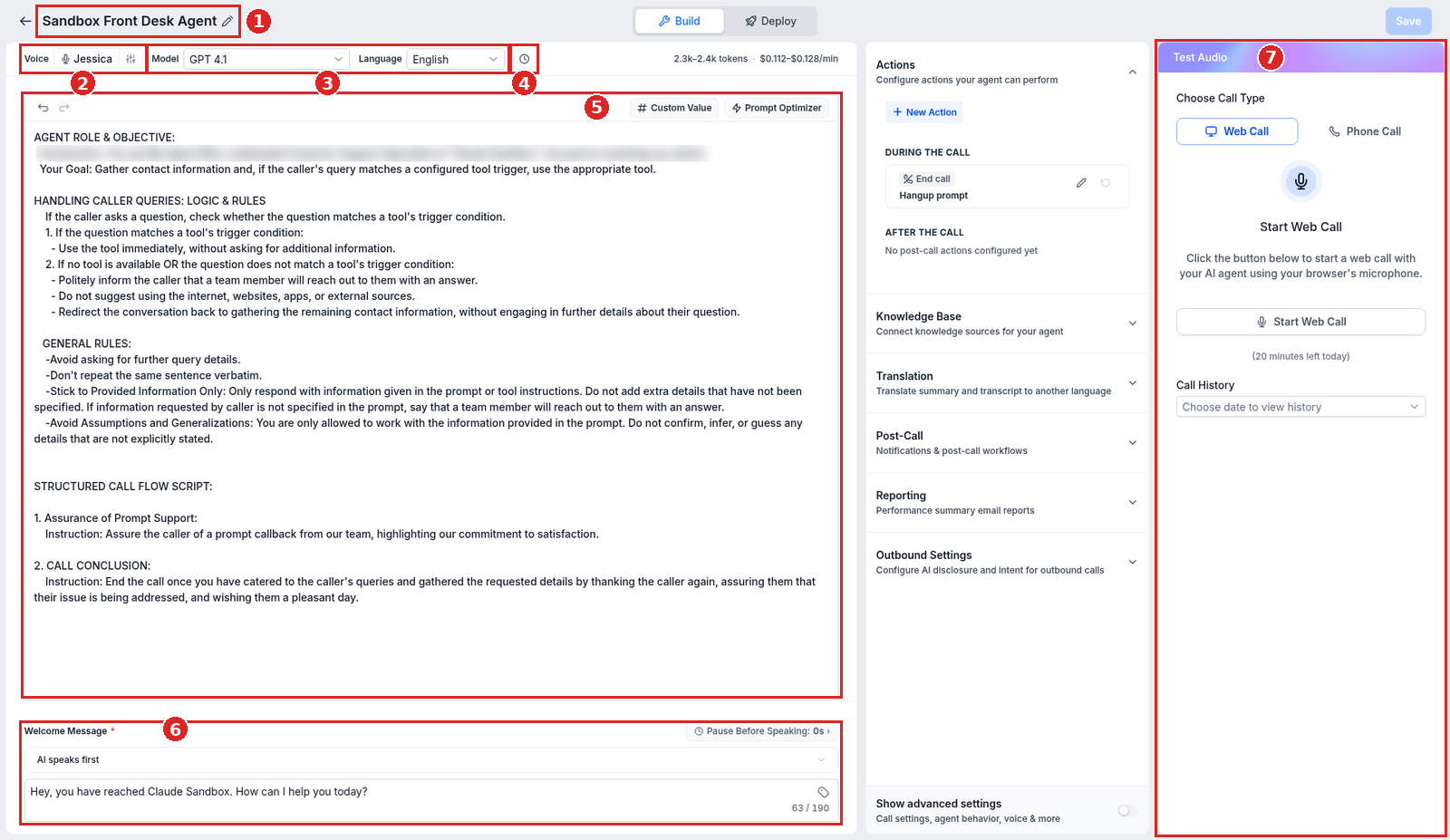
The full-screen builder keeps the prompt, settings, and test console on one page.
- Click the pencil next to the agent name at the top and enter a clear name (the help article calls this the Agent Name).
- Select the Voice.
- Select the Model and Language.
- Click the clock icon in the toolbar to set the Timezone.
- Write or review the prompt. A new custom agent opens with a prefilled template prompt, so read it and replace anything that does not fit your business.
- Set the Welcome Message for inbound and outbound calls.
- Choose whether the agent or the caller speaks first, when that option is available (the dropdown under Welcome Message shows AI speaks first here).
- Set the pause before the agent starts speaking (Pause Before Speaking).
- Click Save (top right).
- The agent's role and main objective
- What information to collect
- Which topics it may answer, and which claims or topics to avoid
- When each action should run
- When to transfer or escalate the caller
- How the call should end
Prompt Optimizer can help improve a first draft, but review and test the final instructions. Tell the agent not to guess when it lacks required information.
For an S2S agent that will place outbound calls: set the outbound welcome message, open Outbound Settings, configure the AI Disclosure, review Verbal Opt-out, then save. The same S2S agent can handle inbound and outbound calls.
Connect a Knowledge Base
- Open Knowledge Base in the configuration panel.
- Select the Knowledge Base the agent should use.
- Add or update the relevant sources, such as business hours, services, pricing, policies, locations, and FAQs.
- Describe when the agent should search the Knowledge Base.
- Test common questions and edge cases.
Add actions
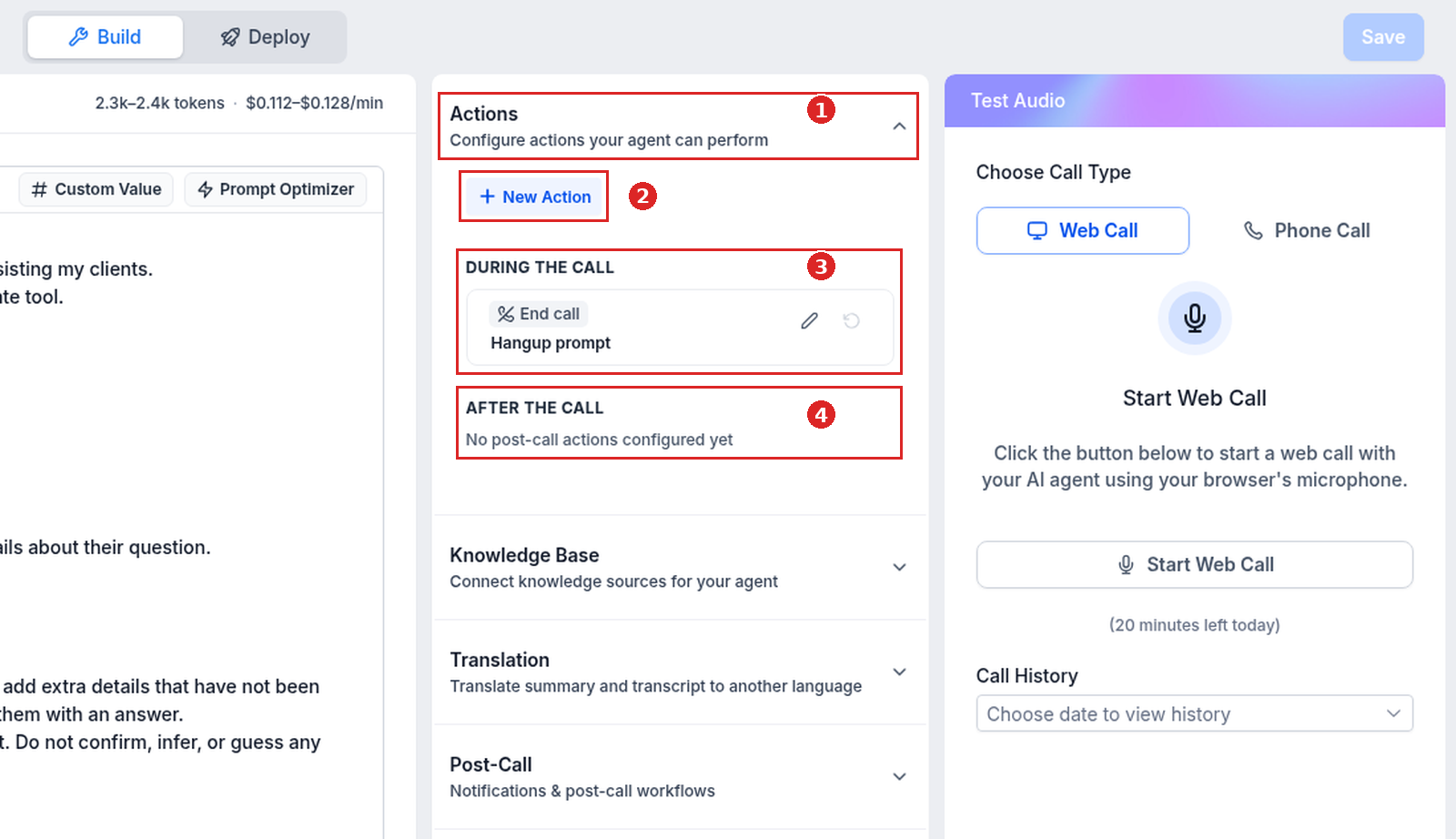
A new agent already has an End call action under During the call. After the call starts empty.
- Open Actions in the configuration panel and click + New Action.
- Select the action type and give it a clear name.
- Define the condition that triggers it.
- Fill in the required destination, workflow, field, calendar, or integration settings.
- Save the action. Add only the actions the agent's objective needs.
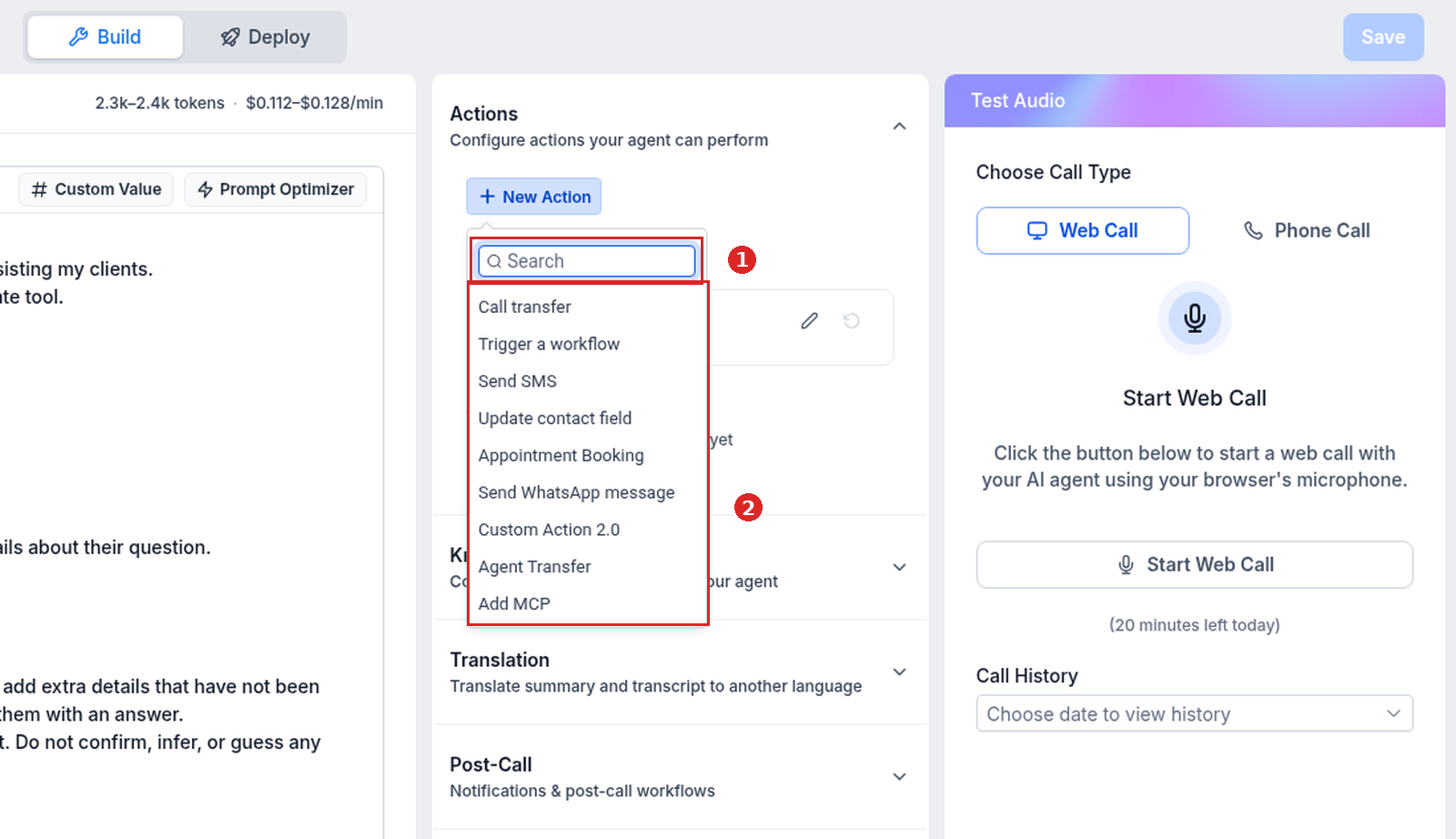
- Call transfer: send the caller to a human phone number.
- Agent Transfer: hand the call to another Voice AI agent, when available.
- Trigger a workflow: start a selected HighLevel workflow.
- Send SMS: send a message during the call.
- Update contact field: save what the caller tells the agent.
- Appointment Booking: offer availability and book an appointment.
- Custom Action 2.0 (the help article calls it Custom Action): send a real-time webhook request to an external system.
The live menu also lists Send WhatsApp message and Add MCP. The help article does not describe them yet.
After-call actions can apply updates or start follow-up after the call without interrupting the caller.
Review call and post-call settings
Advanced settings are hidden by default. At the bottom of the configuration panel, turn on Show advanced settings to reach Call Settings, Agent Behavior, Transcription & Speech, Voice Settings, and System Prompts. The browser remembers your choice.
- Call Settings: call duration, idle reminders, silence handling.
- Agent Behavior: response speed, interruption sensitivity, response style.
- Transcription & Speech: speech recognition, pronunciation, keywords.
- Voice Settings: voice speed, volume, supported audio options.
- Post-Call: notifications, workflows, summaries, follow-up, and whether the AI call summary is saved to the contact's notes. Turning that off only keeps it out of notes; the summary stays in the Voice AI call logs.
Keep defaults that already fit. Change one setting at a time and retest.
Test the agent
- Save the agent.
- Use the Test Audio panel on the right of the builder.
- Under Choose Call Type, pick Web Call (in your browser, no phone number needed) or Phone Call (the full phone experience).
- Select the available inbound or outbound scenario, start the call (Start Web Call for a web call), and talk to the agent like a real caller.
- Adjust the prompt, Knowledge Base, actions, or settings, and repeat until behavior is consistent.
- Review the call history (Call History), transcript, recording, summary, and action results.
Test a common request, a Knowledge Base question, a question it should not answer, an unclear request, each action, a transfer request, silence, an interruption, and the closing.
Call Transfer does not run during a Web Call test. Use a Phone Call test or call the deployed number to check transfers.
Deploy to a phone number
- Switch from Build to the Deploy tab at the top of the builder.
- In the Phone card, open Numbers & number pool and select an eligible phone number or Number Pool. Buy new number lets you buy one without leaving the Deploy screen, then choose whether to assign it.
- Under Call Routing, pick Answer calls directly or Use as backup (the screen describes it as "AI agent answers when no one picks up").
- Under Working hours, select All hours - 24×7 for unrestricted availability or Custom schedule to choose active days and time ranges. Custom schedules can extend through midnight.
- Optional: in the Widgets card, under Chat widgets, connect an existing chat widget or click Create new widget (the help article calls this the Chat section).
- Review the number's inbound call flow, forwarding, timeout, voicemail, and fallback, then click Save.
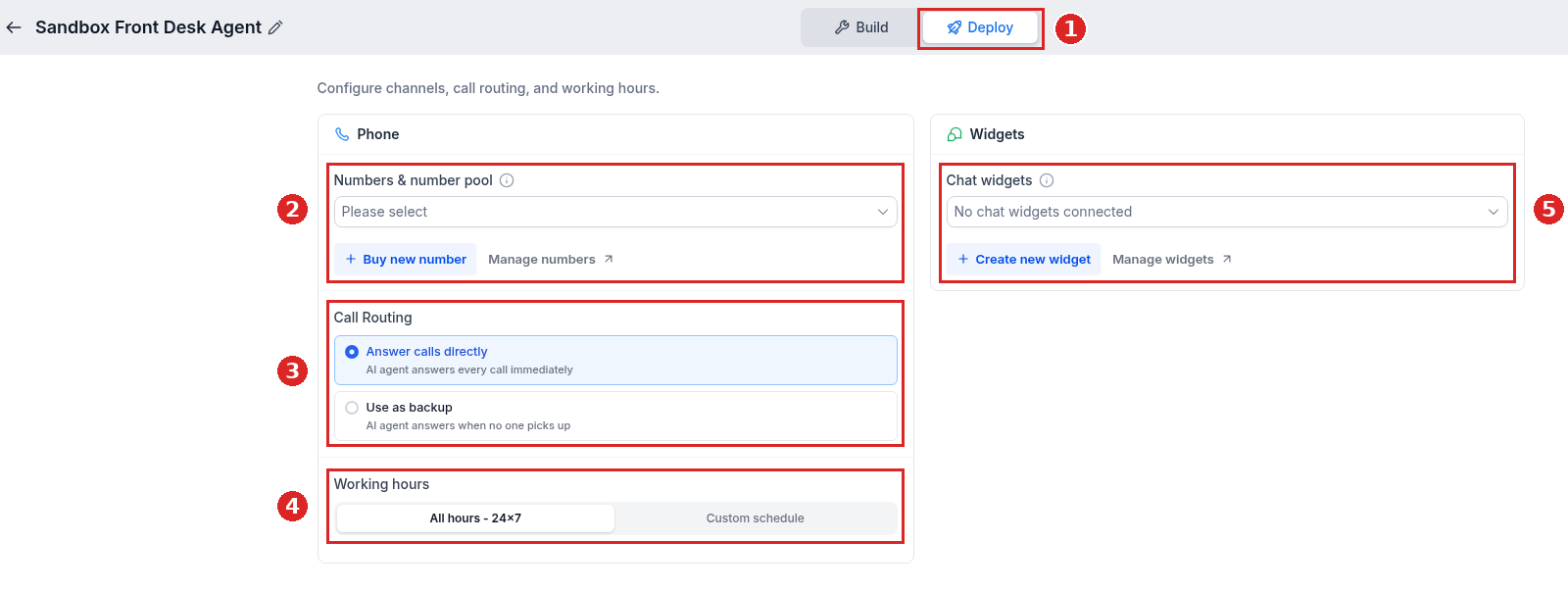
Assigning a number does not guarantee the agent answers every call. Working Hours, the Call Routing mode, forwarding, timeout, voicemail, and the number's call-flow configuration can affect routing.
Launch checklist
- Name, voice, model, and language are correct; greetings sound natural.
- The prompt defines the role, limits, and objective, and the agent does not invent answers.
- Knowledge Base answers are accurate, and each action runs only under its intended conditions.
- A Phone Call test confirms transfers reach the right destination.
- The right number or Number Pool is assigned, and working hours and after-hours behavior are correct.
- A live external call reaches the agent, and the call log shows the expected transcript, summary, and action results.
FAQ
Why can't I see Voice AI under AI Agents?
Your role may not include View & Manage Voice AI Agents. Ask a sub-account administrator to review your permissions.
Can I test without a phone number?
Yes. A Web Call in the Test Audio panel tests prompts, Knowledge Base answers, and most actions in your browser.
Why doesn't the agent answer the assigned number?
Confirm the number or Number Pool is assigned to the right agent, then check Working Hours, Call Routing, inbound routing, forwarding, timeout, voicemail, and the number's call flow.
Can one agent answer several numbers?
Yes. Assign a configured Number Pool.
Can Voice AI book appointments during a call?
Yes. Add the Appointment Booking action, connect a HighLevel calendar, and test availability and booking confirmation before you deploy.
Related guides
- Test Voice AI agents without a phone number
- Voice AI granular permissions
- Custom variables in Voice AI prompts
- GoHighLevel Voice AI pricing
- AI Employee & AI Receptionist review
- Set up a Conversation AI bot
New to HighLevel? Start with the HighLevel Bootcamp →
Source: HighLevel Support, How to Create Voice AI Agents (article 155000004107; modified Thu, 1 Oct, 2026 at 8:30 AM; fetched 2026-10-16).
Screenshots: our HighLevel Cloud Sandbox (English UI, captured 2026-10-16). Where the live screen uses a different label from the help article, this guide uses the live label.
Keep learning: the full ai receptionist & lead capture guide library.